
Adapted from the canonical English UIX documentation by Lint-Free-Technology/uix, CC BY 4.0. Source:
dev/ 9.0.0-beta.2, revision 26e54e6, reviewed 22 October 2026. This source mirror may describe preview behavior beyond stable 8.4.0. Markup adapted for this site; the original documentation remains authoritative.
UIX actions
UIX has several custom actions which can be used on Home Assistant Frontend dashboards. These are invoked using action: fire-dom-event with a uix: object to set the action and any parameters set in the data: object. UIX actions can be used on any card that supports the fire-dom-event action which includes all standard Home Assistant cards.
INFO
UIX action data: object parameters are as required by the Home Assistant event called and are not chosen by UIX. This gives rise to multiple action config items which may be confusing. However, each has their place. If you have any issues make sure to follow the documented config for each UIX action.
# ... card config
  tap_action:
    action: fire-dom-event
    uix:
      action: <action>
      data:
<action-data>INFO
action: clear_cache and action: more_info are also valid config and translate to action: clear-cache and action: more-info respectively.
clear-cache - clearing Home Assistant Frontend cache
Clears the Home Assistant Frontend Application cache and reloads the Browser - localStorage remains untouched. This can be very convenient especially for devices where the option is hidden in a debugging menu and will also clear more than just the Frontend Application cache (e.g. localStorage which clears out many stored items like Browser Mod Browser ID).
| config | setting | default | description |
|---|---|---|---|
action: clear-cache | - | - | Clears the Home Assistant Application cache and reloads the Browser. |
data: | - | - | not used |
Example button to clear cache and reload.
show_name: true
show_icon: true
type: button
name: Clear Frontend Cache
tap_action:
  action: fire-dom-event
  uix:
action: clear-cacheevent - dispatch a browser event
Dispatches a CustomEvent on window. This is useful for connecting a button action to a UIX Broker interaction in the browser realm without adding a fire-dom-event listener that unwraps another event.
| config | setting | default | description |
|---|---|---|---|
action: event | - | - | Dispatches a browser CustomEvent on window. |
name | REQUIRED | - | Event name. |
data | - | {} | Event detail. |
For a normal dashboard action, the event is dispatched on window. For a UIX Broker button directive, UIX automatically dispatches from the button's placement reference — its after target, before target, or directive anchor — with bubbles: true and composed: true. The receiving Broker interaction can therefore use an event-path anchor such as target, <, or <$; it does not need to re-search from an absolute select_tree path.
When an event action is triggered by a UIX Forge form spark, the current form values are appended to this action's data and become properties of the event detail.
For example, this Broker button dispatches toggle-yaml-mode from its placement reference:
- type: button
  before: $ ha-automation-sidebar $$ ha-automation-sidebar-card $ ha-dialog-header slot:nth-of-type(3) ha-dropdown
  icon: mdi:code-braces
  tap_action:
    action: fire-dom-event
    uix:
      action: event
      name: toggle-yaml-mode
      data:
source: sidebar-buttonmore-info - show Home Assistant more-info for an entity with starting view
Shows the Home Assistant more-info dialog with the option to set the starting view of the more-info dialog.
| config | setting | default | description |
|---|---|---|---|
action: more-info | - | - | Shows the Home Assistant more-info dialog with entity and view options set with data: |
data: | - | - | More-info entity and view options. |
entity | - | Entity Id of the entity for which to show more-info. | |
view | info | Initial view of the more-info dialog. Can be set to info, history, settings, related, add_to , details |
Example showing more-info with history view.
type: tile
entity: light.bed_light
tap_action:
  action: fire-dom-event
  uix:
    action: more-info
    data:
      entity: light.bed_light
view: historytoast - show Home Assistant toast notification
Shows a Home Assistant toast notification.
| config | setting | default | description |
|---|---|---|---|
action: toast | - | - | Shows the Home Assistant toast notification with options set with data: |
data: | - | - | Toast options. |
id | - | id of the toast message. Provide the same id to replace any existing toast message with the same id | |
message | REQUIRED | String or object. Provide string for a message without translation. Provide an object with translationKey and optional args to use a translated message from the Home Assistant translation collection. | |
duration | 4000 | Duration in ms for which to show the toast. Any duration less than 4000 will be set to 4000 (4 seconds). Use -1 to have the toast to show indefinitely - will be replaced if another toast is shown. | |
dismissable | false | Shows a close icon to allow the toast message to be immediately dismissed by the user. | |
bottomOffset | 0 | A positive offset to add to the vertical position above the bottom of the Browser window. toast messages show at a position --ha-space-4 (Default: 16px) above the bottom of safe area of the Browser window. | |
action | - | If provided shows a button which will execute the configured action.tap_action when clicked. | |
action.primary | - | If true renders the action button in primary style which is filled appearance to make it stand out against the toast background. Button variant is always brand. | |
action.text | REQUIRED | String or object. Provide string for a message without translation. Provide an object with translationKey and optional args to use a translated message from the Home Assistant translation collection. | |
action.tap_action | REQUIRED | Home Assistant action config | |
secondary_action | - | If provided shows a button to the left of the action button which will execute the configured secondary_action.tap_action when clicked. | |
secondary_action.primary | - | If true renders the secondary_action button in primary style which is filled appearance to make it stand out against the toast background. Button variant is always brand. | |
secondary_action.text | REQUIRED | String or object. Provide string for a message without translation. Provide an object with translationKey and optional args to use a translated message from the Home Assistant translation collection. | |
secondary_action.tap_action | REQUIRED | Home Assistant action config |
Example toast with action with translated action text.
type: tile
entity: light.bed_light
tap_action:
  action: fire-dom-event
  uix:
    action: toast
    data:
      message: "Bed Light"
      duration: 10000
      dismissable: true
      bottomOffset: 550
      action:
        primary: true
        text:
          translationKey: ui.dialogs.more_info_control.light.toggle
        tap_action:
          action: perform-action
          perform_action: light.toggle
          target:
            entity_id: light.bed_light
      secondary_action:
        text: Custom
        tap_action:
          action: perform-action
          perform_action: light.toggle
          target:
            entity_id: light.ceiling_lights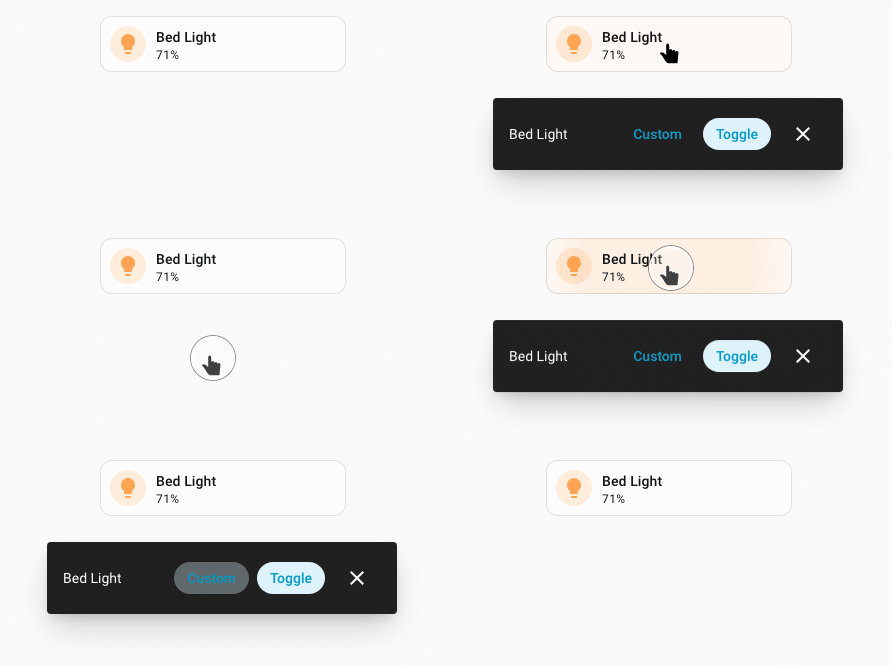
popover - show an anchored Home Assistant popover
Shows a Home Assistant adaptive popover anchored to the element that triggered the ll-custom action. It includes Home Assistant's standard accessible close button and removes itself after it is closed.
| config | setting | default | description |
|---|---|---|---|
action: popover | - | - | Shows an adaptive popover with options set in data:. |
data: | - | - | Popover options. |
target | action source | An Element to anchor beside. Set to none to render a centered adaptive dialog under Home Assistant's shadow root. | |
title | - | Sets the popover headerTitle. | |
subtitle | - | Sets the popover headerSubtitle. | |
subtitle_position | below | Sets the header-subtitle-position attribute. Accepted values are above and below. | |
width | small | Sets the popover width. Accepted values are small, large, and full. | |
without_header | false | When true, hides the header and its close button. The popover can still be closed with Escape unless dismissible is false. | |
dismissible | true | Allows the close button, Escape, and outside dismissal. Set to false to require a footer button. dismissable is accepted as an alias. | |
content | - | HTML content to place inside the popover. Cannot be used with card. | |
card | - | Home Assistant card configuration rendered inside the popover. Cannot be used with content. | |
style | - | Flat map of CSS property names and string or numeric values, applied inline to ha-adaptive-popover. | |
uix | - | UIX styling configuration applied to the popover as a dialog with class type-uix-popover. | |
icons | - | List of icon-only action buttons placed in the header. Each entry requires icon. | |
buttons | - | Optional footer button configuration. At least one button is required when dismissible is false. | |
buttons.primary | - | Button placed at the footer's primary end. Defaults to variant: brand and appearance: accent. | |
buttons.secondary | - | Button placed before the primary button. Defaults to variant: neutral and appearance: filled. |
buttons.primary and buttons.secondary use the same button settings as a Forge button spark, except placement settings are not used. Set label, icon, start_icon, end_icon, entity, size, variant, appearance, and any of tap_action, hold_action, or double_tap_action as needed. Footer positions are logical: primary is on the right in left-to-right layouts and on the left in right-to-left layouts. A button with an action closes the popover after that action runs; an action-less button closes it on click.
When the popover card contains a UIX Forge form spark, its current form values are appended to the action data for both footer buttons. The form spark may omit its own Submit and Clear buttons in this layout.
Set target: none to show the same content as a centered adaptive dialog instead of anchoring it to the action source. An integration or custom caller may instead provide an actual DOM element as target to choose a different anchor.
Each icons entry uses Home Assistant's native round icon button. It must set icon; use label to provide its accessible name. It supports entity, color, and tap_action, hold_action, or double_tap_action. Header icons do not close the popover, which makes them suitable for actions such as opening settings or help.
Use style for direct properties on the popover and uix to style its header, footer, or other internals using the usual UIX DOM navigation. The action data is available to UIX templates as config. A card rendered with card receives the uix-popover-card class. Style .uix-popover-card directly to set CSS custom properties on the card host without crossing a shadow root; use ".uix-popover-card $" for rules inside the card's shadow root.
For example, show HTML content in a popover when a button is selected:
type: button
show_icon: false
name: Popover
tap_action:
  action: fire-dom-event
  uix:
    action: popover
    data:
      title: Bed light
      subtitle: Quick controls
      subtitle_position: above
      width: small
      content: |
        <p>You can toggle the light using the primary action.</p>
        <p>You can navigate to config/dashboard with the cog icon.</p>
      style:
        "--ha-dialog-border-radius": 12px
      uix:
        style:
          "$": |
            .content-wrapper {
              --dialog-content-padding: 0 var(--ha-space-6) var(--ha-space-6);
            }
      icons:
        - icon: mdi:cog
          label: Settings
          tap_action:
            action: navigate
            navigation_path: /config/dashboard
      buttons:
        secondary:
          label: Cancel
        primary:
          label: Toggle
          entity: light.bed_light
          tap_action:
            action: toggle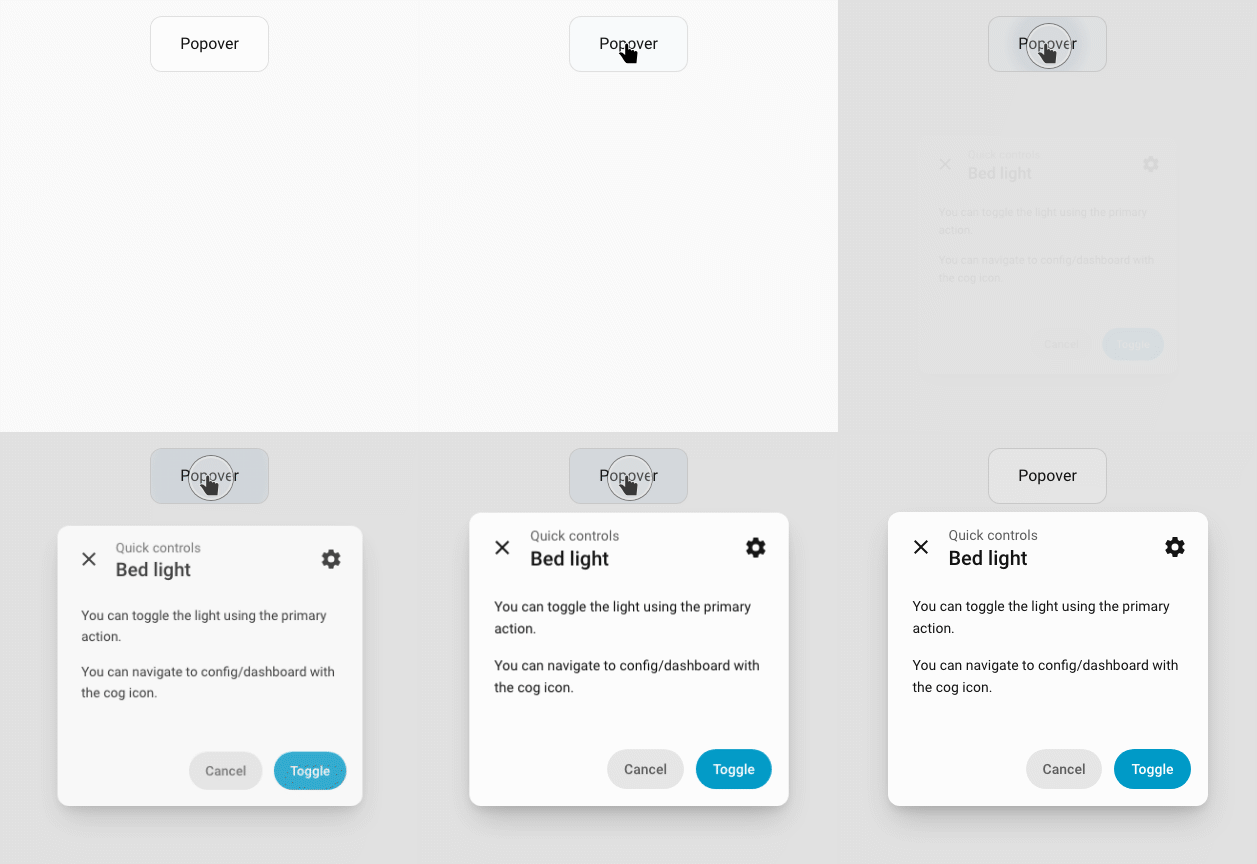
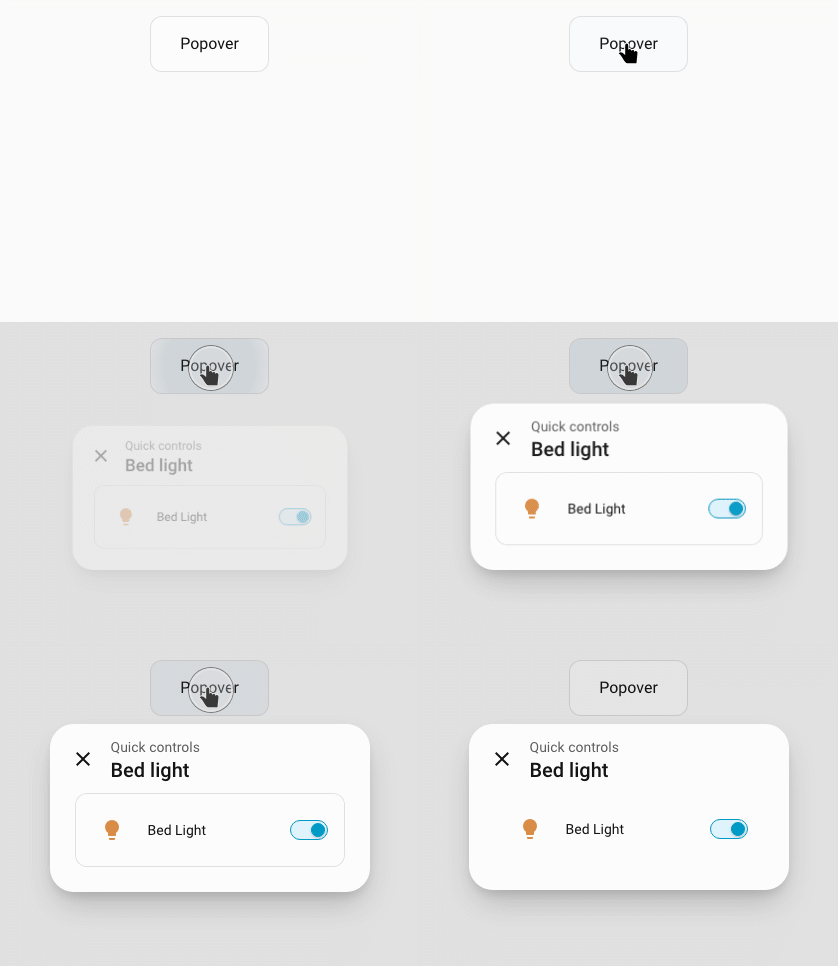
To render a card instead, replace content with card - this example includes clearing card border and background using UIX styling:
type: button
show_icon: false
name: Popover
tap_action:
  action: fire-dom-event
  uix:
    action: popover
    data:
      title: Bed light
      subtitle: Quick controls
      subtitle_position: above
      width: small
      card:
        type: entities
        entities:
          - light.bed_light
      uix:
        style: |
          .uix-popover-card {
            --ha-card-border-width: 0px;
            --ha-card-background: none;
          }
javascript - run javascript code in Browser session
Runs JavaScript code in the browser session with hass provided and an optional variables object.
WARNING
This action executes arbitrary JavaScript in the current Home Assistant frontend session. Only use trusted code/config and be aware it can access data available to the browser session.
| config | setting | default | description |
|---|---|---|---|
action: javascript | - | - | Runs javascript code with options set with data: |
data: | - | - | Javascript options. |
code | REQUIRED | Javascript code to run. | |
variables | {} | Optional variables object. Each named variable is available in javascript as variables.<name>. Named variables can be of any type. |
When a JavaScript action is triggered by a UIX Forge form spark, the current form values are appended to data.variables and are available as variables.<field-name>.
Example javascript action with variable and using hass object to turn off a light.
type: tile
entity: light.bed_light
tap_action:
  action: fire-dom-event
  uix:
    action: javascript
    data:
      variables:
        entity_id: light.bed_light
      code: |
        console.log("UIX: Custom javascript action executed!");
hass.callService("light", "turn_off", {}, { entity_id: variables.entity_id });locked_action - require a code or confirmation before an action
Runs a normal Home Assistant action only after the current user passes the configured lock. It is useful for actions such as restarts, opening gates, or changing a critical setting without needing to wrap the entire card in a Forge lock.
type: button
name: Restart Home Assistant
tap_action:
  action: fire-dom-event
  uix:
    action: locked_action
    data:
      locks:
        - code: 1234
          admins: true
      locked_action:
        action: perform-action
perform_action: homeassistant.restartWARNING
locked_action is a frontend interaction guard, not an authorization boundary. Anyone who can edit the dashboard or inspect its loaded configuration can see the code and the protected action. Use Home Assistant permissions and server-side controls for access control.
Configuration reference
| Key | Type | Default | Description |
|---|---|---|---|
locked_action | object | — | Required. The Home Assistant action to run after the lock is passed. |
locks | list | [] | Ordered list of lock entries. See Lock matching and Lock entry keys. |
permissive | boolean | false | When true, users who do not match a lock entry may run the action. |
entity | string | — | Entity ID supplied to the nested action, for action types that use the card entity. |
code_dialog | object | — | Labels for the code/passphrase dialog. See Code dialog. |
id | string or number | — | Stable identifier for retry and lockout tracking. Strongly recommended when using retry_delay or max_retries; use a distinct ID for each protected action. |
locked_action accepts any ordinary Home Assistant action object, including perform-action, toggle, more-info, navigate, and fire-dom-event.
Lock matching
locks is an ordered list. The first matching active entry determines the challenge. If no active entry matches, the first matching active: false entry allows the action without a challenge.
| Configuration | Who it matches |
|---|---|
users list present | Users whose name is in the list. With admins: true, all admins also match. |
No users list | All non-admin users except users in except. |
No users list with admins: true | All users except users in except. |
admins is additive: without it, admins are excluded from an entry unless listed in users. When no lock entry matches, permissive: true permits the action; with the default permissive: false, admins bypass the action guard and non-admins cannot run the action.
Lock entry keys
| Key | Type | Default | Description |
|---|---|---|---|
active | boolean | true | Set to false to explicitly allow matching users without a challenge. |
code | string or number | — | Code to enter. An all-numeric code shows the Home Assistant number pad; other values use a password field. |
pin | string or number | — | Alias for code. |
confirmation | string, boolean, or object | — | A confirmation after any code. true uses Home Assistant's default text; a string supplies custom text; an object may provide title and text. |
users | list of strings | — | Usernames this entry applies to. |
admins | boolean | false | Extends the entry to admins. On an entry without users, this makes it apply to all users. |
except | list of strings | — | Usernames exempt from an entry without users. |
retry_delay | number or string | — | Delay after a wrong code before another attempt. Numbers are milliseconds; strings accept units such as "10s". |
max_retries | number | — | Wrong-code attempts allowed before the extended lockout. |
max_retries_delay | number or string | 30000 | Lockout duration after max_retries. Numbers are milliseconds; strings accept units such as "30s" or "5m". |
Code dialog
Use code_dialog to customise the code or passphrase prompt.
| Key | Type | Default | Description |
|---|---|---|---|
title | string | Home Assistant default | Dialog title. |
submit_text | string | Home Assistant default | Confirm button label. |
cancel_text | string | Home Assistant default | Cancel button label. |
Retry tracking
Retry state is retained in the current browser session. Set id whenever a retry delay or lockout matters, especially if dashboard configuration can be regenerated by a template or another custom card: an explicit ID survives control recreation. The same ID shares a retry count, so different protected actions should use different IDs.
tap_action:
  action: fire-dom-event
  uix:
    action: locked_action
    data:
      id: restart-home-assistant
      code_dialog:
        title: Enter administrator PIN
        submit_text: Restart
      locks:
        - code: 1234
          admins: true
          max_retries: 3
          max_retries_delay: 5m
      locked_action:
        action: perform-action
        perform_action: homeassistant.restart