
Image gallery
An overview of the editor, followed by the collected toolbar, settings and widget palette screenshots, plus an animated rotary-control demo. Click an image to open it at full resolution. Recordings show the development version at the time they were taken; the interface shown is in German.
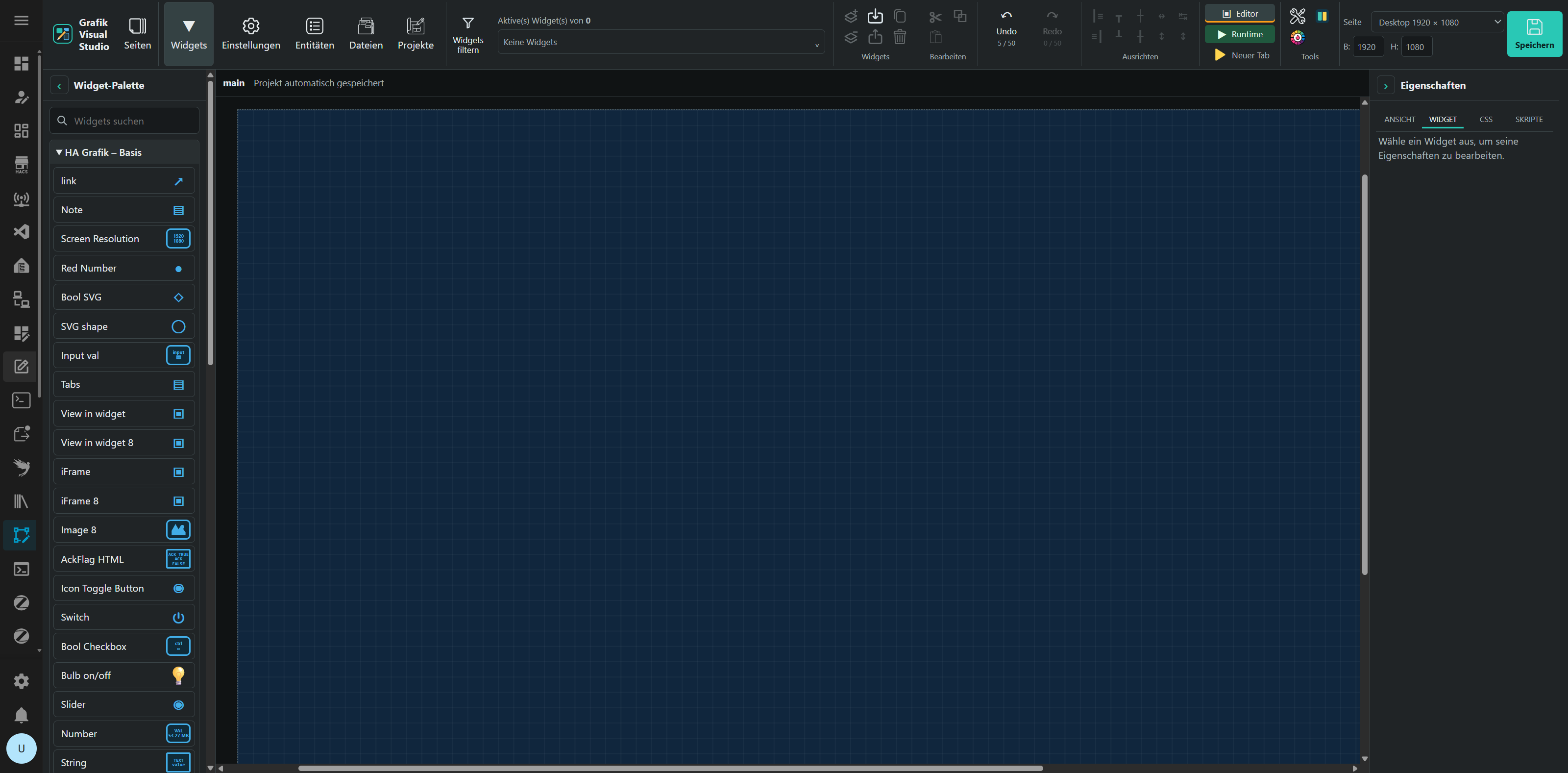
Editor interface overview
Choose widgets from the palette on the left, arrange your visualization on the central grid and edit the selected widget's properties on the right. The top toolbar provides settings, entities, projects and the switch to runtime.
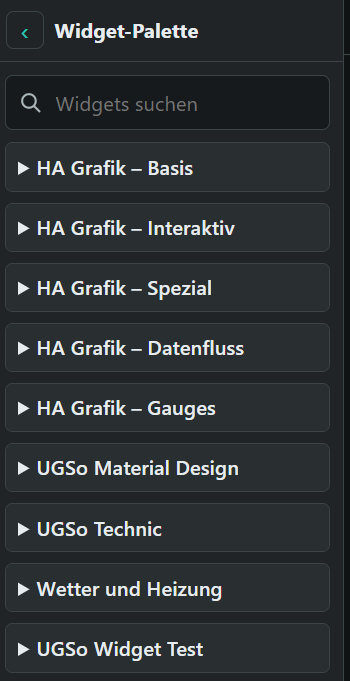
Widget list and packages
The widget palette organizes available widgets by group and installed package. Expand a group to choose its widgets or use the search to find matching entries.
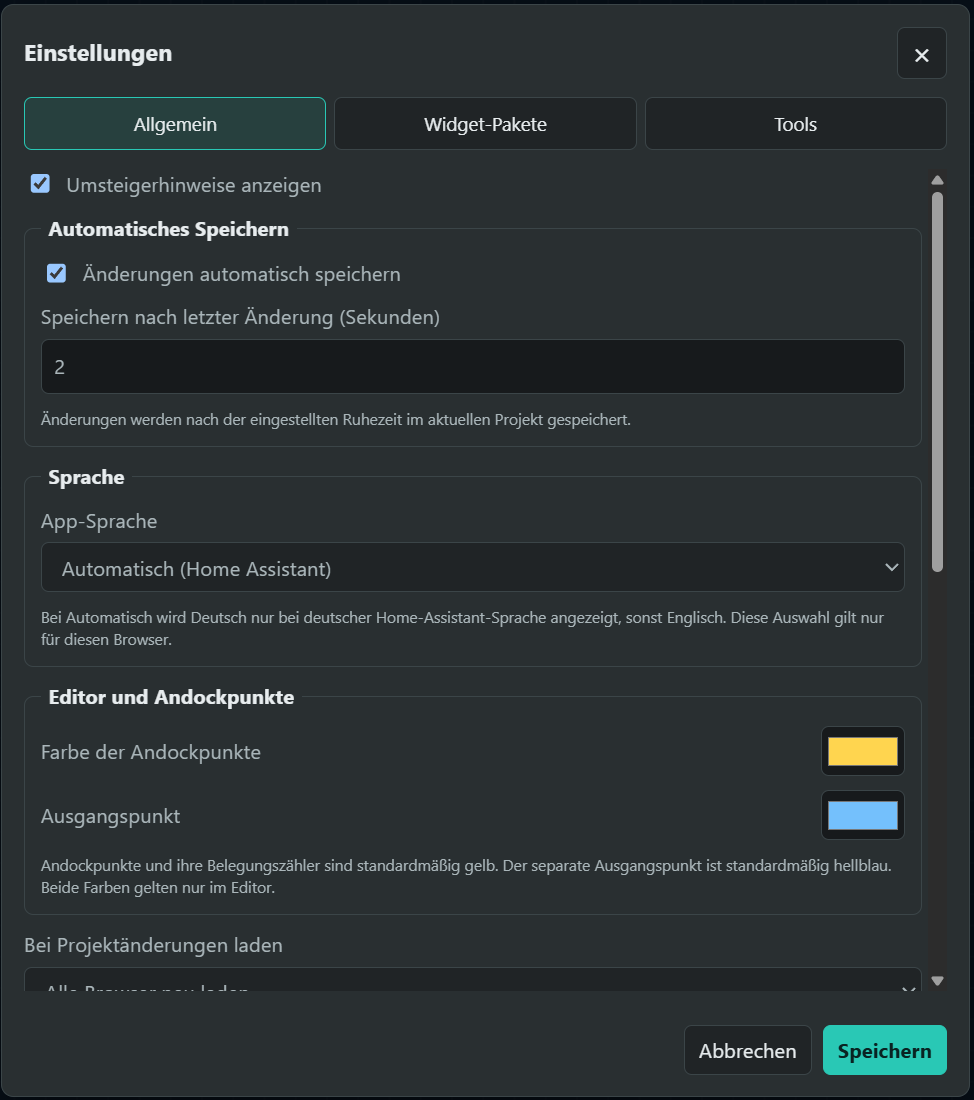
Settings – General (image 1)
General settings let you enable migration hints, configure automatic saving and the app language, and choose editor docking-point colors. The other tabs provide access to widget packages and tools.
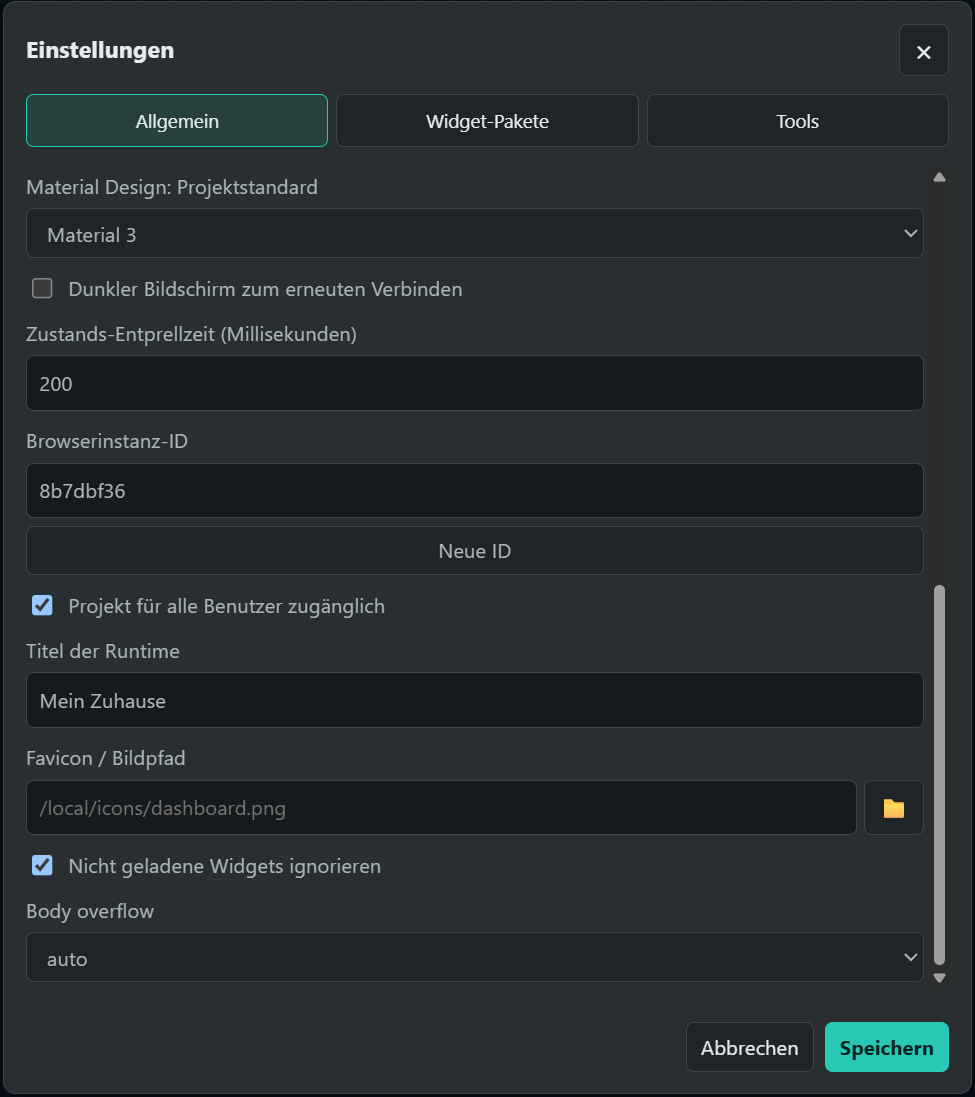
Settings – General (image 3)
Additional general settings cover the project's Material Design default, reconnection and state debounce time, browser instance ID and project accessibility. Runtime options include the title, favicon and scrolling behavior.
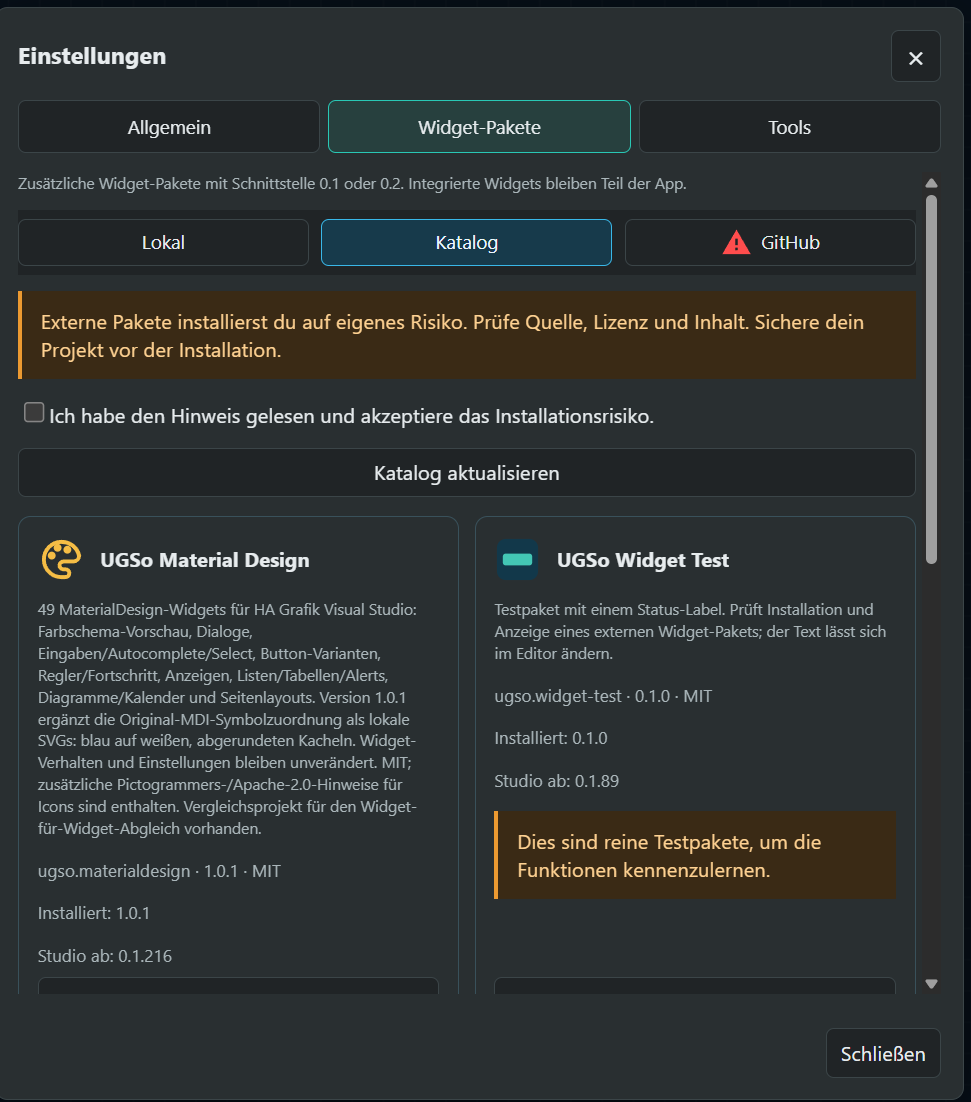
Settings – Widget packages (image 1)
Choose widget packages locally, from the catalog or via GitHub. Catalog entries show the description, license, package version, installation status and required Studio version. Installing external packages requires acknowledging the risk notice; test packages carry an additional label.
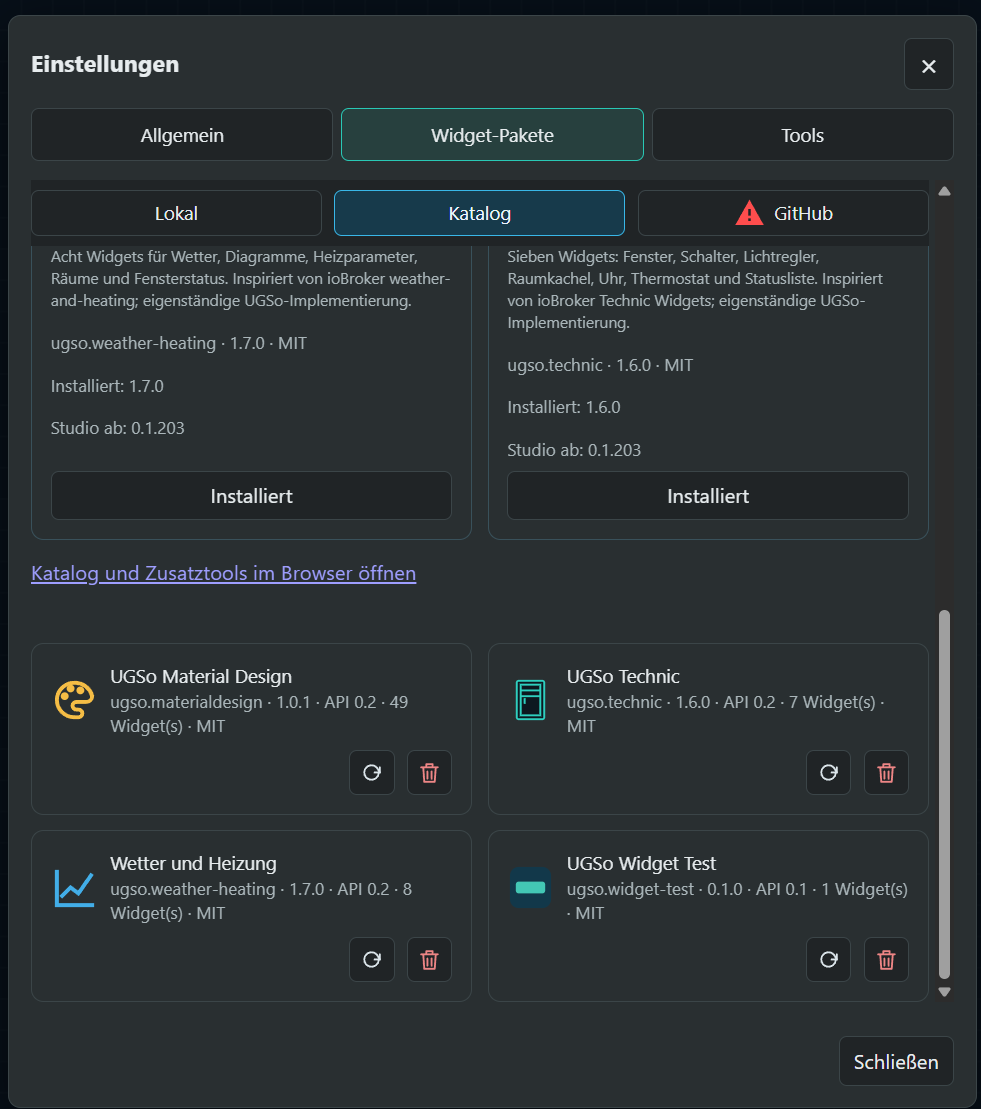
Settings – Widget packages (image 2)
Below the catalog entries, installed widget packages appear as cards showing their icon, version, API version, widget count and license. Card actions let you reload or uninstall a package. A link opens the web catalog and additional tools in the browser.
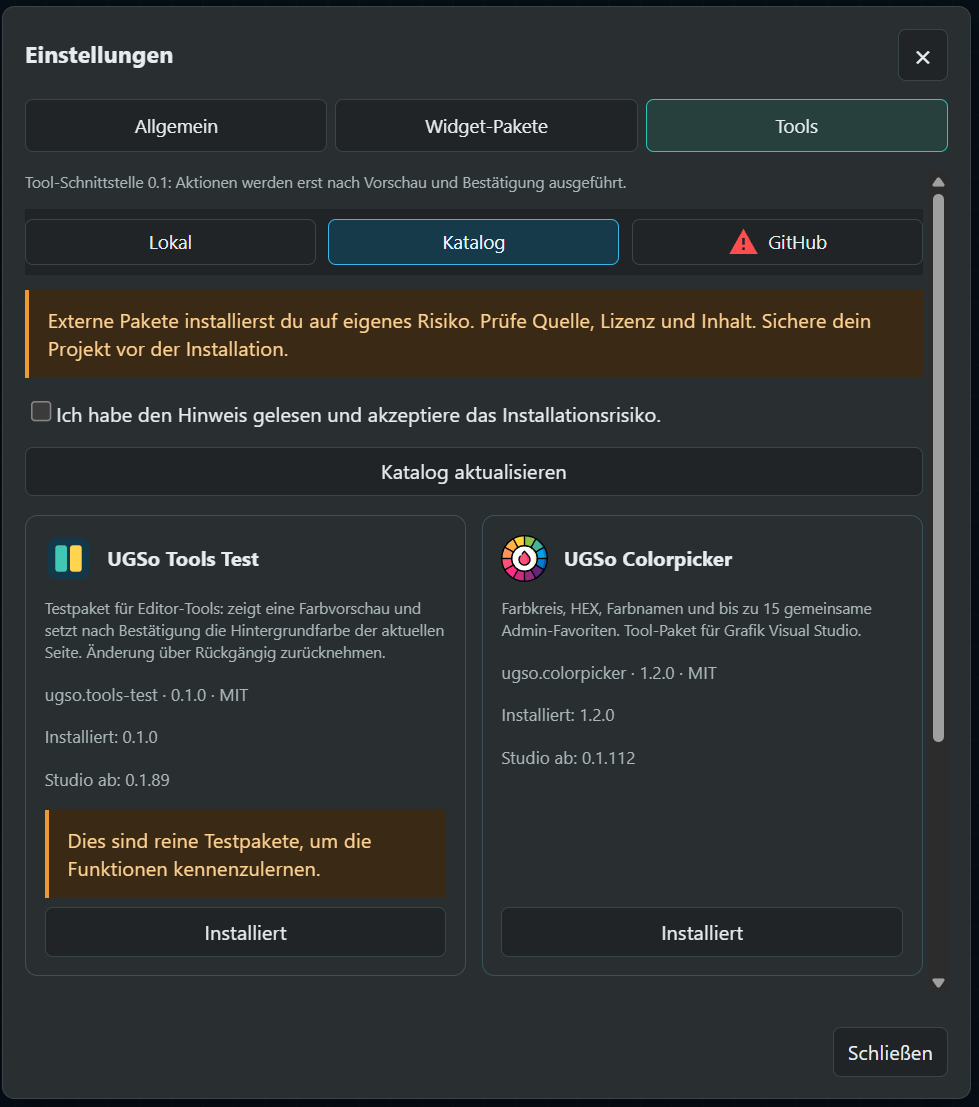
Settings – Tools (image 1)
The Tools tab lets you choose additional editor tools locally, from the catalog or via GitHub. Package cards show the description, license, version, installation status and required Studio version. This example shows the tools test package and Colorpicker. Installation requires acknowledging the risk notice; tool actions run after preview and confirmation.
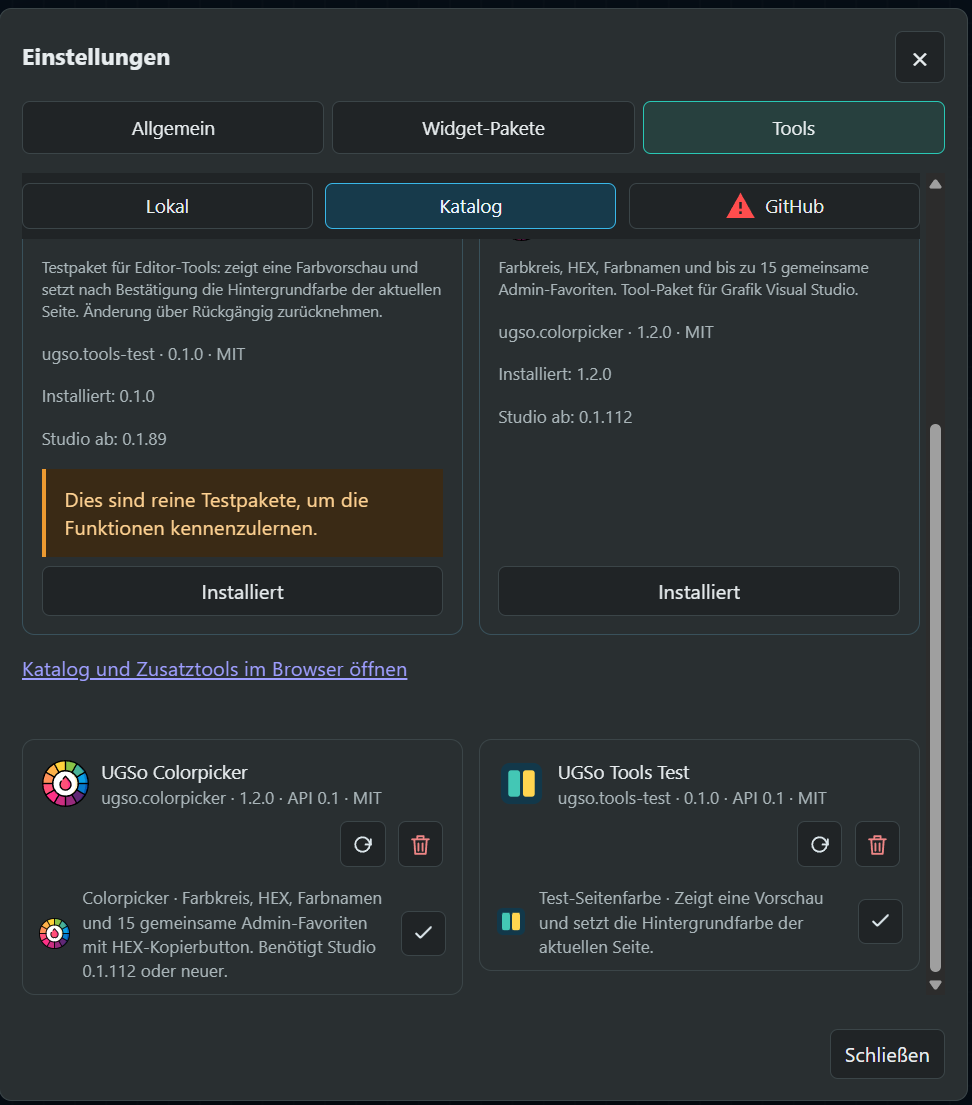
Settings – Tools (image 2)
Below the catalog entries, installed tool packages show their icon, version, API version and license. Cards provide reload and uninstall actions and an overview of the included tools. This example shows Colorpicker and the test page-color tool.

Toolbar (image 1)
The toolbar opens pages, the widget palette, settings, entities, files and projects. Filters and the selection list help you find and select widgets. Nearby actions control layers, import and export, duplication and deletion, as well as cut, copy and paste.

Toolbar (image 2)
The toolbar combines the main Studio sections with widget selection and editing actions. Many of these actions are disabled when no widget is selected.
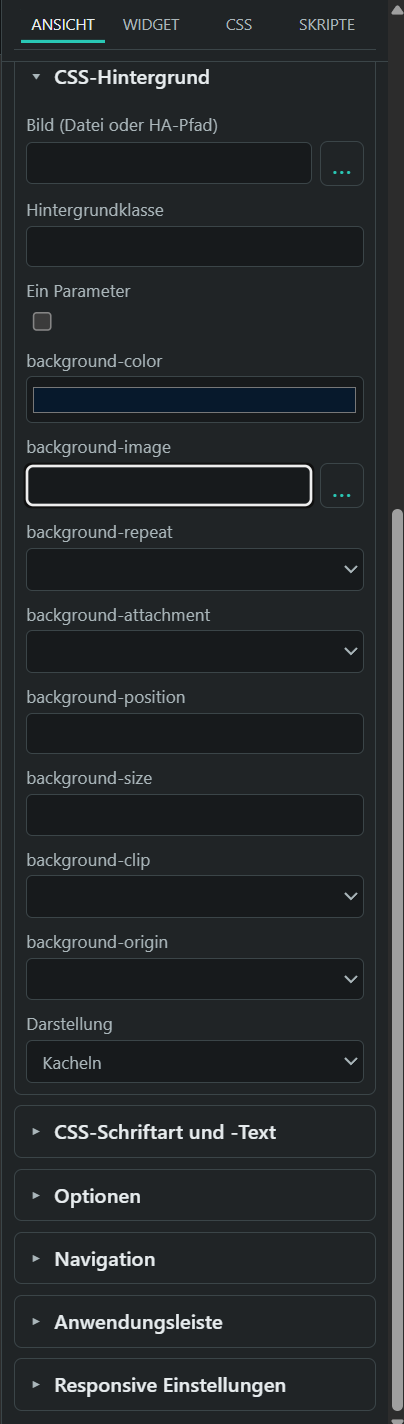
Sidebar – Page
The VIEW tab lets you edit the current page's properties. The expanded CSS background section provides image selection, background color and settings for repetition, position and size. Other collapsible sections contain font and text, options, navigation, app bar and responsive settings. Page sections require no activation checkboxes.
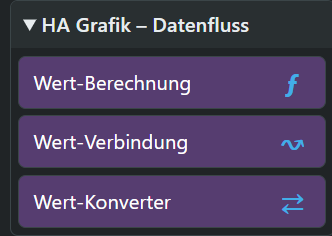
Widgets – Data flow
The HA Grafik – Data flow group contains value calculation, value connection and value converter widgets. Use them to calculate values, connect values between widgets and convert them.
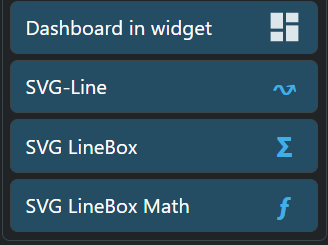
Widgets – Special
Special widgets include Dashboard in widget, SVG-Line, SVG LineBox and SVG LineBox Math. They extend the visualization with embedded dashboards, SVG connections and LineBox functions for values and calculations.
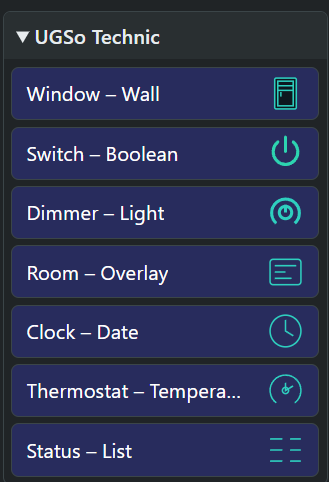
Widgets – UGSo Technic
The UGSo Technic package provides seven widgets for windows, switches, light dimmers, room views, clock and date, thermostat and temperature, and status lists. The palette shows each widget with a matching icon.
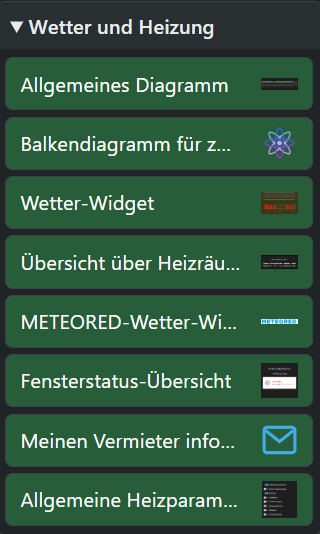
Widgets – Weather and heating
The Weather and Heating package contains eight widgets: general chart, two-week bar chart, weather widget, heating room overview, METEORED weather widget, window status overview, inform my landlord, and general heating parameters. The palette shows seven original preview images and an envelope icon for landlord notifications.
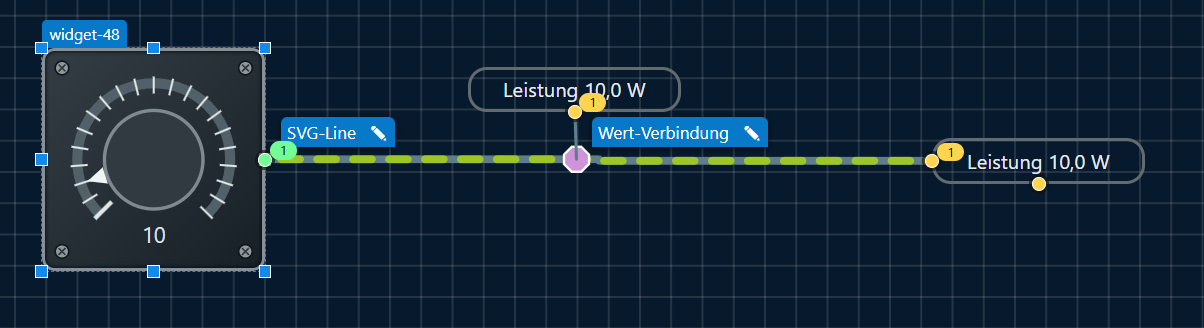
Rotary control and value connections in the editor
Editor setup for the following runtime demo: the rotary control connects to the SVG line. A value output point supplies the additional display through a value connection. The editor shows the ports and connection routes.

Rotary control, line animation and value display
Animated runtime demo: the rotary control supplies a numeric value to the SVG line and connected value displays. Moving dashes visualize the flow. The recording uses a reduced frame rate, so intermediate display updates may appear out of sync.
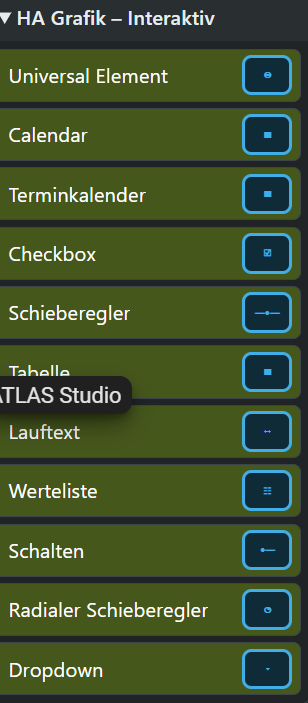
Widgets – HA Grafik Interactive
The HA Grafik – Interactive group contains Universal Element, Calendar, appointment calendar, checkbox, slider, table, scrolling text, value list, switch, radial slider and dropdown widgets. It provides controls for input and switching, as well as calendar, table and value list displays.