
Widget catalog
CSS standard from Studio 0.1.271: All widgets except Industrial expose the complete general, font/text, background, border, and shadow/spacing CSS groups. This also applies to future installed widget sets. Existing settings are preserved; newly added optional groups start disabled. Industrial retains its own housing controls.
Independent external set: Calendar +, from Studio 0.1.266. Automatically discovers all Home Assistant calendars, enabled by default; per-calendar show/hide, color and background. Event list, day groups and details popup with automatic DE/EN language. Inspired by xBourner/calendar-card-plus.
Autosave from Studio 0.1.265: The configured delay (for example, two seconds) starts after the latest detected change. With autosave enabled, failed saves are retried after five seconds, even without further edits. A hanging save request times out after 15 seconds instead of permanently blocking subsequent saves. Changes during a request remain eligible for the next save. Manual save waits for an ongoing request when necessary.
From Studio 0.1.264, Runtime and New tab save the current project before opening. Recently moved widgets therefore keep their positions without requiring a separate manual save first. This applies to all widget sets. Pending saves are awaited; if saving fails, the editor stays open. Runtime tabs already open must be reloaded after subsequent changes.
Independent external set: Printer, with printer status and 1–6 automatically evenly distributed cartridges, from Studio 0.1.261. Inspired by ADNPolymerase/ha-printer-card, with original SVG artwork and read-only Home Assistant bindings.
Another external set: Technic, with Window – Wall, from Studio 0.1.197. Inspired by Sefina-DS ioBroker Technic Widgets, with independent HA bindings and MIT licensing included in the package.
Optional: Weather and Heating, with General Chart (from 0.1.187), Two Weeks Bar Chart (from 0.1.188), Weather Widget (from 0.1.189), Heating Rooms Overview (from 0.1.190), METEORED Weather Widget (from 0.1.191), Window Status Overview (from 0.1.192), Inform my landlord (from 0.1.193) and General heating parameters (from 0.1.194). This package is separate from the 74 built-in widgets and automatically receives an unused set color.
The current catalog has 74 widgets in five groups. Names match the editor palette. Entity-bound widgets read the current Home Assistant state at runtime; unbound widgets use preview values or explicitly configured docking inputs. Writes are limited to the widget and entity types listed below. External state changes are currently polled every five seconds. A local slider change immediately affects bound Number and SVG-Line widgets while the write request is sent to Home Assistant.
VIS2-inspired Basic widgets retain their English names. Interactive widgets such as Event Calendar and Interactive Slider use translated palette names. Former palette names still work as search terms. Existing custom widget names remain unchanged.
HTML Logout is excluded and is not planned as a future Studio widget.
From Studio 0.1.135, technical widget names stay in the editor interface. The canvas and runtime show only custom captions; new widgets start with an empty title. This central policy also covers future widget packages and LineBox. Loading an older project removes previous stock titles once. Custom captions remain; you can then explicitly enter a former stock caption again.
Writable widgets: Switch, Icon Toggle Button, Bool Checkbox, Bool Select, Bool SVG, and Bool HTML (control) can control bound switch, light, or input_boolean entities. Bulb on/off controls those entities or sets an input_number helper to its configured minimum/maximum. Slider, Interactive Slider and Radial Slider write only input_number; Input val writes input_number or input_text. Note writes from its text dialog to an input_text helper without an attribute selection. In switch mode, Universal Element writes its false/true values; in button mode it writes the next configured value to a suitable switchable entity or number/text helper. Controls are disabled for unsupported or unavailable entities. Checkbox and Interactive Switch write their configured pairs to compatible switches or numeric/text helpers. Dropdown selects options in select/input_select or writes custom values to numeric/text helpers. Other widgets do not write HA state.
HA Grafik – Basis (46)
| Widget | Current behavior |
|---|---|
| Tabs | Starting with Studio 0.1.116: 1–20 horizontal or vertical tabs; horizontal variants are standard, centered or full width. Each tab has a title, icon or image, icon size/color and X/Y overflow settings. Content is an owned widget surface or an existing project page. Runtime embeds only the active content and remembers the selection locally in the browser. |
Editing Tabs
From Studio 0.1.122, the main Tabs settings include Dim inactive tabs (%), ranging from 0 to 90. At 0, colors remain unchanged; at 90, 10% brightness remains. Inactive header backgrounds, text and icons are dimmed together; the active header and tab content stay unchanged. This applies to horizontal and vertical layouts and is saved with the project.
From Studio 0.1.121, the main Tabs settings offer separate Active text color and Inactive text color. They apply to all tab labels according to the current selection. Empty values use the existing Tab color. Per-tab icon colors remain independent; Tab color still controls the active marker.
From Studio 0.1.120, Overflow X and Overflow Y offer none, visible, hidden, scroll, auto, initial and inherit. none removes the explicit CSS override, visible shows overflowing content, hidden clips it, scroll enables scrollbars and auto shows them when needed. initial uses the CSS initial value; inherit takes the parent element's setting. Without a saved selection, auto remains the default. CSS can affect both axes together, particularly when visible is combined with a scrollable other axis.
From Studio 0.1.119, each Tab [n] offers an independent Tab background color. It colors that tab header in horizontal and vertical layouts; the active tab marker remains visible.
Add Tabs from the palette and configure width and height once on the owner widget. Choose the content source under Tab [1], Tab [2], etc. Edit tab surface opens the owned surface with the normal widget palette or opens the referenced project page. Back to Tabs widget returns to the owner. Owned content dimensions follow the owner minus 44 px for horizontal tabs or up to 120 px for vertical tabs (at most half the widget width). Owned surfaces belong to the widget and are not separate project pages. Existing pages remain shared references; changes affect all embeddings.
From Studio 0.1.124, active tab contents render directly from the open project, without an iframe or reloading when switching tabs. Clicking the content area opens it for editing; returning immediately shows unsaved edits too. Continue saving before opening a separate runtime, especially with Auto-Save disabled. Runtime state polling includes active tab contents. Larger existing pages are shown without automatic scaling; X/Y overflow controls scrolling. Reducing the tab count preserves hidden owned contents, which reappear when the count is increased. Copying, grouping and export/import preserve owned contents; copies receive new widget and group IDs. Cyclic page embeddings are blocked. Nested Tabs widgets within owned surfaces are not supported yet. This is an original implementation and does not provide VIS2 import.
Other basic widgets
| Widget | Current behavior |
|---|---|
| link | Formatted HTML content linking to a URL. |
| Note | Note with an entity value, test text, optional corner and a text dialog. |
| Screen Resolution | Displays the current window resolution. |
| Red Number | Number displayed as a colored circle or pin with adjustable radius. |
| Bool SVG | Selects one of two SVG drawings according to the current state; can control a switchable entity or a suitable 0/1 helper. |
| SVG shape | Draws an SVG shape with color, stroke, rotation and scaling. |
| Input val | Text or number input (150 × 70). Numeric mode supports optional min/max; read-only mode also accepts sensors. Enter always submits. Auto-set writes after the configured typing pause (1000 ms default), including withEnter mode. withEnter adds a confirmation button for unsent input. Without auto-set, leaving the field does not write. Writable targets are suitable input_number/input_text helpers; without an entity input stays local. |
| View in widget | Embeds a Studio project page (300 × 200 default) while preventing recursive embedding. A separate widget under Special embeds HA dashboards. |
| View in widget 8 | Selects one of up to 50 pages using the index state. |
| iFrame | Embeds a URL if the target permits it; offers frame, scrolling and refresh settings. |
| iFrame 8 | Selects a frame from [0] through [20] using an index state, with a separate sandbox setting per URL. |
| Image 8 | Selects Image [0] through a maximum of Image [200] using the index state. |
| AckFlag HTML | Displays two configurable HTML states; Home Assistant has no native ioBroker ack flag. |
| Icon Toggle Button | Button with separate on/off images; can control a switchable entity. |
| Switch | On/off switch; can control a switchable entity. |
| Bool Checkbox | On/off checkbox; can control a switchable entity. |
| Bulb on/off | Lamp with separate on/off images; controls a switchable entity or number helper. |
| Slider | Range slider with minimum, maximum and step; min/max labels are optional via checkbox. The limits should match the helper, for example -200 to 200. A selected input_number helper supplies the current value. Dragging immediately updates dependent Number and SVG-Line widgets; releasing writes to Home Assistant. Without an entity changes stay local. Starting with Studio 0.1.114, track color, active color, thickness and rounding are configurable separately from thumb color, size and rounding. Track fill supports Normal (minimum to value), Inverted (value to maximum) or no active fill. Track and thumb have independent shadows with X/Y offsets, blur, spread and CSS/RGBA color. Rounding: 0% square, 100% fully rounded; all-zero shadow dimensions disable the shadow. Scale marks remain available above/below with optional numbers. |
| Number | Shows the formatted numeric value with multiplier and decimal places; missing entity values display --. From Studio 0.1.125, HTML prefix and HTML suffix (singular/plural) also appear for bound HA entities in editor and runtime and survive immediate state updates. Singular applies when the scaled numeric value equals 1, otherwise plural; an empty HTML suffix falls back to the configured unit. The preview title is shown without an entity. Separate from the graphical Red Number widget. |
| String | Text value with optional icon and HTML before or after the value. |
| String (unescaped) | Displays an HTML value with prefix and suffix. |
| String img src | Displays an image from a URL in the state. |
| TimesValue | Formats a time from the state. |
| Timestamp Value | Formats a timestamp from the state. |
| Timestamp | Formats the last Home Assistant update time. |
| Last change Timestamp | Formats the last Home Assistant state change time. |
| ValueList Text | Displays a list entry selected by the index state as text. |
| ValueList HTML | Displays a list entry selected by the index state as HTML. |
| ValueList HTML Style | Displays an HTML list entry with its CSS style. |
| Bool HTML | Displays one of two HTML contents for the current Boolean state, with optional prepended/appended HTML. |
| Bool Select | On/off select control with configurable labels; can control a switchable entity. |
| Bool HTML (control) | Clickable on/off HTML display; can control a switchable entity. |
| HTML State | HTML button that writes a fixed value on every click and optionally calls a URL. |
| Table | Table from JSON with row selection and print action; a bound HA state must contain JSON rows. |
| Full Screen | Button toggling fullscreen mode for the interface. |
| Bar | Horizontal or vertical bar based on a numeric value. |
| HTML | Custom HTML content. |
| HTML navigation | Button or link to a project page, URL or Home Assistant path. |
| filter - dropdown | Filters runtime widgets by their “Filterwort” property in “Generell”. |
| Text | Free text field without entity binding. |
| Border | Frame with title, title position, header area and colors. |
| Horizontal line | Horizontal separator with configurable ends and snapping. |
| Vertical line | Vertical separator with configurable ends and snapping. |
| Gauge | Simple value gauge with unit. |
| Image | Image source, stretching and controlled refresh; optional native browser interactions. Default size 200 × 130 px. |
The screenshots below show German test projects. Older CSS checkbox states are labelled in the captions; the current behavior is described in the text.
CSS defaults
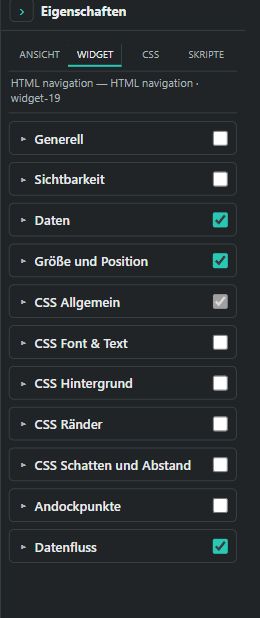
CSS General is checked and locked; the other CSS groups are optional.
From 0.1.154, CSS General is mandatory for every widget, including saved projects and future widget packages. Position and size remain in exports. Earlier notes about disabled CSS groups now apply only to the remaining CSS groups.
Input val
From 0.1.157, numeric mode offers optional min/max. Auto-set submits after the configured pause, default 1000 ms; it also works with withEnter enabled. Enter always submits. withEnter adds a confirmation button for unsent changes; without Auto-set, leaving the field alone does not submit. Manual drafts remain available until confirmed. Read-only sensors can display their value; writable numeric/text values require compatible input_number/input_text helpers. The editor never writes to HA.
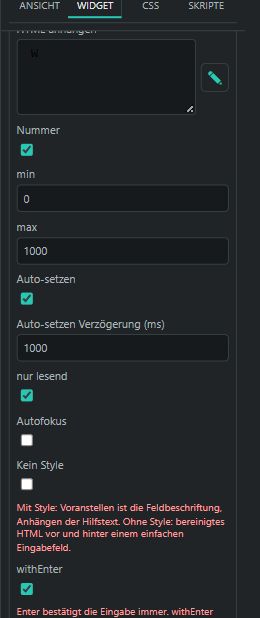
Detail from the input settings: min/max 0–1000, delay 1000 ms and read-only enabled.
Styled inputs use prepended HTML as the field label and appended HTML as helper text below the field. No style instead renders sanitized HTML before and after a plain input. Variants are standard, outlined and filled. Empty, invalid or out-of-range numbers are not written. New widgets enable only CSS General; migration hints can be disabled centrally.
String

Editor example with a 43px icon, bold prefix and italic suffix; the source value stays plain text.
From 0.1.156, Prepend HTML, Append HTML and Test text provide the HTML editor. Entity values and test text still render as plain text: <b>Test</b> in test text displays the tags literally. Only the prefix and suffix render as sanitized HTML. Nonempty test text overrides the source in the editor; runtime uses the source. Without an entity the runtime value is empty; a missing entity or attribute displays --.
For an ioBroker datapoint ending in …attribute.friendly_name, select the corresponding Home Assistant entity and enter friendly_name in HA attribute (empty: state). Empty reads the state. No helper is needed; this is read-only. The optional output point forwards the same source value without prefix, suffix or editor test text.
Icon uses the existing icon/image picker. Icon size in pixels appears only with an icon, supports 5–200px and defaults to 24px. The export value 43 produces a 43 × 43px icon. New widgets start with empty content, 100 × 30px and only CSS General enabled; increase widget height for larger icons. Attribute and preview migration hints can be disabled centrally.
HTML
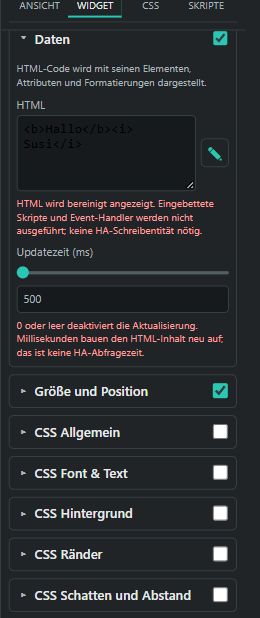
Earlier HTML test view with a 500 ms interval. CSS General has been mandatory since 0.1.154.
HTML displays custom markup through the existing HTML editor. <b>Hallo</b><i> Susi</i> produces bold Hallo and italic Susi. Update interval (ms) rebuilds this content periodically; 0, empty or null disables periodic refresh. The interval supports up to 180000ms in 100ms steps. This is not an HA polling interval and requires no helper.
Studio sanitizes HTML: embedded scripts and event handlers are not executed. This differs from the VIS2 original and is explained through optional migration hints. {value} is not a placeholder. New widgets start with empty HTML, 200 × 130px and only CSS General enabled; existing content is preserved. The optional output point remains available.
HTML navigation
HTML is the formatted label; View for navigation selects a project page. Click or Enter/Space switches to it only in runtime, without an HA write target or helper. Without a destination the label remains visible. New widgets start with empty HTML, 200 × 130px and only CSS General enabled. Saved URL/HA-path targets and old labels remain usable.
VIS2 Subview serves special navigation systems such as Jaeger Design and is not supported in Studio yet; this field is disabled. It does not refer to a Studio tab. Optional migration hints explain this limitation and HTML sanitization.
filter - dropdown
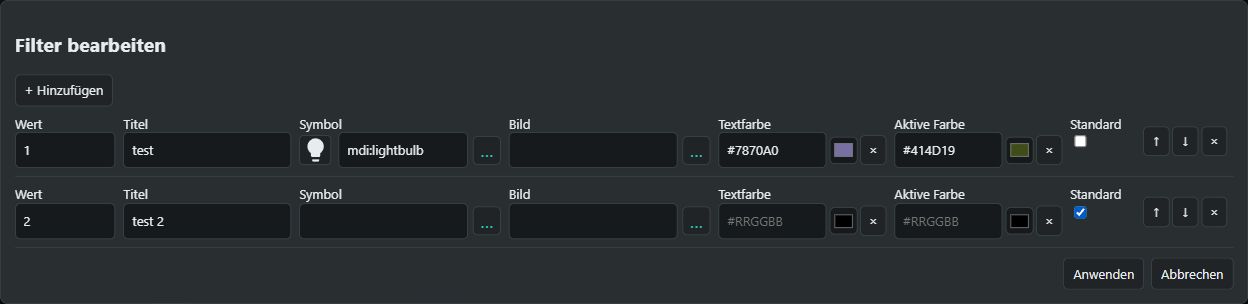
Two entries: the first has an icon and HEX colors; the second is the default.
From 0.1.155, editor → Edit manages value, title, icon, image, text color, active color and default selection. Add/remove entries and reorder them with the dialog's arrow buttons. Single selection permits one default; multiple selection permits several. Apply commits the draft and Cancel discards it.
Colors are saved as HEX: rgba(120,112,160,1) becomes #7870A0, and rgba(65,77,25,1) becomes #414D19. An optional alpha channel uses #RRGGBBAA. Colors can also be cleared. For buttons, Active color controls the selected entry's text; the background follows the variant. Icon takes precedence over image.
Type offers dropdown, horizontal or vertical buttons. Buttons use outlined/contained/text; dropdowns use standard/outlined/filled with optional name, autofocus and small size. Dropdown options display icons/images and support keyboard operation. Hide no-filter option removes reset; otherwise its label is configurable.
Filter values match widget Filter word on the same page. Comma or semicolon can address several filter words. Untagged widgets stay visible. Defaults and filtering apply in runtime; editor widgets stay editable. Selection is separate per page. No HA helper is needed. New filters start with empty entries, 200 × 50px and only CSS General enabled. Existing simple lists remain usable.
Bar
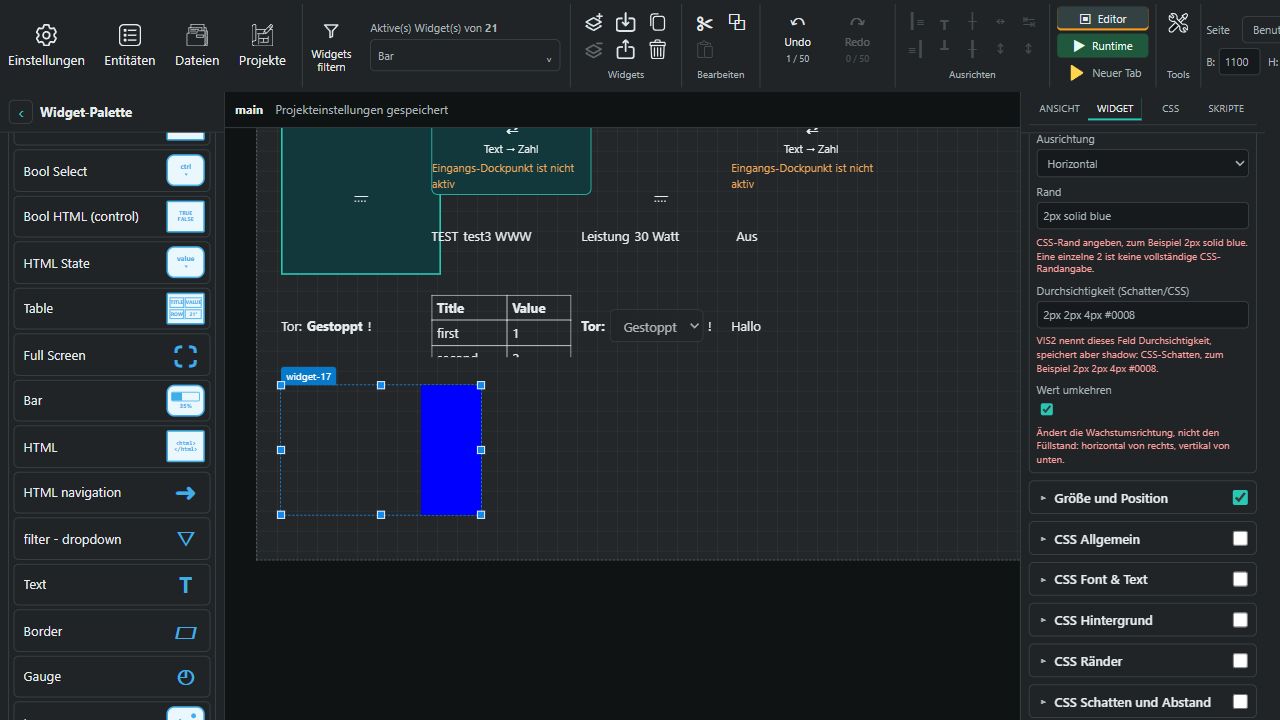
Earlier test view: the reversed bar fills from the right. CSS General is now mandatory.
Bar displays a numeric value between Minimum and Maximum as a colored bar. For 0–1000, a value of 300 fills 30%. Out-of-range values are clamped to 0–100%; equal minimum and maximum produce an empty bar. A solar-power HA sensor is suitable: the widget only reads and requires no additional helper.
Horizontal bars grow from the left, vertical bars from the top. Reverse value changes the origin to the right or bottom; 30% stays 30%. Border expects CSS such as 2px solid blue; the bare 2 in the export is not a complete border definition. Transparency (shadow/CSS) corresponds to VIS2's shadow field and expects a CSS box shadow such as 2px 2px 4px #0008, not an opacity value. Previously saved Studio opacity remains effective.
New bars start blue, horizontal, with 0–100, 200 × 130px and only CSS General enabled. Field explanations follow the Show migration hints setting. The optional output point remains available.
HTML State
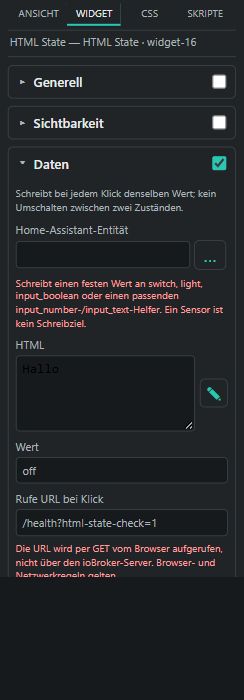
The example displays Hallo and submits off; the small hints explain valid write targets and browser URL requests.
HTML supplies the displayed content. Wert is a fixed command value: every click sends the same value, independently of the current state. An example with Hallo and off displays “Hallo” and sends an off command to a compatible controllable HA entity. Sensors are not write targets. Numbers require compatible input_number helpers, text requires input_text; switch, light, and input_boolean accept compatible on/off values. Unavailable or unsupported targets are not written.
Call URL on click optionally sends an HTTP(S) GET request from the browser while keeping the current view open. It also works without an HA write target. Requests do not run through an ioBroker server; browser, HTTPS and network restrictions apply. An opaque browser response does not confirm success in the target system. The editor neither writes values nor calls URLs. Runtime activation supports click, Enter and Space.
New widgets start with empty fields and only CSS General enabled. Existing contents remain; the previous preview state is used as the fixed-value fallback until a new Wert is set. HTML is sanitized; {value} is not a placeholder here. Entity and URL migration hints can be disabled centrally in Settings.
Migration hints
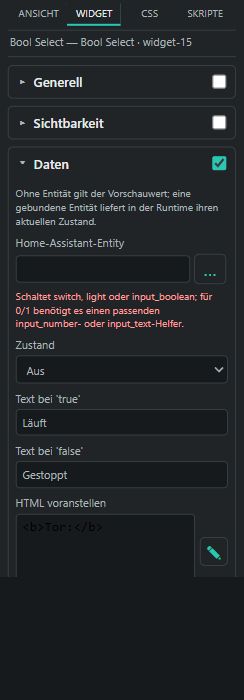
Bool Select example with the hint beneath the entity selector. These editor hints can be switched off centrally.
Use Settings → General → Show migration hints to enable or disable the hints centrally. The choice is saved per project and defaults to enabled. Hints appear directly below relevant editor fields and explain compatible HA switch targets or helpers, JSON/index sources and extra controls that are not connected yet. Read-only display does not require an additional write helper. Text uses 10px regular type, light red on dark editor backgrounds and dark red on light backgrounds. Hints do not appear in the runtime.
Table
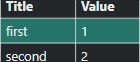
Static JSON example: _Description metadata is omitted from the two displayed columns.
Static JSON (ohne ID) contains an array of row objects. A bound HA entity supplies its JSON state in the runtime instead. For [{"Title":"first","Value":1,"_Description":"Value1"},{"Title":"second","Value":2,"_Description":"Value2"}], the visible columns are Title and Value. Underscore attributes are hidden metadata; _btn… creates an acknowledgment button. Cells support sanitized HTML.
Kolumnanzahl exposes column title, CSS width and attribute settings. Explicit attribute mappings can expose metadata. Kein Header, Zeige Scrollbar, and Maximale Zeilenanzahl control presentation. New tables enable only CSS General. A print button appears only when btn_print has a caption; view_for_print optionally selects the print page.
Ereignis ID reads individual JSON rows. Its initial state is not collected as a new event. Changes add event rows; matching _id values replace existing event rows. Neues Ereignis am Anfang affects the event list without reversing the base table. Events and selection last for the current runtime session.
Selecting a row writes its JSON to Ausgewählt ID (input_text) and displays _detail in Detailed widget. Acknowledgment buttons write _ack_id or the row JSON to Bestätigung ID. HA targets must be available, compatible number/text helpers; their type and length limits still apply. The editor does not write HA values.
Bool Select
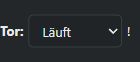
Runtime example with prepended Tor: and the selected label Läuft.
The dropdown has two entries configured through Text bei 'false' and Text bei 'true'. It reads Boolean and numeric states: 0 is false, other numbers are true. HA states off/on are normalized accordingly. Prepended/appended HTML and autofocus are supported; autofocus applies only in the runtime.
A selection writes 0 or 1 to a compatible input_number or input_text helper. For switch, light, and input_boolean, it sends the corresponding HA switch command. Unsupported or unavailable targets are disabled. Without an entity, a local runtime preview is possible; the editor does not write values. New widgets start with empty text/HTML fields, autofocus disabled, and only CSS General enabled. Existing captions are preserved.
Bool SVG
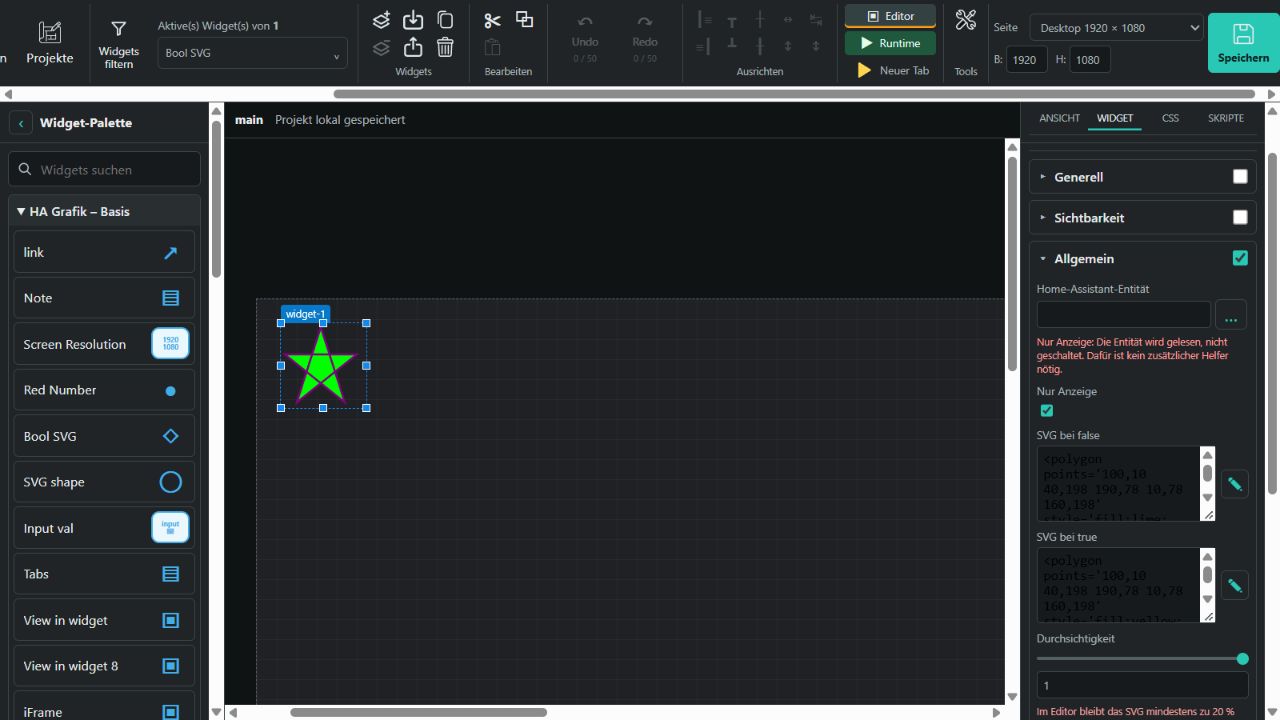
General contains the HA entity, Read only, SVG when false, SVG when true, and Transparency. Both SVG fields open the code editor. New widgets measure 85 × 85 px and use the two star snippets from the VIS2 reference. SVG coordinates and custom transform attributes are preserved; resizing the widget does not automatically scale its content.
false, off, and numeric zero select the false drawing; nonzero numbers select the true drawing. Numeric switching follows the VIS2 threshold of 0.5: values below it write 1; values at or above it write 0. Switchable HA entities receive on/off; number or text values require a compatible input_number/input_text helper. Read only prevents writes and also allows sensors as sources. The editor never switches an entity.
Transparency ranges from 0 to 1. The editor keeps at least 20% visible so the widget remains editable; runtime also allows complete transparency. CSS General remains enabled for position and size, while other CSS groups start disabled. Optional migration hints explain write targets and transparency behavior.
Red Number
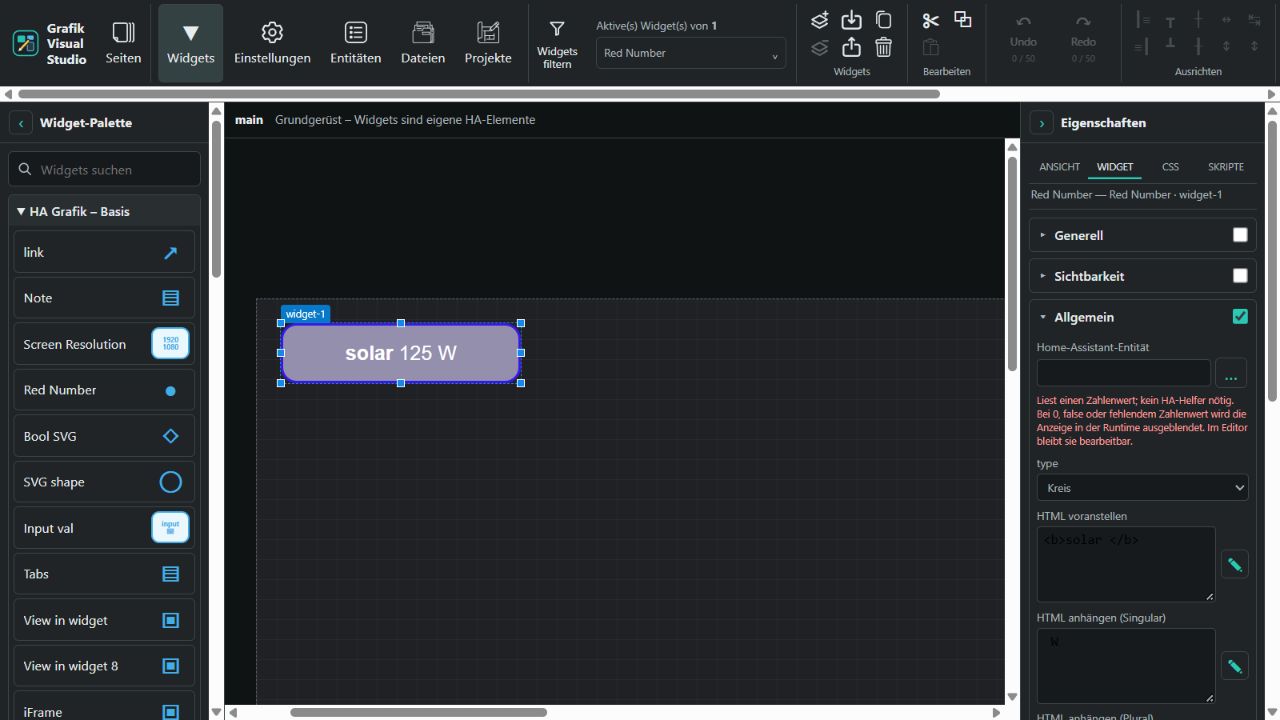
Enlarged example using a local preview value of 125; new widgets default to 52 × 30 px.
New widgets start at 52 × 30 px. General provides the HA entity, type (Circle/Pin), three HTML fields with code editors, background, and circle-only border color and border radius (0–100, default 16). Circles use a 3-px border; pins display a marker shape without the circle border. Color pickers use HEX; existing RGB(A) colors remain renderable.
HTML prefix appears before the number. Exactly 1 uses HTML suffix (singular); other values use HTML suffix (plural). The number is read from the state. Runtime hides the display for zero, false, or a missing valid numeric value. The editor keeps it visible and shows -- without a source. Long HTML text requires a larger widget surface.
This widget only reads and requires no additional HA helper. Its existing output point remains usable as a value source even when the zero display is hidden. CSS General stays enabled; other CSS groups start disabled. The optional migration hint explains the hiding behavior.
SVG shape
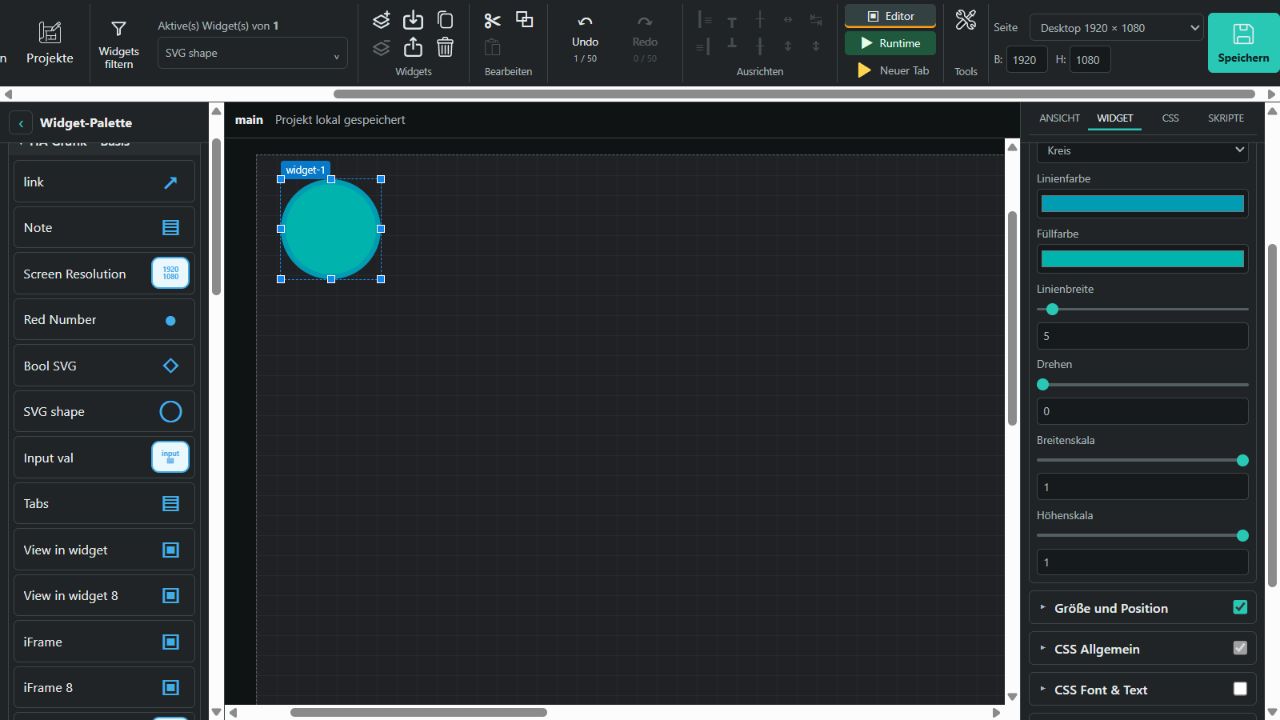
Shapes are drawn directly as SVG; no image files, HA entities or additional helpers are required. New widgets measure 100 × 100 px. General offers Line, Triangle, Square, Pentagon, Hexagon, Octagon, Circle, Star, Arrow and Custom polygon. Custom polygon additionally exposes Point count, ranging from 3 to 20; this generates a regular polygon rather than accepting arbitrary coordinates.
Line color and Fill color use HEX pickers. Line width ranges from 0 to 100 (default 5), and Rotate from 0 to 360 degrees. Separate Width scale and Height scale range from 0 to 1 in steps of 0.05. Shapes rotate and scale around their center. Following the VIS2 reference, lines only use rotation and keep their stroke width when resized.
Stars use crossing edges; arrows point upwards without rotation. Stroke width reduces the available radius for circles and polygons. Very thick strokes can completely fill small shapes; negative radii are prevented. CSS General remains enabled for position and size; all other CSS groups start disabled. Editor and runtime draw the same geometry.
Image
General contains source, stretch, refresh interval (ms), refresh on wake-up, refresh on view change, unchanged URL and allowUserInteractions. CSS General remains enabled; other CSS sections start disabled.
- Without Stretch, the image fills the widget width at its original aspect ratio. Excess height is clipped. With stretching, it fills both width and height, even when this changes its aspect ratio.
- Interval 0 disables periodic reloads. For example,
51800refreshes every 51.8 seconds. Unchanged images do not reload during unrelated state changes; running timers retain their cadence. Invisible images are not periodically refreshed. - Refresh on wake-up / view change reloads when the browser page becomes active again or the project page opens. Unchanged URL keeps the original URL; the browser may use its cache. Otherwise Studio adds a timestamp while preserving existing parameters and fragments.
- allowUserInteractions enables normal browser actions, such as dragging or the image context menu, in runtime. When disabled, pointer actions pass through to underlying elements. In the editor, the widget remains selectable and movable.
Choose an image using Studio files or a URL. Replace VIS2 paths such as _PRJ_NAME/001_cheerful.png with the appropriate Studio file path. No HA helper is needed. Existing projects with a URL entity remain readable; this does not provide an HA camera API. Small red migration hints can be shown or hidden using the global setting.
Functional reference: VIS2 Image.
Image 8
The HA entity supplies the image index; false/off is 0, true/on is 1. Without an entity or when its state is missing, Image [0] is used. The entity is read in both editor and runtime; no additional HA helper is required.
Highest index is limited to 200: 0 gives one entry, while 200 gives 201 entries from Image [0] to Image [200]. Each image group has a source with file selection and supports copying, deleting, moving and disabling. The last entry remains; copying is disabled at index 200. Empty, disabled or invalid indices display no image; existing sources are not automatically renumbered. Reducing the limit retains hidden sources until they are explicitly deleted.
New widgets measure 200 × 130 px. Stretching, refresh interval, wake-up, view change, unchanged URL and native browser actions follow Image. Unchanged images do not reload during unrelated state changes; active refresh timers retain their cadence. CSS General remains enabled; other CSS groups start disabled. Small red migration hints can be toggled globally.
Functional reference: VIS2 Image 8.
iFrame
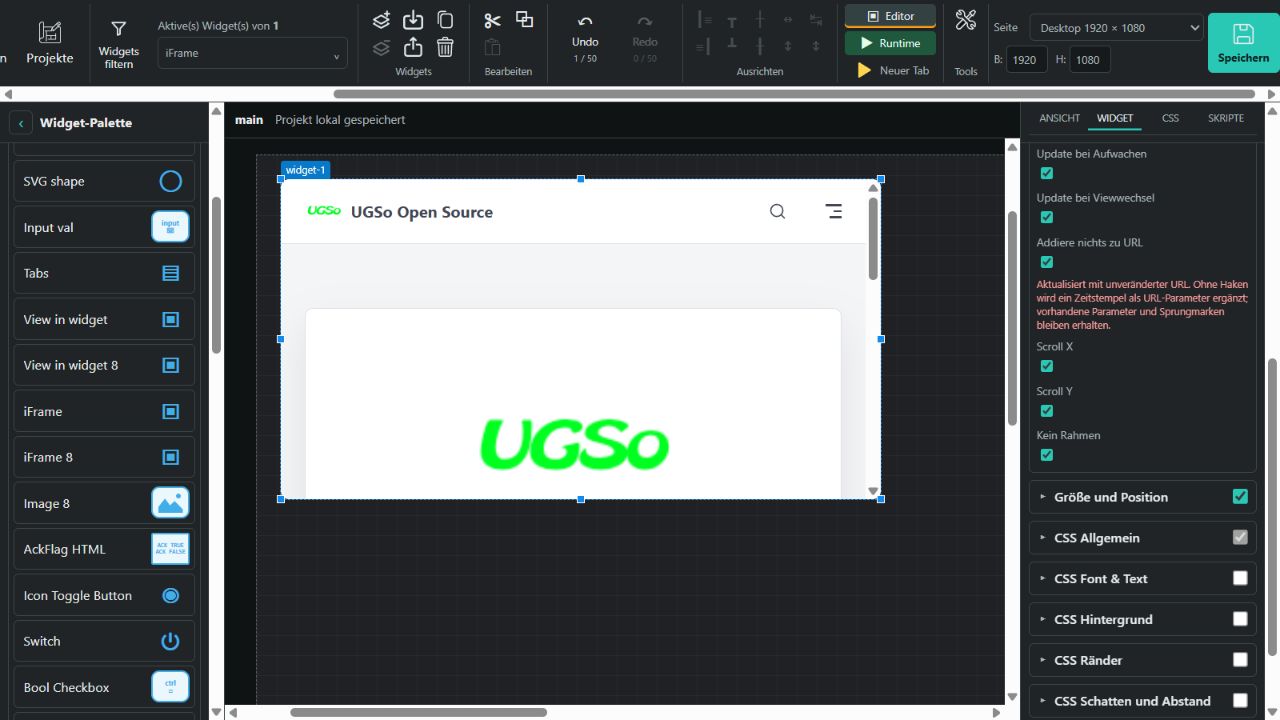
New widgets measure 600 × 320 px. General exposes Source, Update time (ms), No sandbox, Update on wake-up, Update on view change, Add nothing to URL, Scroll X/Y and No frame. CSS General stays enabled; other CSS groups start disabled. The editor lets you select and move the widget without the embedded page intercepting mouse input.
Update time 0 disables periodic reloads. Values up to 180000 ms enable an interval. Update on wake-up reloads when the browser document becomes visible again; Update on view change applies when showing the Studio page. Changes to other widget values do not reload an unchanged frame. Without Add nothing to URL, refreshes add a timestamp parameter named _gvs, preserving existing parameters and fragments. With this option checked, the same URL is loaded again.
By default, a sandbox restricts the embedded page to scripts and forms. No sandbox removes this restriction. Authentication, cookies and the target page's embedding rules still apply; browser policies may prevent embedding. Scroll X/Y set the requested overflow options; actual scrollbars also depend on the browser and target content. Studio cannot enforce internal scroll axes on a different origin. No frame removes the iframe border.
No HA state is written and no HA helper is required. Optional migration hints explain sandbox and refresh behavior. After export, an iframe still references its source; the external website is not embedded as a local copy.
iFrame 8
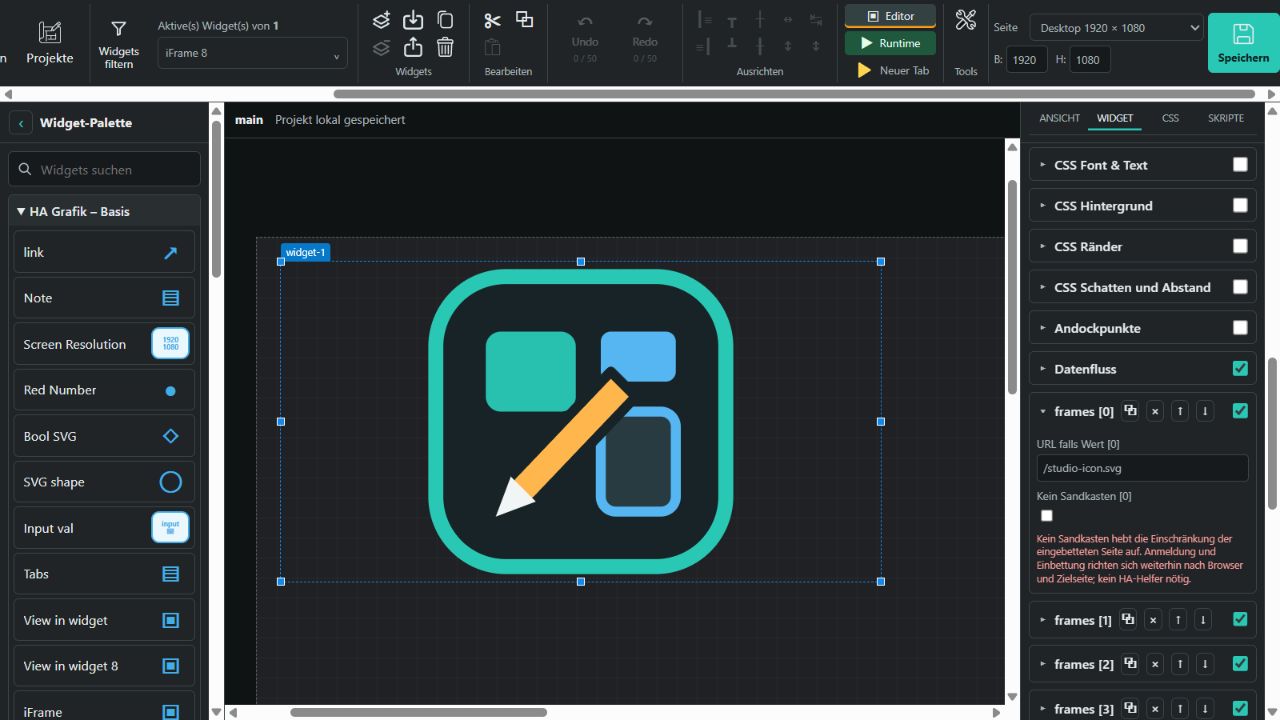
Editor example using a local SVG URL for frame [0].
The state-dependent variant reads its HA entity as a URL index. false/off selects [0], true/on selects [1]; numbers select the corresponding entry. Without an entity, new widgets start with frame [0]. Invalid, negative or oversized indexes, empty URLs and disabled entries display no frame. The entity is read only; no additional HA helper is needed.
Highest value index defines the highest index rather than the number of entries: default 2 creates [0], [1], [2]; maximum 20 creates 21 entries from [0] through [20]. Each frames [n] group contains URL for value [n] and No sandbox [n]. Groups can be enabled/disabled, copied, deleted and reordered. Reducing the highest index preserves hidden entries. Numbers directly correspond to the entity value; reordering changes that mapping.
The default size is 600 × 320 px. Refresh interval, wake-up, view changes, unchanged URLs, Scroll X/Y and borders behave like iFrame. Sandbox is selected per entry. An unchanged URL with unchanged sandbox is retained when other widget values change. Different URLs or sandbox settings replace the embedding. CSS General stays enabled; other CSS groups start disabled. Optional migration hints explain indexes, sandbox and refresh behavior.
Note
General contains Home Assistant entity, HA attribute, prepend HTML, append HTML, test text and hide corner. The additional attribute field replaces ioBroker attribute data points: select the corresponding HA entity and enter friendly_name to read that attribute. An empty attribute field reads the state.
Non-empty test text replaces the entity value in the editor. Runtime exclusively displays the entity value or selected attribute; a missing value leaves the middle text empty. Prepend and append text remain visible. Following the VIS2 Note source, the fields labeled HTML are also displayed as text; <b> does not create bold text here. Line breaks are preserved.
Hide corner only controls the bottom-right corner and does not enable read-only mode. The visible corner uses the border color. New notes measure 100 × 70 px, with a 5 px radius, gray 1 px border and yellow #FFFF69CC background. Size and colors remain configurable through CSS; CSS General stays enabled while other CSS groups start disabled.
Clicking a note in runtime opens its text dialog. An available input_text helper without an attribute selection supports editing, clearing and applying the text, respecting the helper's maximum length. Only the note text is written, without prepend or append text. Sensors and attributes remain readable but cannot serve as write targets. Without a suitable target, the dialog is read only and Apply is disabled. Cancel and Escape close it without writing. Small red helper hints can be toggled through Show migration hints.
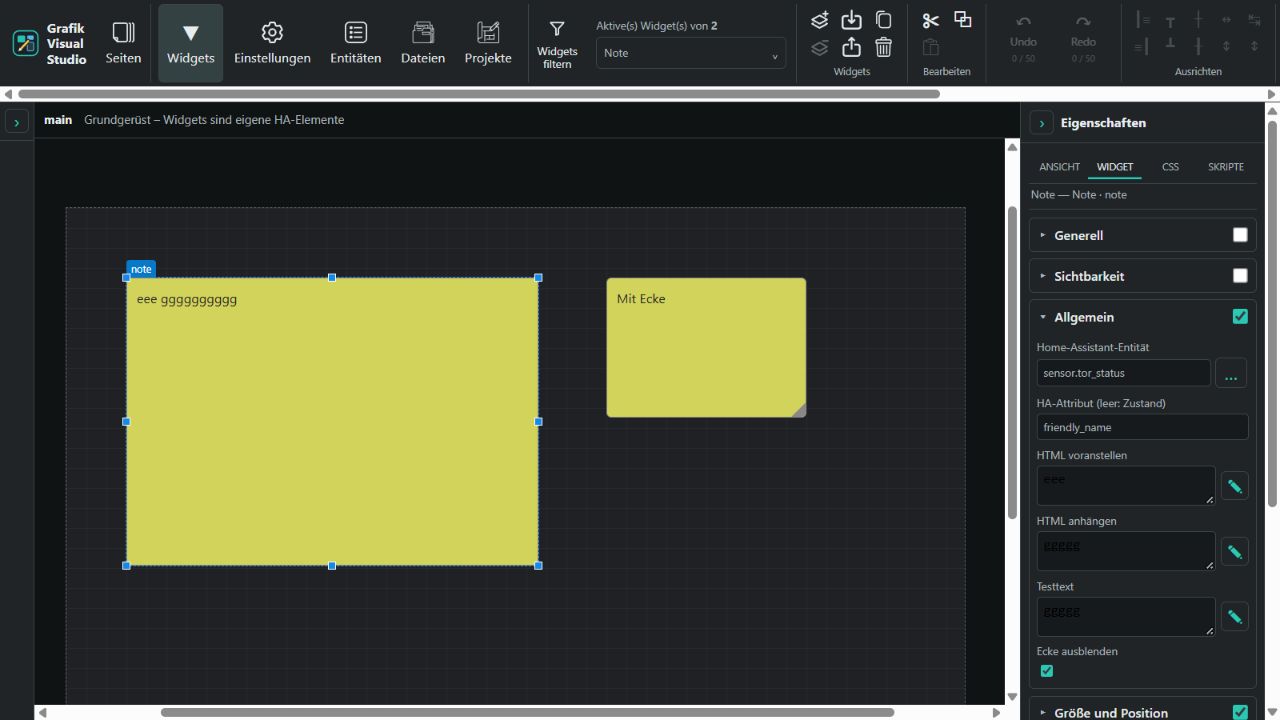
Functional reference: VIS2 Note.
Horizontal line / Vertical line
These display-only separators need no HA helper. Horizontal line starts at 200 × 16 px, Vertical line at 16 × 200 px. CSS separator provides thickness (1–100 px, default 2), HEX fill and border colors, border width and ends: Square (default), Round, or Pointed (arrow-like) at both ends. Increasing thickness expands the widget's cross dimension if needed; shrinking the widget afterwards limits the visible thickness to its bounds.
From 0.1.183, separators have no Docking points or Data flow controls. Enable snapping under CSS separator turns on geometric snapping; new lines start with it off. Existing enabled settings are retained. Moving a single line, resizing its endpoint or editing geometry aligns endpoints within 8 page pixels with the center of a perpendicular separator. Connections can meet anywhere along the other line, including T junctions. Parallel lines do not snap. Moving multiple selected widgets together preserves their relative spacing. Custom CSS positions/sizes and transforms disable snapping.
Actual coordinates and styling are saved in widget and project exports. Connections are not permanent bindings: moving one line away later does not make the other follow automatically. CSS General and CSS separator remain enabled for saving. The optional migration hint follows the central Show migration hints setting.
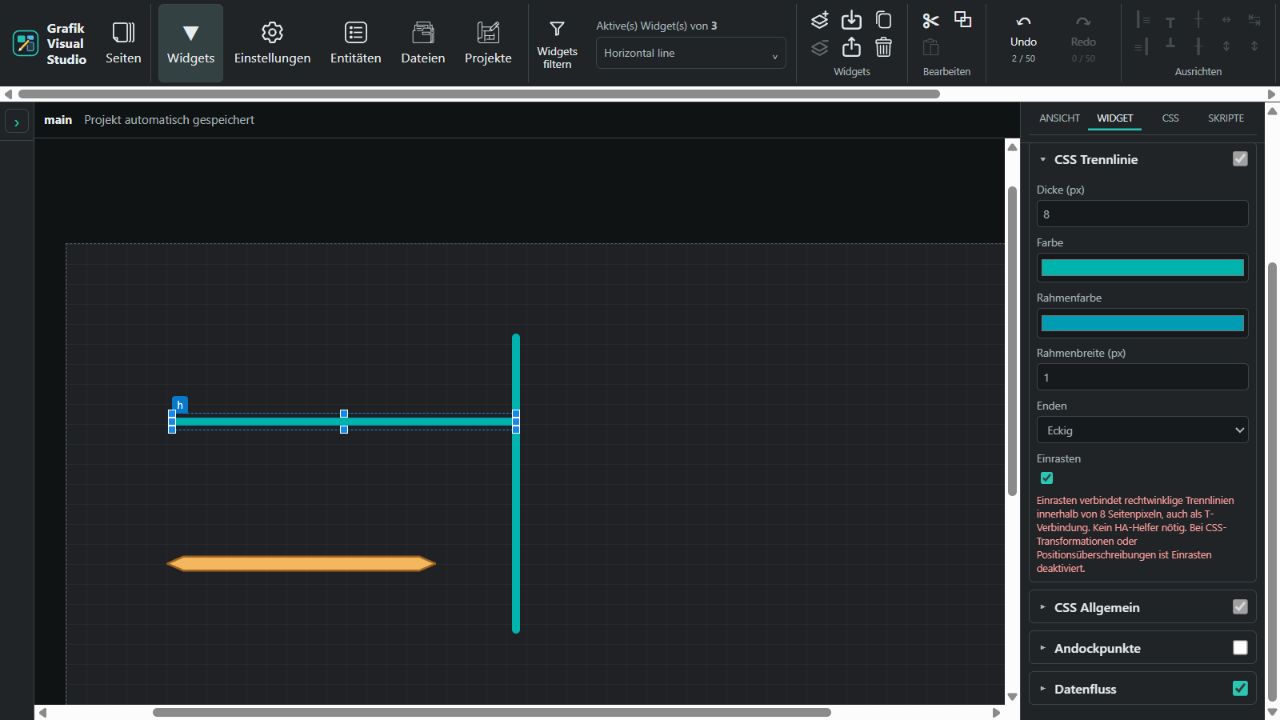
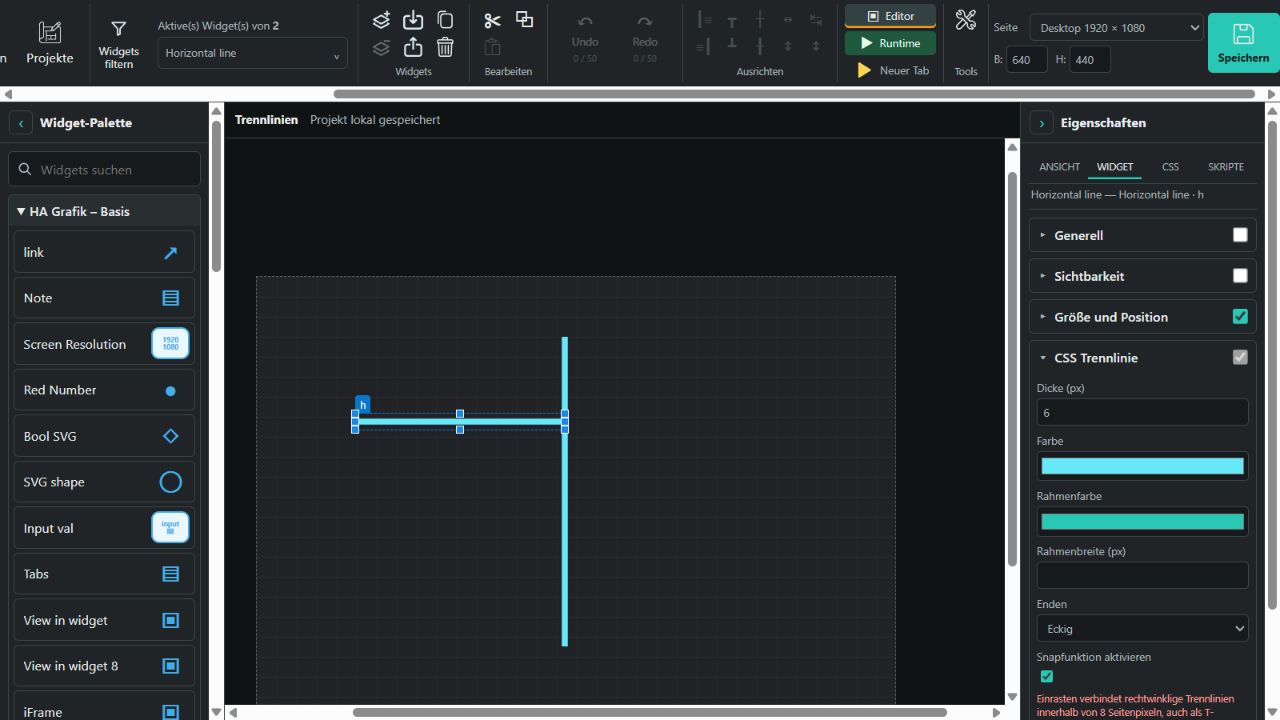
Snapping connects anywhere along the other separator. Legacy docking and data-flow settings are removed when loading and saving.
Border
Border draws a frame with a title and optional header. New widgets measure 100 × 70 px, with a gray (#888888) 1 px border and visible overflow. General contains the six standard fields: Title, Title background, Title top offset, Title left offset, Header height and Header color. Colors use HEX pickers.
The title is positioned absolutely relative to the frame: defaults are top −10 px, left 20 px, without an additional vertical translation. Simple HTML formatting such as <b>Title</b> is supported; scripts, event handlers and active embeddings are removed. Use the corresponding CSS sections to style text and borders.
Header height 0 hides the header. Without an explicit title background, the title receives a black background in the dark page theme or white in the light theme. With a visible header, the title background remains transparent unless set explicitly. An empty header color also uses theme-matched black or white. The left example only sets the title background; the right example additionally has a 30 px header.
No HA entity or helper is required. CSS General remains enabled for position and size; other CSS groups start disabled. Optional small red migration hints can be toggled globally.
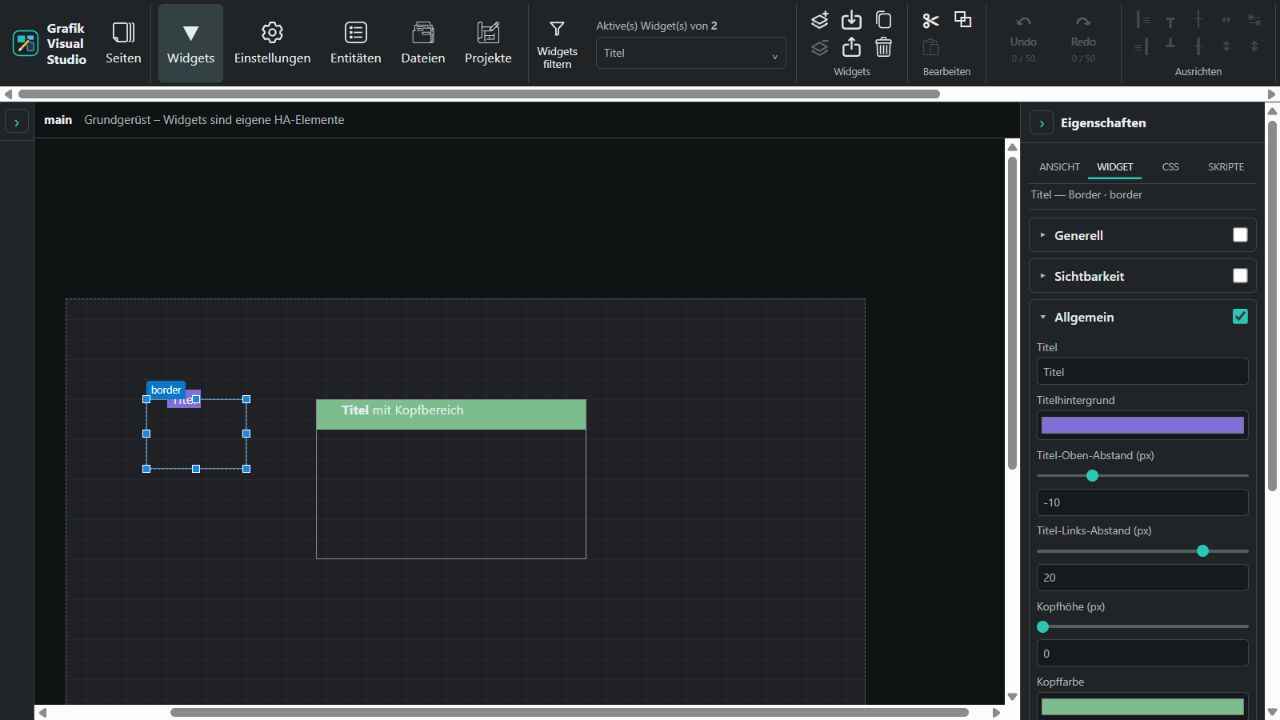
Functional reference: VIS2 Border.
Bool Checkbox
The checkbox displays the bound Home Assistant entity state. In the runtime it can control switch, light, and input_boolean; it is disabled without an available, supported entity. In the editor it is a preview only.
HTML voranstellen and HTML anhängen add text or HTML before and after the checkbox. Autofokus applies only in the runtime. New widgets start with empty HTML fields, autofocus disabled, and only CSS General enabled. Existing settings are preserved.
Bool HTML
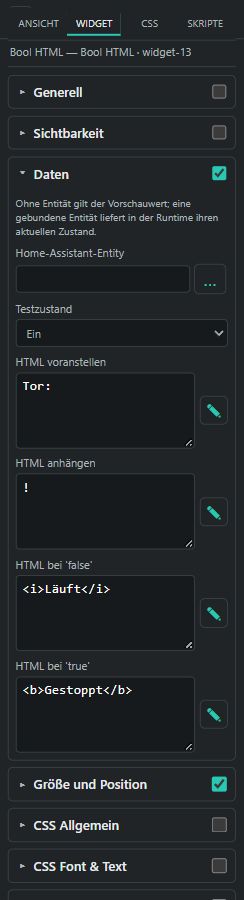
Earlier test view of the four HTML fields. CSS General is now mandatory.
From 0.1.146, prepended HTML, appended HTML, HTML for 'false' and HTML for 'true' all offer HTML-editor controls. The entity state selects the content; without an entity, the test state supplies a preview. Boolean true, number 1 and the strings true, on, ein, yes and 1 select the true content; other states select false. Prepended and appended HTML appear for either state. Studio HTML sanitization applies to all four fields.
New widgets start with empty HTML fields and only CSS General enabled. Existing configured content is preserved. Bool HTML only displays a state and does not switch an entity; use Bool HTML (control) for that purpose.
ValueList HTML
From 0.1.144, Test value (editor only) selects an index from the available entries. Live value / preview state also shows the normal widget state in the editor. Selecting a test index changes neither the stored preview state nor the HA value; runtime always uses the bound entity state or the unbound preview state.
Separate entries with semicolons or newlines: Test;test2;test3 provides indices 0, 1 and 2. Commas remain part of the text: Test, test2, test3 is one entry. Write a semicolon inside an HTML entry as §§, for example in a CSS style or HTML entity. Prepended and appended HTML surround the selected entry; HTML follows Studio sanitization rules. Missing, invalid or out-of-range states display no list entry. New ValueList HTML widgets start with only CSS General enabled; existing settings are preserved.
ValueList HTML Style
From 0.1.145, individual Value [0] through Value [n] sections provide HTML content and a CSS style. The configured count is the highest index: 2 provides three entries and 0 provides one. Studio supports up to index 50. Legacy list fields remain available as fallback values.
Test value (editor only) selects an entry for preview only. Runtime reads the index from the bound entity or unbound preview state; true and false correspond to 1 and 0. This is an index, not a measurement range: with entries 10, 20, 30, state 2 displays 30; state 30 is outside a list ending at index 2 and displays no entry.
Entry styles also apply to prepended and appended HTML. Use complete CSS declarations, such as font-weight: bold; color: #29c8b5; font-size: 20px;. Plain bold has no effect. Studio accepts its approved presentation styles without external CSS URLs. Only CSS General starts enabled on new widgets; individual entry styles remain independently usable.
View in widget 8
Since 0.1.160, this widget embeds a Studio project page according to an HA entity's state. It only reads; no additional HA helper is required. Assign the available pages under Page [0], Page [1], etc. Value count up to is the highest index: 1 creates two entries, 0 one; Studio allows up to index 50.
false/off selects index 0, true/on index 1. Integer states select the matching index. Empty, unavailable, fractional, or out-of-range values select no page. New widgets without an entity use index 0. The editor shows a text preview of the selected page; runtime embeds it. An unchanged target is not reloaded during state updates. Missing pages and recursive embedding are rejected.
New widgets use 300 × 200 pixels with only CSS General enabled. Centrally configurable migration hints explain index mapping and page dependencies. Widget JSON exports do not include referenced project pages; the planned full project export must include all required pages. This differs from Dashboard in widget, which opens an HA dashboard.
HA Grafik – Interaktiv (11)
| Widget | Current behavior |
|---|---|
| Universal Element | Default state and up to 20 conditional states with an icon, image, text or HTML. Switch, button, display and navigation modes, using single or separate buttons. |
| Calendar | Monthly datepicker with today highlighting, day restrictions and week numbers. |
| Event Calendar | Events in month, week, day, year and list views; multiple sources and color rules. |
| Checkbox | Custom false/true values, state labels, four label positions and box styling. |
| Interactive Slider | Horizontal/vertical numeric control with value labels, step marks and independent track/thumb styling. |
| Interactive Table | JSON table with column formats, formulas, sorting, filters, pagination and row colors. |
| Marquee | Static text or HA state as a continuous ticker with direction, speed and hover pause. |
| Value List | Split text into list items with eight bullet types, numbering, custom characters and spacing. |
| Interactive Switch | Custom false/true pairs and state labels; independent track/thumb styling and inheritance. |
| Radial Slider | Numeric dial with start/end angles, value and label, plus independent track/thumb styling. |
| Dropdown | HA or custom options with a title, conditional background and separate menu/widget shadows. |
Dropdown
From 0.1.182, Dropdown under Interactive provides option selection with an optional title, defaulting to 300 × 50 px. HA select and input_select supply their options attribute. Use custom options supports up to 200 value/text pairs; duplicate values appear once. Display toggles choose value, text or both, without repeating identical labels. If both are off, the value remains visible for an identifiable choice.
- Writing:
select/input_selectaccept only currently allowed options. Custom numbers write toinput_number; strings up to 255 characters write toinput_text. Incompatible options are disabled. Sensors, missing states, read-only mode and editor previews never write; unbound widgets support local selection. - Background color conditions: up to 20 ordered rules with six comparison operators. The first matching rule wins. Conditions use the selected value unless a separate background entity is set. Unknown or unavailable values never trigger a rule.
- CSS Dropdown: font size, text, background, highlight and border colors, border width/radius, title size/color and four title paddings. The title can use the matching condition color. Dropdown shadow styles the control and open menu; Widget shadow covers the whole area including its title. Both have X/Y offsets, blur, spread and color.
- From widget: inherits presentation only, including title styling and shadows. Title text, options, entity and rules remain local. Copying related widgets remaps style references; cycles terminate safely.
- Interaction: click or an arrow key opens the menu. Arrow keys, Home/End, Enter/Space and Escape operate the list; Tab leaves it. Long menu entries wrap and large lists scroll. Read-only mode displays the value without a selection arrow.
All settings, custom options, rules and references survive project, widget and package exports. Studio uses its own menu for consistent colors and shadows.
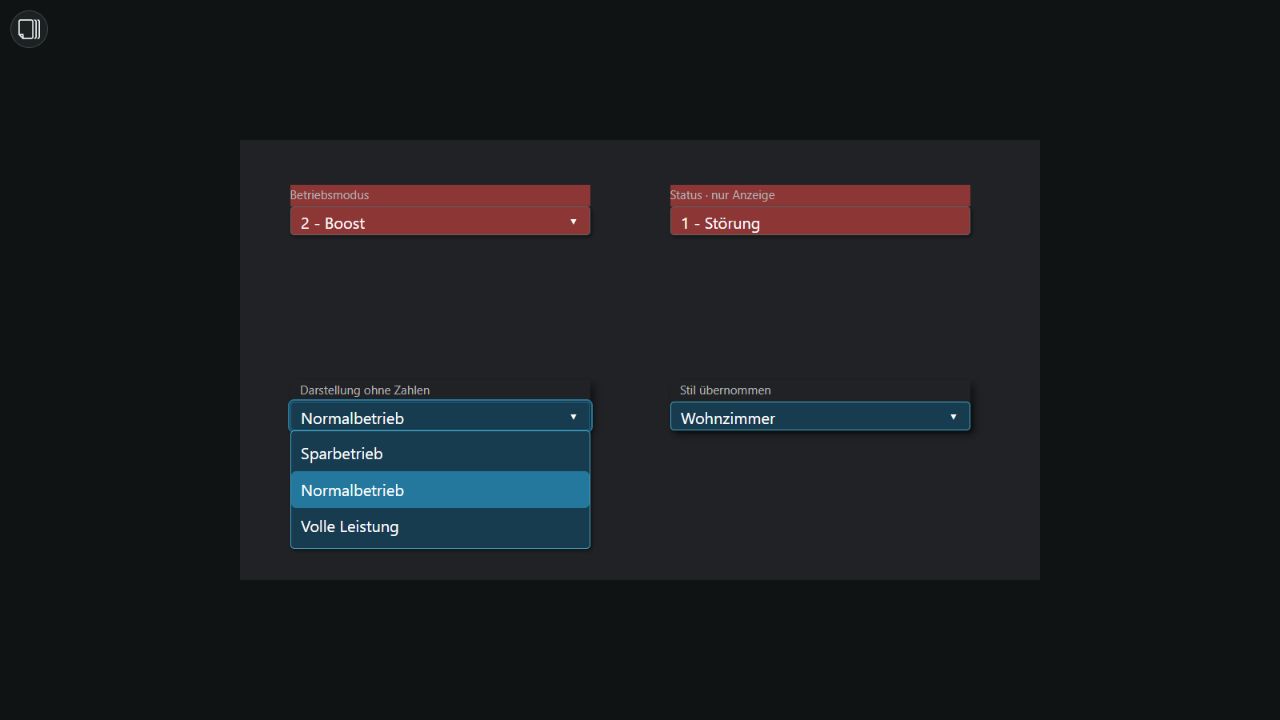
Functional reference: inventwo Dropdown for VIS2. HA integration and rendering use Studio's own implementation.
Radial Slider
From 0.1.181, Radial Slider is available under Interactive. Defaults are 200 × 200 px, range 0–100, step 1, start angle 225° and end angle 135°. 0° is at the top; the arc runs clockwise, covering 270° by default. Equal angles create a full circle; 270° to 90° creates a top semicircle.
- General: HA entity, minimum, maximum, step, start/end angles, show value, show label, label and read-only. Without an entity, the preview value is the initial value.
- CSS Radial Slider – Track: track color, active color, width 1–50 px, shadow color, X/Y offsets and blur.
- CSS Radial Slider – Thumb: color, size 1–50 px and its own shadow.
- CSS Radial Slider – Value: value size 8–100 px, value color, label size 8–50 px and label color. Numbers shrink when space is limited; long labels use ellipsis. The full text remains the slider's accessible name.
- From widget: track and thumb can inherit independently from another radial slider. Value display, label and numeric range remain local. Cycles terminate safely; copying related widgets remaps references.
- Interaction: drag or use arrow keys for one step, Page Up/Down for ten steps and Home/End for minimum/maximum. The arc gap selects the nearest endpoint. Cancelling a drag restores the original value without writing.
- HA: only available
input_numberhelpers are written, on release or a keypress. Match range and step to the helper. Sensors and read-only mode support display only; missing values show an em dash. Unbound changes stay local. The editor never writes.
All settings and style references survive project, widget and package exports.
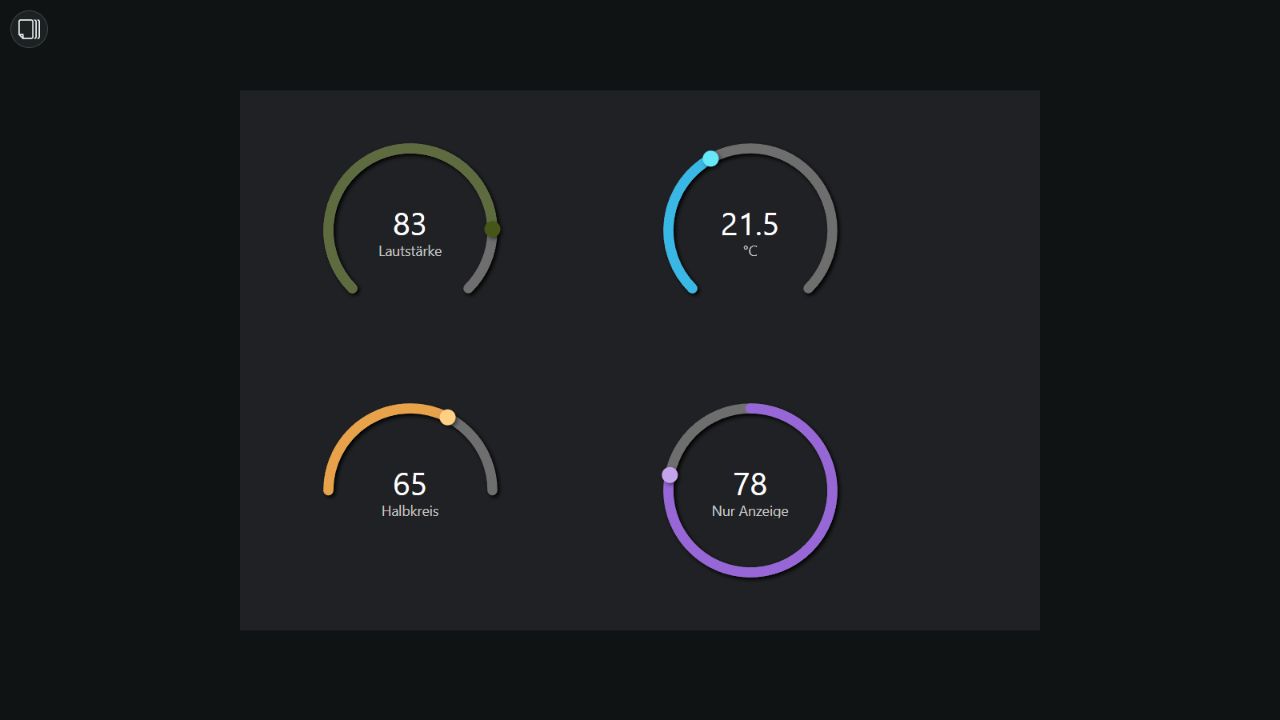
Functional reference: inventwo Radial Slider for VIS2. Studio uses its own implementation.
Interactive Switch
From 0.1.180, Interactive Switch under Interactive complements the existing Basic Switch. Defaults are 70 × 40 px, End label position, a 12 px track and a 16 px thumb. Empty Value false/true use Boolean values; custom numbers or text support other pairs. Text false/true follows the state at the right, left, top or bottom and stays plain text.
- CSS Switch – Track: separate false/true colors, track size 1–50 px, rounding 1–100 %, shadow X/Y offsets, blur, spread and separate shadow colors for each state.
- CSS Switch – Thumb: separate false/true colors, size 1–50 px, rounding 1–100 % and independent shadows. 100 % produces a round shape.
- From widget: inherits track and thumb independently from another Interactive Switch. Entity binding and labels stay local; cycles terminate safely. Copying related widgets together remaps their references.
- Interaction: click the switch or its label, or press Space. Runtime writes compatible values to available
switch,light,input_boolean,input_numberorinput_textentities. Sensors, incompatible pairs, missing states and the editor stay non-writing. Unbound switches can be toggled locally.
Font and text color use standard CSS groups. All pairs, labels, style fields and references survive project and widget/package exports.
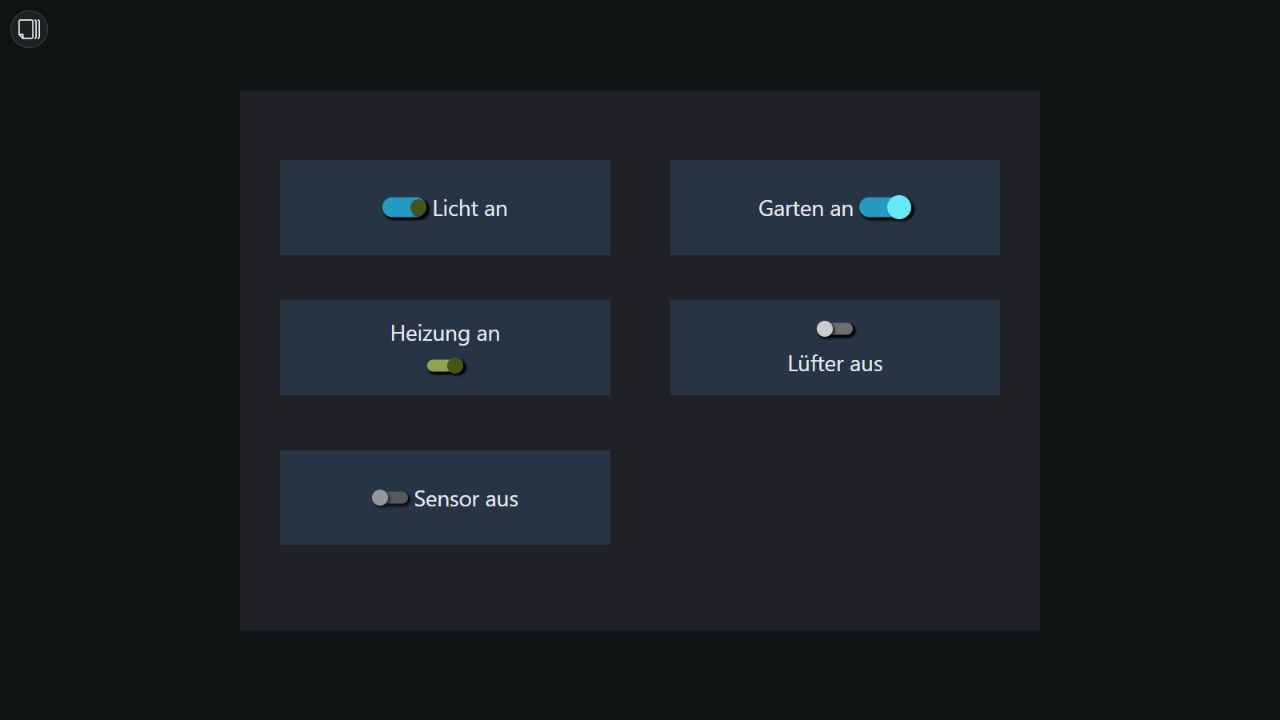
Functional reference: inventwo Switch for VIS2. Studio uses its own implementation.
Value List
From 0.1.179, Value List under Interactive complements the existing Basic ValueList Text/HTML/HTML Style widgets. Defaults are 200 × 150 px, comma separator, trimming and ignoring empty entries enabled. A bound HA state takes precedence; without an entity, use Text (manual). The list is read only and displays literal text.
- Separator: one or several literal characters;
\\nfor lines and\\tfor tabs. An empty separator keeps the entire text as one item. Windows line endings are supported. - Trim whitespace and Ignore empty entries work independently. Disabling filtering keeps blank rows visible; numbering follows the displayed entries.
- Appearance: Disc, Circle, Square, Dash, Arrow, Numbered, None or Custom character/emoji. Bullet color is independent of text color. None hides bullet color and spacing controls; Custom reveals its character field.
- Spacing: bullet to text 0–50 px (default 8), lines 0–50 px (default 4), padding 0–200 px (default 4). Long entries wrap; longer lists scroll inside the widget.
Font, text color and background use standard CSS groups. All settings survive project and widget/package exports.
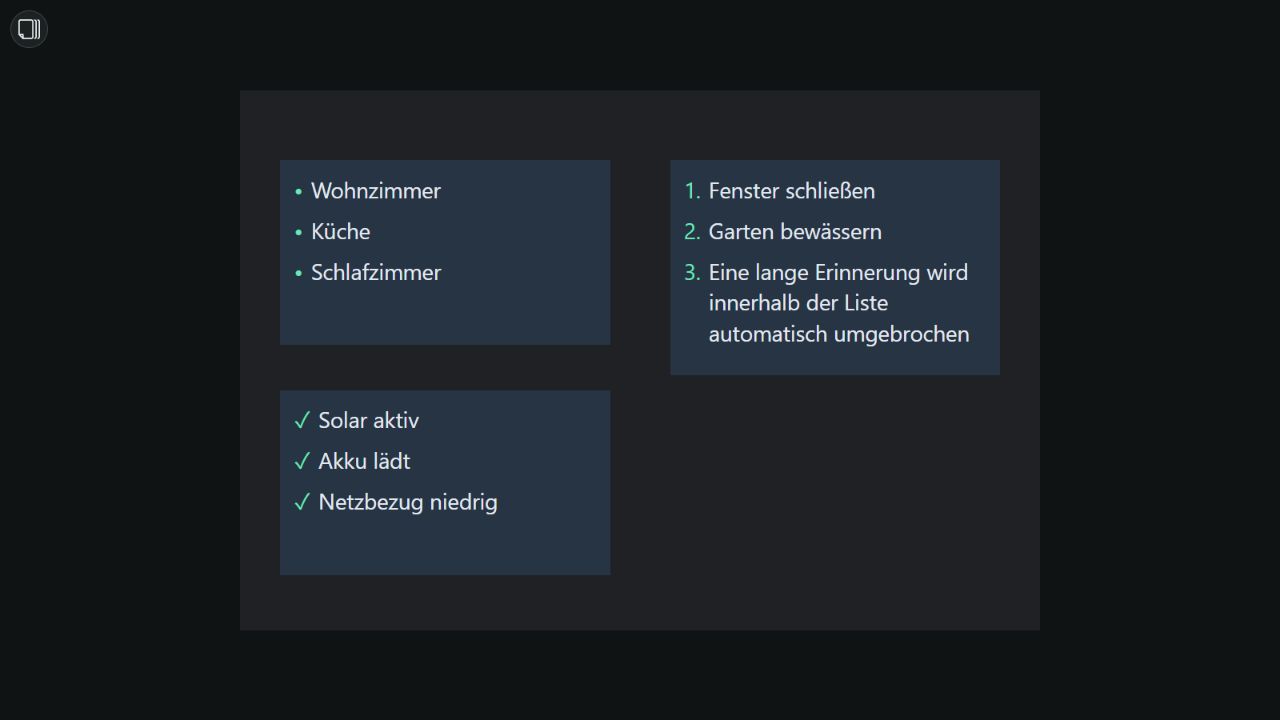
Functional reference: inventwo Value List for VIS2. Studio uses its own implementation.
Marquee
From 0.1.178, Marquee is available under Interactive. New widgets use 300 × 40 px, Left direction, 80 px/s, 3 text copies and a 50 px gap. Without an entity, Static marquee text is used; a bound HA state takes precedence. Content stays plain text and never writes HA values.
- Direction: Left or Right; speed 10–500 px/s remains constant when increasing the copy count.
- Text copies: 1–200; extra repetitions automatically fill the viewport for short text. Gap between copies: 0–1000 px.
- Pause on hover: pauses under the pointer and resumes when it leaves. Unchanged text keeps its animation progress across HA refreshes.
- Appearance: background, font, text color, size and spacing use standard CSS settings. The editor stays static. Respect reduced motion is enabled by default: the runtime stays static when requested by the system; this option can be disabled per widget.
All settings survive project and widget/package exports.
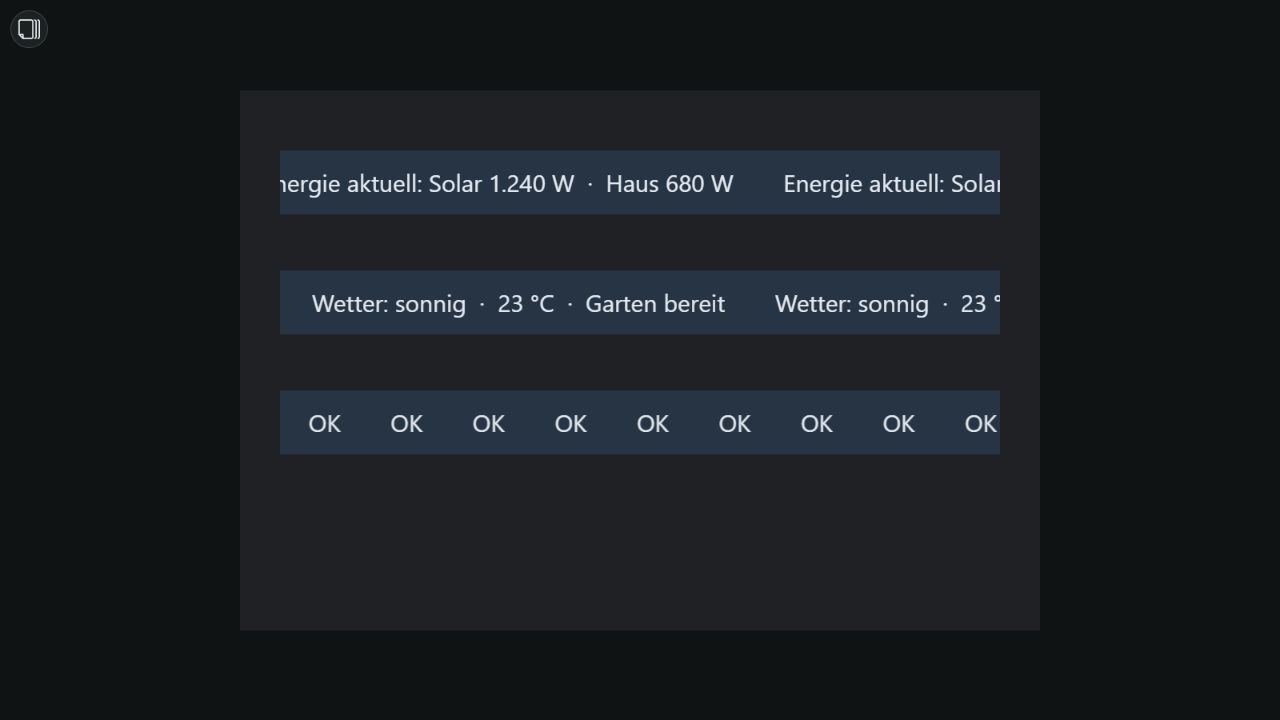
Functional reference: inventwo Marquee for VIS2. Studio uses its own implementation.
Interactive Table
From 0.1.177, Interactive Table complements the existing Basic Table. New widgets use 400 × 300 px, automatic columns, a visible header and no pagination. Data is a JSON array of objects, for example:
[{"room":"Kitchen","temperature":25.4,"power":120,"active":true}]Runtime reads the bound HA entity or explicitly selected HA attribute. Longer lists should use an attribute. Unbound widgets and editor previews use the JSON test data. The table is read only; sorting, filtering and pagination never write HA values.
- Columns: 0 detects keys automatically; up to 50 columns can be configured. Options include visibility, key, title, width, alignment, prefix/suffix and placeholder. Formats: text, number with decimal/thousands separators, Boolean as a disabled checkbox, date/time with custom patterns, image, URL and IP address. Content is treated as text; images and links require an allowed URL.
- Formulas: calculate using numeric row fields, such as
power * 2. Operators are+ - * / % **and parentheses. No JavaScript is executed; invalid formulas use the placeholder. Custom date patterns supportYYYY,YY,MM,M,DD,D,hh,h,mm,ss,sss,WD,WDL,KWandK. - Sorting and filters: default key/direction, optionally up to 20 ordered default criteria. Sortable header clicks cycle ascending/descending/unsorted. Automatic columns are sortable; manual columns expose separate sorting and filter options. Filters select allowed cell values. Row limits apply after filtering/sorting, before pagination. Headers can remain fixed while scrolling.
- Row conditions: up to 20 rules using a key or zero-based column index, with six comparison operators. The first matching rule sets the background, whole-row text color and/or condition-column text color. Mark summary row draws a double line above the last result row; totals must already exist in the data.
- CSS Table: neutral Appearance, Corner radius, Border and Outer shadow groups, with HEX colors, header/row heights, row borders, individual corners and border sides. From widget inherits each group independently from another Interactive Table; copying widgets together remaps references. CSS General remains enabled.
Widget JSON exports include columns, rules, styling and source bindings. Referenced HA entities, attributes and styling widgets must exist at the destination. Unbound tables retain their saved JSON data. Small migration hints can be disabled centrally.
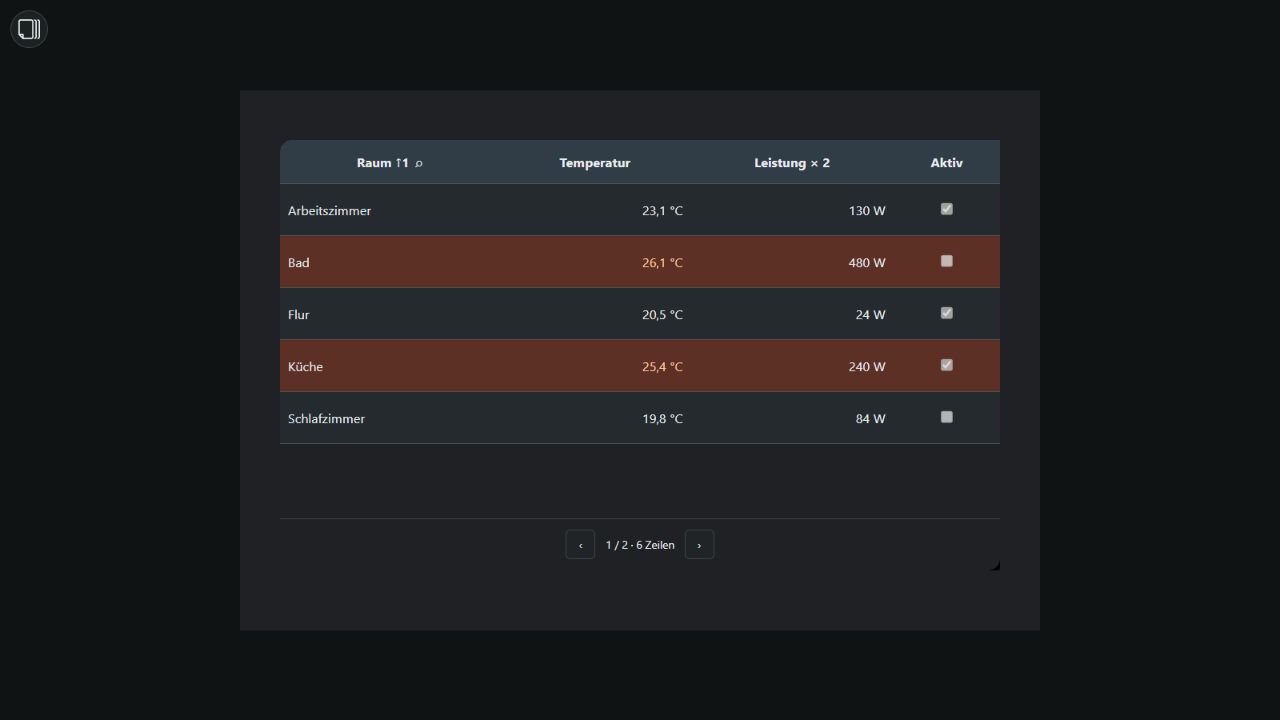
Functional reference: inventwo Table for VIS2. Studio uses its own implementation.
Interactive Slider
From 0.1.176, Interactive includes a separate Interactive Slider. The existing Basic Slider remains available. New widgets use 150 × 40 px, a 0–100 range, step 1, horizontal orientation and visible min/max values.
- General: optional title and spacing, unit, HA entity, minimum/maximum, step and preview value. Vertical sliders increase from bottom to top. The value label appears during interaction, always or never. Title and unit are displayed as text.
- Step marks: automatic intervals or custom positions from a comma-separated list, such as
-20,0,20,50,80. Marks are independent of the interaction step and can appear inside the track, above/below or left/right. Dense scales are thinned to at most 201 marks; numeric labels adapt to the widget size. - CSS Slider – Track / Thumb: HEX colors, track width, thumb size, percentage rounding and separate shadows with X/Y offset, blur and spread. Track modes are Normal, Inverted or No active track. Thumb size 0 hides the thumb. From widget inherits each group independently from another Interactive Slider; copying widgets together remaps internal references. CSS General remains enabled.
- Interaction: writing requires an available
input_numberhelper. Minimum, maximum and step must match the helper. Sensors and unavailable entities are display only. Read only prevents changes. Without an entity, values stay local; editor previews never write values. HA writes are sent when a change finishes.
Widget JSON exports retain all control options, styling and entity bindings. Referenced entities and styling widgets must also exist at the destination. A larger widget may be useful for titles, value labels and scales.
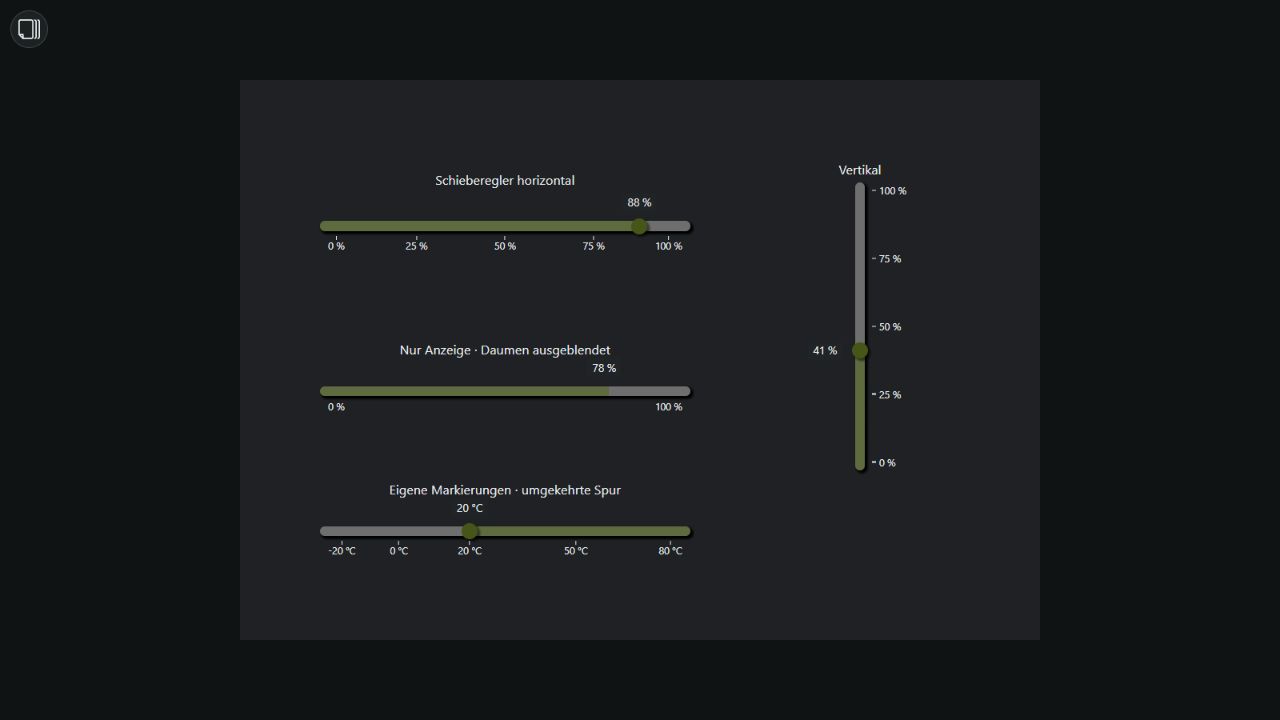
Functional reference: inventwo Slider for VIS2. Studio uses its own implementation.
Checkbox
From 0.1.175, Checkbox under Interactive complements the existing Bool Checkbox under Basic. New widgets start at 70 × 40 px, with a 24 px box and End label position.
- General: HA entity, false/true values, false/true text, label position and preview state. Empty values mean
falseandtrue. End/Start/Top/Bottom place the label right/left/above/below the box. Labels are displayed as text. - CSS Checkbox – Style: optional HEX colors for inactive/active boxes, size from 0 to 50 px and From widget to inherit styling from another Checkbox. Cyclic references terminate safely; copying widgets together remaps internal references. Font and text color follow general CSS settings. CSS General remains enabled.
- Interaction: Without an entity, switching stays local.
switch,lightandinput_booleansupport Boolean values, on/off and 0/1. Number pairs requireinput_number; text pairs requireinput_text. Sensors, unavailable entities and incompatible pairs remain read only. Editor previews never write values. Pending HA writes temporarily disable the checkbox.
JSON exports include values, labels, styling and entity binding. Referenced entities must exist at the destination; referenced styling widgets must also be included. Small red hints follow Show migration hints.
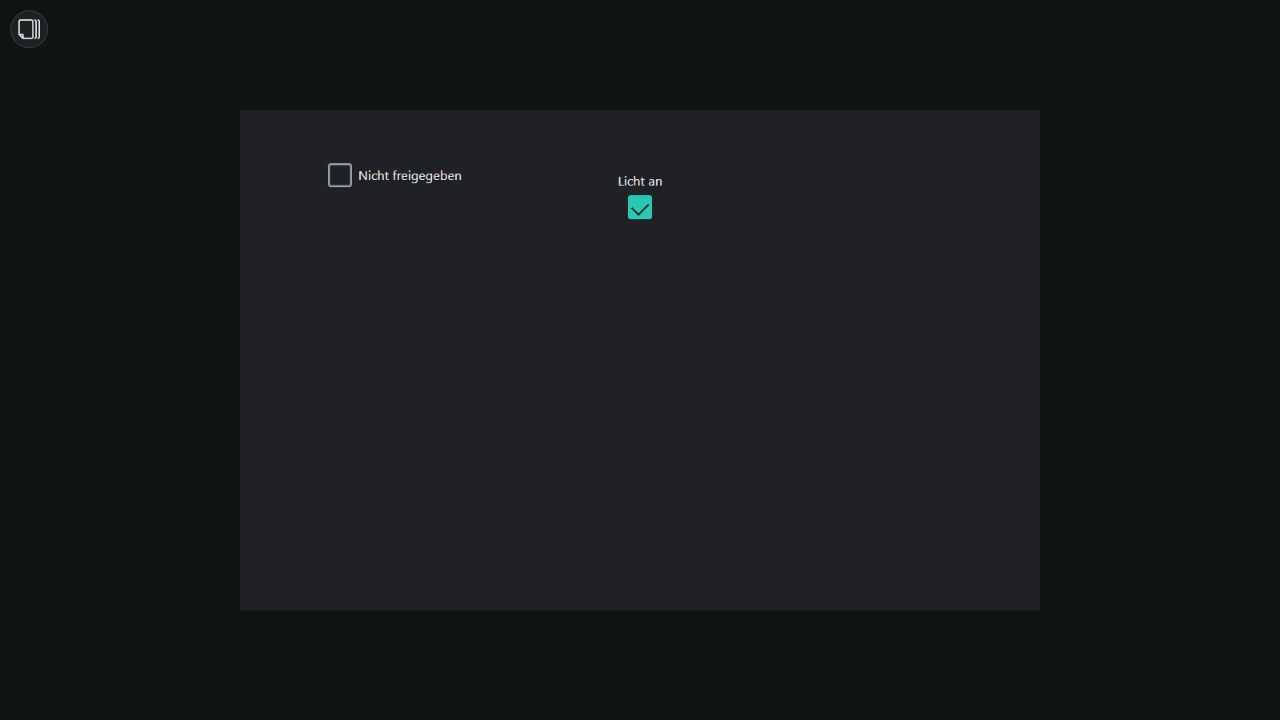
Functional reference: inventwo Checkbox for VIS2. Studio uses its own implementation.
Calendar
Calendar is a monthly datepicker, not an event calendar. New widgets measure 320 × 350 px, with 36 px day cells, Monday as the first weekday and today highlighting. General includes the HA entity, value format, editor-only test date, read-only mode, past/future restrictions, month/year navigation, first weekday, week numbers and cell size (20–80 px).
- Timestamp (number, ms): Milliseconds since epoch, written to an
input_numberhelper. Set a sufficiently large helper range. Selecting a date writes midnight in the browser's local time zone. - ISO date:
YYYY-MM-DD, written to aninput_texthelper. Sensors may supply a date but cannot be written. Only available helpers matching the chosen format allow date selection; read-only mode also disables navigation. - Without an entity, runtime selections remain local and are not saved to the project. Test date applies only in the editor and is ignored by runtime. The editor disables calendar interaction and never writes dates.
- Past/future restrictions compare local calendar dates; today remains selectable. ISO-8601 handles week-year boundaries; Simple assigns week 1 to the week containing January 1 and respects the chosen first weekday.
The six neutral CSS Calendar – Header / Weekdays / Day / Selected day / Today / Week number groups provide HEX colors, day radius and selected-day shadows. Unset text colors use Studio theme colors. From widget inherits only that group from another Calendar widget; cyclic or invalid references terminate safely. Copying calendars together remaps internal references; exports must include referenced calendars. CSS General stays enabled and stores position and size. Small red helper hints follow Show migration hints.
Month and year can be chosen directly. With month/year navigation disabled, runtime still offers previous/next month arrows. Failed HA writes show an error and allow another attempt.
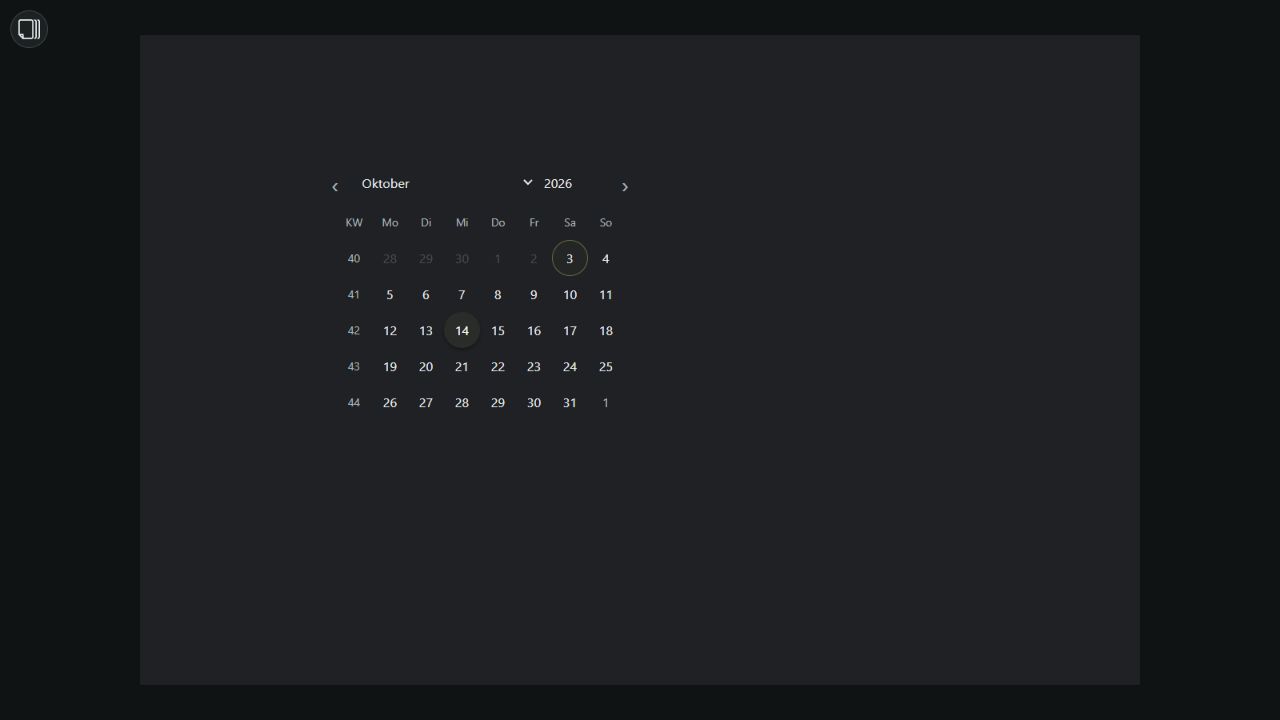
Functional reference: inventwo Calendar for VIS2. Studio uses its own implementation without the ioBroker package.
Event Calendar
From 0.1.174, Event Calendar displays events read only. The default size is 600 × 500 px. Choose month, week with time slots, day, year with twelve months, or day/week/month/year lists. Header and navigation can be disabled independently. First weekday, ISO/simple week numbers and the current-time line are configurable. Max. events per day limits visible entries; 0 shows all. +N more opens additional events.
- Events (HA entity):
calendar.*loads the visible range using calendar.get_events. The ordinary calendar state does not provide a complete event list. Other HA entities can supply a JSON list in their state. - Events (JSON, without entity): A directly saved JSON list is a local source. Supported fields are
title/summary/event,start/_date, optionalend/_end,allDay/_allDayandcolor/_calColor. Dates accept ISO dates, ISO datetimes or milliseconds. Date-only events are all-day; their end is exclusive. An omitted end or one identical to the start uses the default duration. - Additional calendars: Up to 20 sources with HA entity, optional HEX source color and legend label. A count greater than
0replaces the single entity and local JSON list. Empty sources provide no events. The legend can be disabled. - Event color rules: Up to 20 rules match a case-insensitive title substring. The first match sets the background color. The source color remains visible as a left stripe or a list dot.
[{"title":"Family trip","start":"2026-10-03","end":"2026-10-05","color":"#3686BD"}]The six neutral CSS Event Calendar – Header / Weekdays / Day / Today / Event tiles / Borders groups provide HEX colors, font sizes, radii, borders and navigation button hover colors. From widget inherits that group from another Event Calendar; cyclic references terminate safely. CSS General stays enabled. Migration hints follow the central switch. Editor previews never write events and remain draggable and resizable.
HA calendars reload when changing the range and after at least 60 seconds; JSON entity states use normal five-second polling. Errors appear inside the widget. Import .ics files through an HA calendar integration. Creating, editing and deleting events are not supported.
Widget exports include configuration and directly entered JSON, but no live HA events. Referenced entities must exist at the destination; referenced CSS source widgets must also be included.
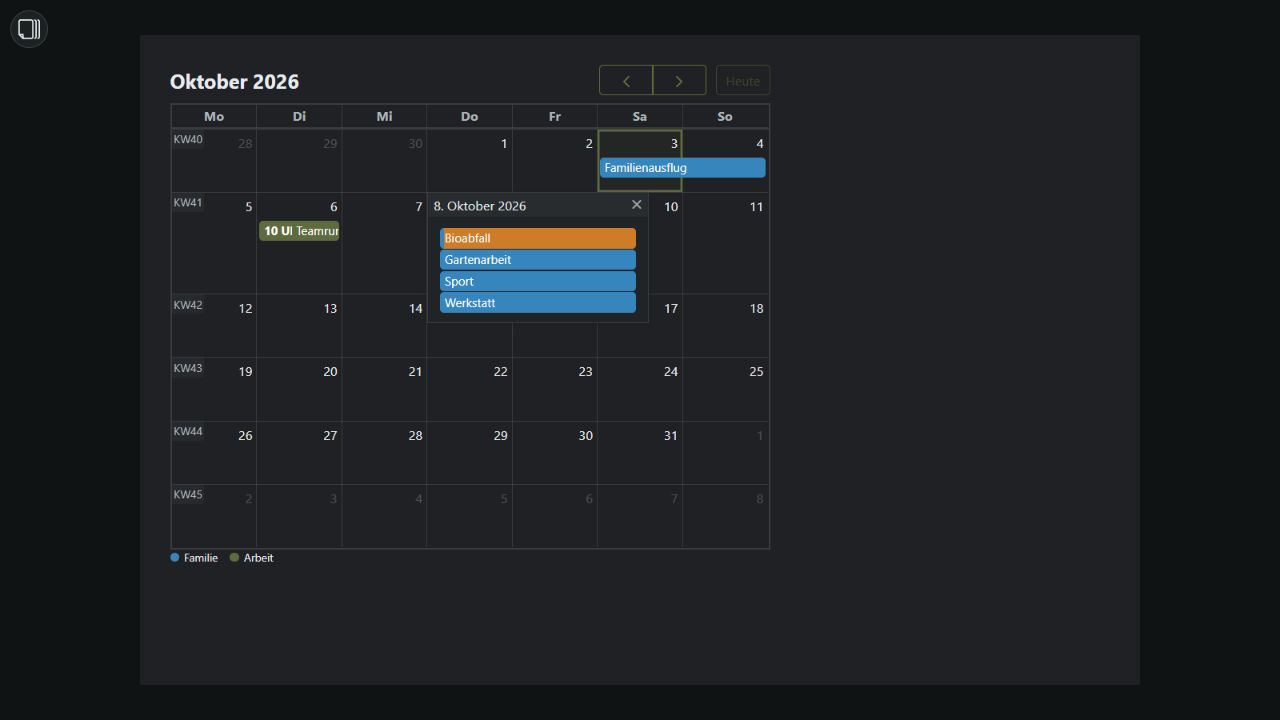
Functional reference: inventwo Event Calendar for VIS2. Studio uses its own data bridge and locally bundled FullCalendar 6.1.21 under the MIT license; the ioBroker package is not required.
Universal Element
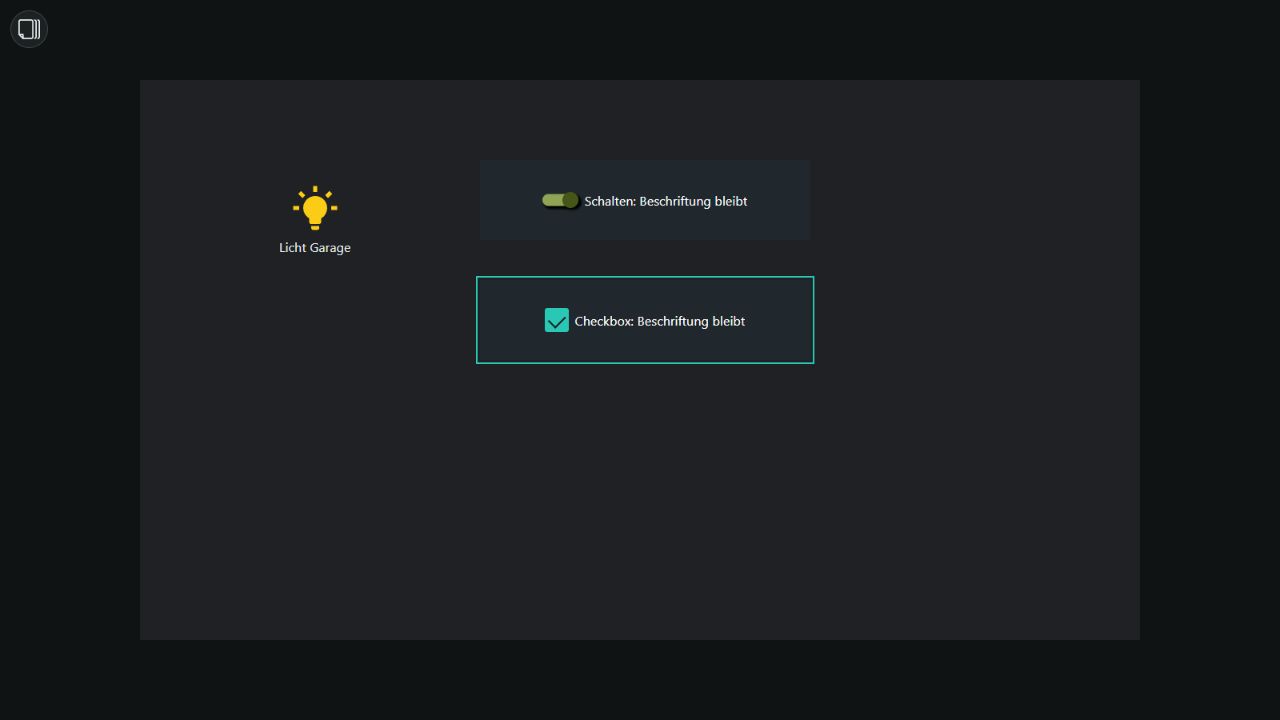
Starting with Studio 0.1.195, an empty state text inherits the default state text, then the optional title. A caption such as “Garage light” therefore remains visible when switching, including separate buttons. Nonempty state texts still override the default. For Checkbox and Switch, an empty state text inherits the other state text, then the title. Leave all text fields and the title empty for an unlabelled widget. The editor name is never displayed as a caption.
The former name State Element remains searchable. Existing projects retain the stored universal-button widget type.
- General: HA entity, interaction, button mode, false/true values and navigation URL. Without an entity, the element works locally. Sensors are not write targets; number and text values require suitable
input_number/input_texthelpers. Display and navigation do not write HA state. - Click feedback: Duration in milliseconds and six optional colors;
0disables feedback. It remains visible during state changes. “Pass clicks through” sends pointer clicks to underlying elements in runtime and disables this element’s own interaction. - Default state / States and content: The first matching enabled state wins; otherwise the default state appears. Rules compare the widget entity or another HA entity using
==,!=,>,>=,<or<=. States support copying, deletion, reordering and disabling. Reducing the count retains hidden entries. “Disable click when active” only blocks the currently matching state. Text can accompany icons or images; blink interval0disables blinking. - Text / Content / Alignment: Text decoration, separate margins, content size, rotation and mirroring; row or column, spacing, text/content alignment and reversed order. An explicitly selected type in “Content” applies to all states. State size
0uses the widget’s content size. - Opacity / Padding: Background and content have separate opacity values; each padding side is independent.
- Corners / Border / Outer shadow / Inner shadow / Shape: Four rounded or chamfered corners, separate border widths and style, and shadows with offset, blur, spread and color. Shapes include rectangles, stars and custom polygons. Polygon points use percentage pairs; invalid input falls back to a rectangle. Shape rotation and radius apply to polygons; regular corner settings apply to rectangles.
From widget continuously inherits a section’s settings from another Universal Element. Source changes propagate immediately; missing sources and cycles fall back to local settings instead of looping. Color references inherit the source widget’s default colors. The “custom color” checkbox enables a HEX value; without it, the color remains inherited. Copying linked widgets together remaps their internal references; exports must include referenced widgets. CSS General remains enabled to preserve position and size. Small red migration hints can be hidden globally.
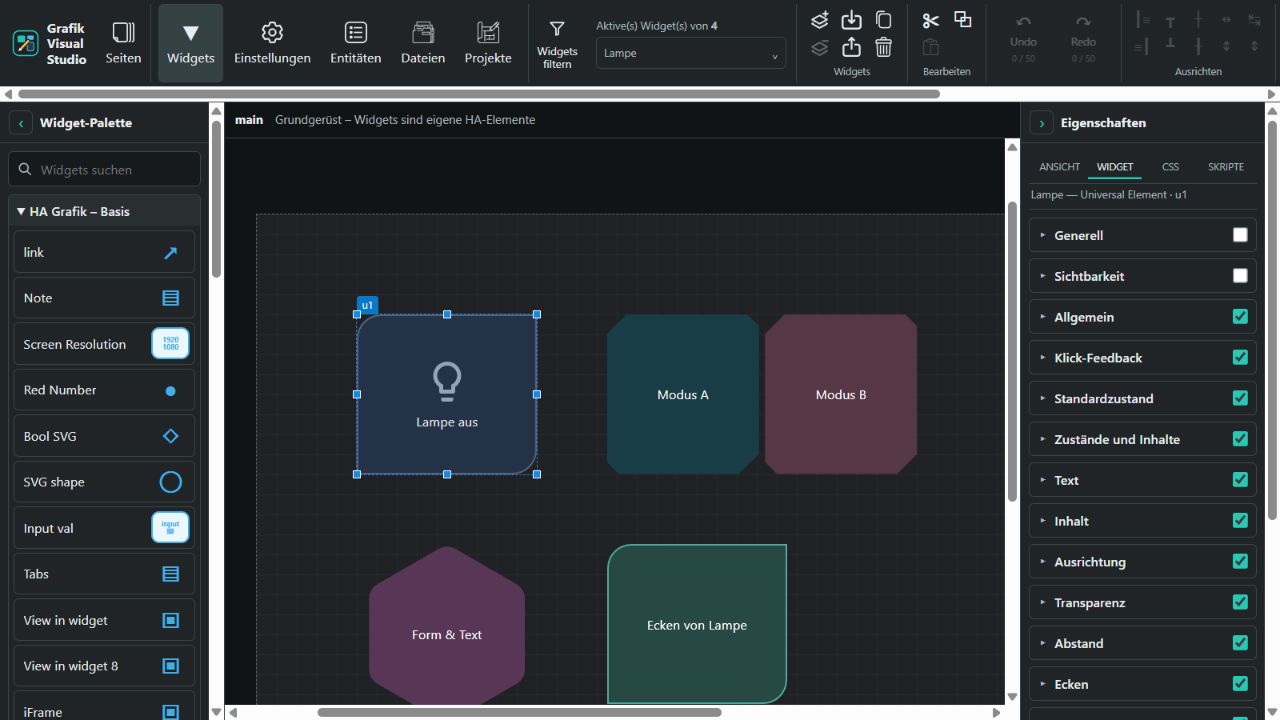
The functional reference is inventwo’s VIS2 Universal documentation. Studio uses its own implementation and does not require the ioBroker package.
HA Grafik – Gauges (10)
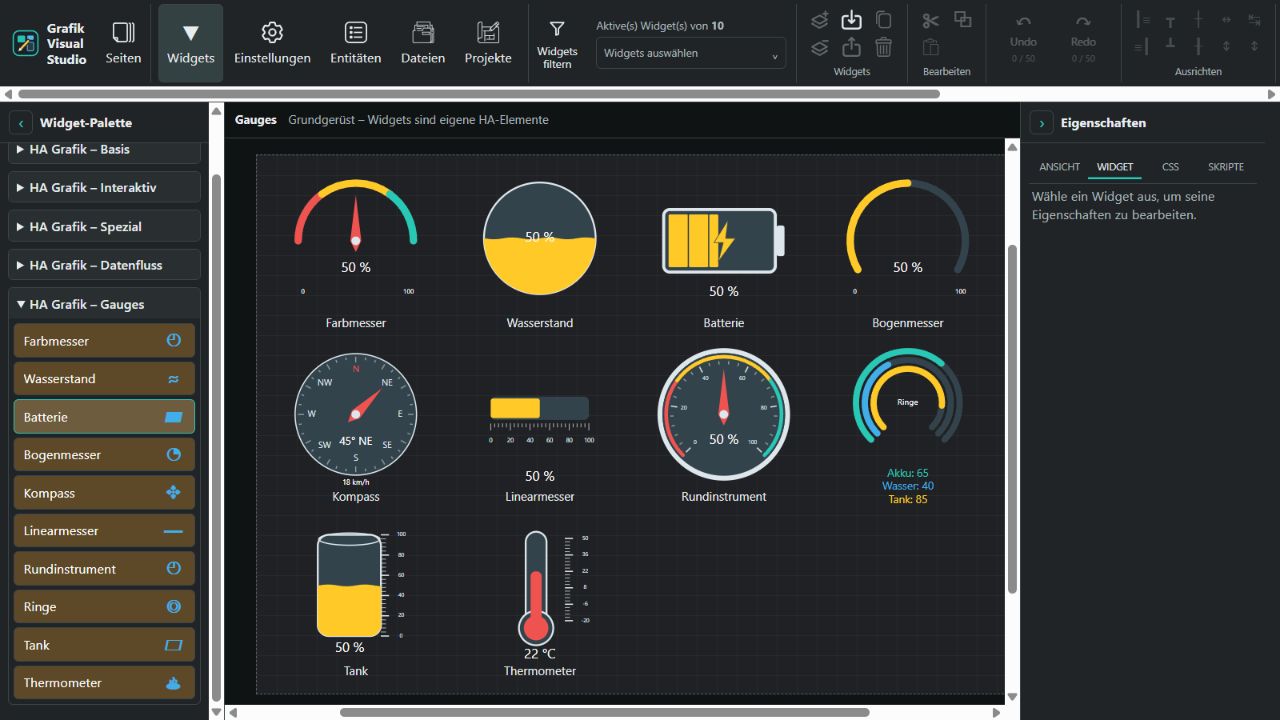
From 0.1.186, a separate gold-brown instrument set is available. Its functional reference is the current ioBroker.vis-2-widgets-gauges source, which contains ten types; the reference project's README shows only the first three. Studio draws its own SVG instruments and does not require ioBroker. These are independent Studio widgets, rather than a direct import of ioBroker configuration.
| Widget | Function and specific settings |
|---|---|
| Color gauge | Colored arc sections, needle, sweep angle and min/max labels. |
| Water gauge | Circular level display with wave amplitude and optional animation. |
| Battery | Horizontal or vertical battery, up to 20 cells, charging entity and charging symbol. |
| Arc gauge | Progress arc, rotation, up to 100 segments, fill from zero and target entity. |
| Compass | Degrees and cardinal direction, north offset, inverted direction, rotating dial and speed entity. |
| Linear gauge | Horizontal or vertical bar or pointer, major/minor divisions and target marker. |
| Radial gauge | Needle instrument with color band, labeled scale, sweep angle, rotation and bezel. |
| Rings | Up to eight separate entities with individual ranges, colors, labels and units; bottom, side or hidden legend. |
| Tank | Cylinder, rectangle or horizontal tank with scale, level, optional percentage and waves. |
| Thermometer | Column and bulb with configurable range; scale on the left, right or both sides. |
All instruments read HA states without writing values. Unbound widgets use preview values; missing or unavailable bound entities show —. Out-of-range readings remain visible as numbers while fills clamp to 0–100 %. Invalid ranges also show —. Units, decimal places, labels, active color, scale/track/needle/text colors and sizes are configurable. Up to ten color levels are sorted by upper threshold; the first matching level includes its threshold. All settings and entity bindings are stored in project and widget JSON exports.
Rings use their individual entities instead of the main entity. Charging, speed and targets are polled together with primary readings. Waves run only at runtime and respect reduced-motion preferences. Empty and full displays remain exact without waves.
HA Grafik – Data flow (3)
| Widget | Current functionality |
|---|---|
| Value connection | Directed internal value transfer; simple editor line, invisible in runtime. |
| Value converter | Converts numbers, text, switch states and units with a dedicated dialog and type preview; invisible in runtime. |
| Value calculation | Same four calculations as SVG LineBox Math; invisible in runtime by default. |
HA Grafik – Spezial (4)
| Widget | Current behavior |
|---|---|
| Dashboard in widget | Embeds an HA dashboard at runtime. Size 32–800 × 32–640 pixels, 300 × 200 default. The editor shows a selectable preview. |
| SVG-Line | Draws and animates links between widgets with docking points, manual multi-point paths and intentional collector-point joins. |
| SVG LineBox Math | Visible square with 16 ports A–P. Custom formulas or occupied-input averages; multiple connections sum per port. Internal output without an additional HA entity. |
| SVG LineBox | Visible in the editor: sums incoming line values and passes the result to outgoing lines and optionally a Home Assistant number helper. A configurable circle covers joined line ends at runtime. |
Dashboard in widget
Export to an external runtime
Intended for visualizations within Home Assistant. If you plan to export to the external runtime, avoid using this widget where possible. The embedded dashboard is not included in the export and still requires Home Assistant and browser authentication.
Since 0.1.159, this notice is always visible in the widget settings, independently of “Show migration hints”. Exporting selected widgets to JSON also shows the notice if a dashboard is included; owned tab surfaces are checked as well. The dialog lists the affected widgets and offers Export anyway or Cancel. Only the dashboard binding is exported. Full project export for the external runtime is still planned.
Editor preview only: /lovelace/0. This local test image does not show an authenticated HA dashboard.
Dashboard opens the HA dashboard list through “…”. Alternatively enter a path such as /lovelace or /dashboard-solar. Dashboard view optionally selects a view path or number, such as energy or 0. Leave HA base URL empty when using HA ingress. For direct Studio access, enter the HA address, for example https://ha.example.org.
Authentication uses the normal HA browser session. The widget stores no token; dashboard selection exposes only titles and paths. Other origins may be blocked by browser or embedding rules, and signing in again may be necessary. Normal Studio state updates do not reload an already embedded dashboard. New widgets enable only CSS General; migration hints can be disabled centrally. “View in widget” remains the container for Studio pages.