
Industrial – Widgets
The external Industrial 0.11.6 package contains sixteen widgets: Gauge/Poti – 270°, Toggle switches – 1 to 4, Rocker switches – 1 to 4, LCD – 20×4, LCD – 16×2, normal/slim Linear gauge / slider and Odometer, 7-segment LED, 16-segment LED, 16-segment LCD, Industrial clock – Nixie / LED / LCD, Industrial weather – LCD / LED, Blank panel, and Heating – boiler and oil tank. Industrial styling adds a housing, corner screws and a frame. The detailed heating artwork requires Studio 0.1.253 or newer.
Upgrade note: Version 0.11.4 could not upgrade existing installations because widget captions changed. Use 0.11.5 as a local .wg file instead; it preserves published widget contracts and entity bindings. Studio 0.1.259 displays supply captions without changing persisted group keys.
Images
| Rotary control with ticks | Gauge with a color ring |
|---|---|
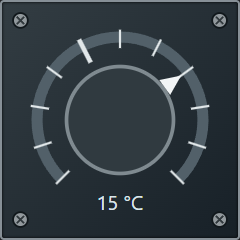 | 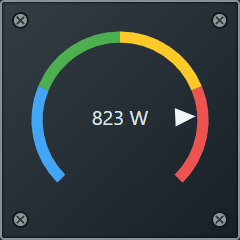 |
| No input: virtual rotary control with a negative scale minimum and 15 °C below the knob. | With input: 823 W solar power on a 0–1000 W scale, colored bands and centered value display. |
The images show runtime with example data, not live measurements.
Installation
Every entity field in the set provides an … button opening the Home Assistant entity picker. Search, select an entity and use Insert to fill the active field. From Studio 0.1.250, this also covers each toggle/rocker channel's Input entity and Output entity fields, assigning the selection to the correct channel. Updating Studio is sufficient with existing packages.
Download the package and install it through Settings → Widget packages → Local. Update Studio to 0.1.253 or newer first, then install package 0.11.3. Existing package 0.11.1/0.11.2 only needs the Studio update for the detailed artwork. Reload with Ctrl+F5 afterwards. The optional package uses API 0.2 and contains no executable package code. Updating preserves all sixteen existing widget definitions.
Source code and package instructions on GitHub
Heating – boiler and oil tank
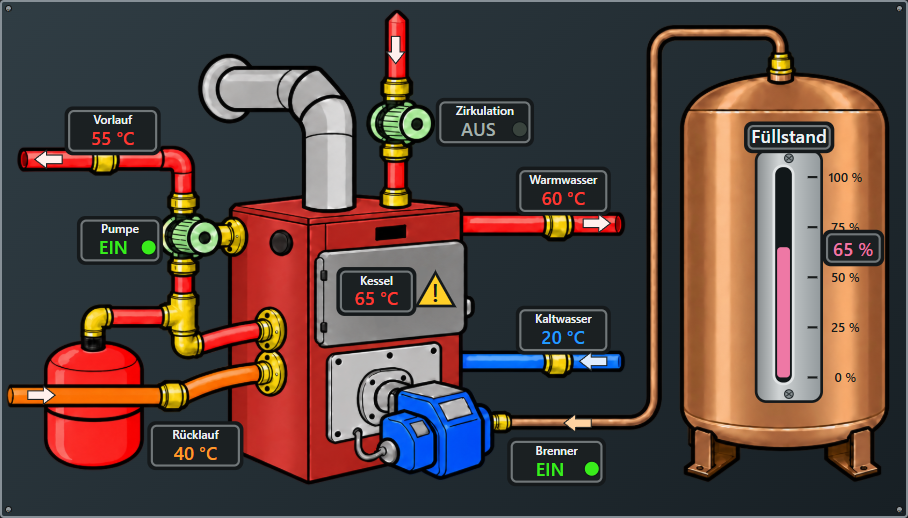
The detailed transparent PNG reference places a dark-red boiler, two green pumps, a blue burner and a copper tank side by side. Temperatures, statuses, warning, liquid column and arrows are live SVG elements. The image and overlays share the actual 1683×935 image coordinate space and scale together, retaining their alignment during resizing.
Width:height is 7:4 grid cells, including additive housing gaps: with 1 px spacing, minimum 460×262 px, default 908×518 px. Existing 4:6 and 6:4 widgets migrate when opened, retaining grid cell size and entity bindings. The image ships locally with Studio. The preview shows local test data.
| Display | Entity and settings |
|---|---|
| Supply temperature | Numeric entity, optional display, individual text color |
| Return temperature | Numeric entity, optional display, individual text color; panel below the orange pipe |
| Boiler, hot and cold water temperatures | Independent numeric entities and text colors |
| Heating pump, circulation pump, burner | Independent Boolean entities; each status panel can be hidden |
| Fault | Boolean entity; warning next to boiler temperature, optional |
| Tank level | Numeric percentage sensor 0–100 %, liquid height and reading |
All ten entity fields offer the Home Assistant picker. Boolean states on/off, true/false and 1/0 are recognized; labels can use EIN/AUS, ON/OFF or 1/0. Temperature units come from the entity. Default colors match the concept: red temperatures, orange return, blue cold water, green active status, yellow fault and pink level.
Since Studio 0.1.260, the left red connection is raised and an orange return pipe runs in front with a slight bend parallel to the boiler connection. Its arrow sits at the left end and points right toward the boiler. Return properties provide entity selection, visibility, text color and an independent flow arrow. Existing widgets receive these controls through the Studio update; Industrial 0.11.6 updates instructions while preserving package contracts. Custom tank colors are retained; the old orange default migrates once to pink.
Flow arrows for supply, circulation, hot water, cold water and the thin copper oil line toward the burner can be disabled independently. The right pump sits in a straight vertical pipe rising from the boiler; hot and cold water are separate lines. The tank sensor must provide percent, with no automatic litre conversion. Out-of-range readings clamp the column while retaining the original number.
Missing or invalid values show a dash; unknown fault status shows a question mark. No measurement values are invented without entities. Optional Example data without entities defaults off. This is a read-only display and sends no switching commands. Only housing docking is available; Industrial styling, screws, frame and background customization follow the other widgets.
Blank panel
A universal background widget providing a housing or customizable surface for widgets from any widget set. Place inputs, switches, displays and other controls above it. Under Size, Sections and Vertical sections each select 1 to 12, up to 12:12 grid cells. Minimum cell size is 64×64 px. Overall width/height includes the gaps between separate widgets: with 1 px Space around, each direction measures 64 / 130 / 196 / 262 px. Entering dimensions or dragging scales both directions together; changing section counts preserves cell size.
Only four individually enabled housing snap points are available. No entities, readings or data input/output ports. Shared industrial styling, screws, frame color, optional frame width, corner radius and CSS settings are available. Default CSS z-index -1 places the blank panel below normal widgets. Overlaid controls remain independently movable and usable; the panel does not automatically group them. Disable industrial styling to use a custom CSS background. The image shows a local example.
Industrial weather: LCD / LED
| LCD | LED |
|---|---|
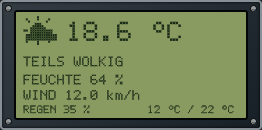 | 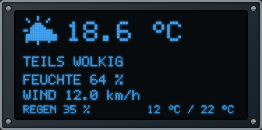 |
Images use a simulated weather entity. Weather entity binds a Home Assistant weather.* entity: original condition icon/text, prominent temperature, humidity and wind below. Icons cover sun, clear night, clouds, rain, snow/sleet, hail, thunderstorms, fog, wind and exceptional weather. Temperature and wind units come from Home Assistant without conversion; unit case is preserved.
Show rain probability and Show daily low/high add a bottom row: rain on the left, low / high on the right. These come from the daily forecast for the current browser-local day. Forecasts use the existing HA endpoint and a five-minute cache. Current readings and forecasts are separate in Home Assistant; see HA weather entity and forecasts. Unsupported daily forecasts show dashes without blocking current readings.
Additional sensors may replace each value: temperature, humidity, wind speed, rain probability, daily low and high. A configured sensor takes priority for its value, including when unavailable; no fallback reading is substituted. Without an override, the weather entity or daily forecast applies. Missing values show --, unknown conditions use a question mark. Example data without a weather entity is explicitly enabled and marked DEMO. A bound weather entity never silently switches to example data.
Display type → LCD / LED offers LCD segment/background colors or an adjustable LED glow color. Black bezel and housing match other industrial displays. The 2:4 grid defaults to 262×130 px with 1 px all-side spacing: height = 2 × cell + 2 × spacing; width = 4 × cell + 6 × spacing. Cells are at least 64 px. Typing, resizing and spacing changes retain alignment with two rows of four individual widgets. Long readings are clipped with full text in the tooltip.
Power comes from a Display power entity or individually enabled top port (display-power), with port priority. Without a binding, the default power checkbox applies. Missing/unknown power makes the screen dark. Visible or hidden toggle connections work. There is no measurement input, output or service write. Four housing corners, spacing, screws, frame color, optional thickness and corner radius apply.
Industrial clock: Nixie / LED / LCD
| LED | LCD |
|---|---|
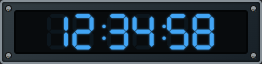 | 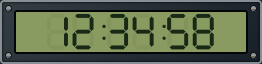 |
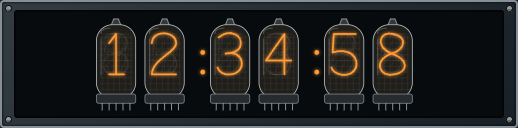
One widget with Display type → Nixie / LED / LCD. Nixie imitates glass tubes, protective mesh and stacked wire digits with orange light. LED provides seven-segment digits with an adjustable LED glow color. LCD has separate LCD segment color and LCD background color settings. Images use a frozen example time.
Show seconds switches between HH:MM:SS and HH:MM in 24-hour format. Blink colons optionally blinks separators once per second. Time zone supports browser-local time, UTC or Europe/Berlin with automatic daylight-saving changes. The browser clock supplies time; no time entity is required and no data output is provided. A shared ticker only changes clock content, retaining editor selection and input focus.
| Mode | HH:MM:SS | HH:MM | Minimum height |
|---|---|---|---|
| Nixie | 518×128 px | 388×128 px | 64 px |
| LED / LCD | 262×64 px | 196×64 px | 32 px |
Default sizes assume 1 px all-side spacing. Width follows four or three grid units, including gaps: height × span + 2 × spacing × (span − 1). Typed dimensions and dragging preserve proportions. Switching to Nixie doubles height, switching back halves it, retaining relative custom scaling. Seconds and spacing changes recalculate width.
Housing, screws, frame color, optional frame thickness, corner radius and four individually enabled housing snap points apply. A Display power entity or optional top power input (display-power) controls illumination; the port takes priority. Without a binding, the default power checkbox applies. Missing or unknown power leaves the display dark while the clock and housing remain. Toggle switch connections may be visible or hidden. Nixie artwork is original SVG; the supplied OmniGraffle stencil is not redistributed.
Segment displays: LED and LCD
| 7-segment LED | 16-segment LED | 16-segment LCD |
|---|---|---|
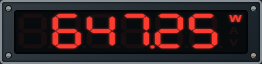 | 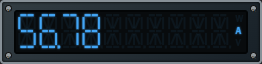 | 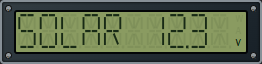 |
Images use example data. Each display has 1–10 fixed positions. A minus sign uses one position; decimal points attach to the preceding character. Seven-segment LED supports numeric values, configurable decimal places and optional leading zeros. Rounding happens before capacity checks; overflow and missing readings show dashes. Sixteen-segment displays support numbers and uppercase text. Long text is clipped with its full content in the tooltip; unsupported characters become question marks. Supported characters include A–Z, 0–9, spaces, decimal points, minus, underscore, question mark, plus, slashes, colon, equals and degree sign.
Content: entity supplies the value or text. Without a binding, Preview value / text applies. The independently enabled left value input (value-input) takes priority over the entity. A separate top power input (display-power) or Display on/off entity controls the display. The power input takes priority; without a binding, the default power checkbox applies. Missing or unknown power inputs make the display dark. Visible and hidden connections work, including power from toggle switches. Displays have no outputs or service writes.
W, A and V are stacked on the right. The unit selection is exclusively Off / W / A / V: at most one label lights up. Others remain dim. Segment and unit color applies to all active digits, characters and the chosen unit. LED mode adds a subtle glow; LCD uses contrasting segments on an adjustable background. Unit selection is explicit, rather than inferred from entity attributes.
Default dimensions are 262×64 px (1:4), with 196×64 px (1:3) available, at 1 px all-side spacing. Width = height × grid span + 2 × spacing × (span − 1), matching switch banks and linear displays. Numeric sizing and dragging preserve this ratio. Choose 1:4 for ten readable positions; enlarge the whole widget if needed. Housing, screws, frame color, optional frame thickness, four individually enabled corner snap points and spacing remain available.
Original SVG segment geometry requires no installed font. The supplied 16Segments Basic.otf permits personal use only according to its embedded license, so it is not redistributed in the public package.
Odometer
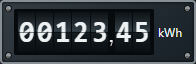
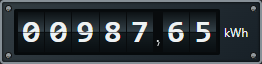
An original read-only industrial display with mechanical digit reels. Input comes from an entity or the individually enabled left input port (value-input). The enabled port takes priority; without a binding, the preview value applies. Visible and hidden value connections work. No output or service writes are provided.
| Normal 1:3 | Normal 1:4 |
|---|---|
 |  |
| Slim 0.5:3 | Slim 0.5:4 |
|---|---|
 |  |
Images use example data. With 1 px all-side spacing, normal sizes are 196×64 / 262×64 px and slim sizes 196×32 / 262×32 px. Width includes the gaps between three/four individual widgets, as on linear displays. Width in grid units, typing, resizing and spacing edits preserve this alignment.
The fixed digit window height is 62.5% of widget height: 40 px at 64 px and 20 px at 32 px. Both widths share the same digit height; slim variants use exactly half. Additional digits compress width and spacing, leaving height unchanged.
Choose fixed 1–12 integer digits and 0–6 decimal places. The comma/dot uses a narrow separator slot. Five integer digits and two decimals produce 00123,45. Disabling Leading zeros leaves their positions blank. Reserve minus sign allocates a permanent sign position; negative readings without it are treated as overflow.
An explicit unit overrides the entity's unit_of_measurement or connection unit. Units remain to the right of the digit window. Font color and Unit font size are configurable; long units are clipped. Housing, default screws, frame color, optional frame width, four independent housing corners and spacing remain available.
Changed digits roll for 350 ms in runtime, including the 09→10 carry. Reduced-motion browser preferences disable animation. Missing or unavailable values show dashes; readings exceeding the configured digits show #. Rounding occurs before overflow detection: 99999.999 overflows five integer digits with two decimals. The housing width stays constant.
Linear gauge / slider
Since Studio 0.1.241, selecting an input entity immediately updates gauge settings: Scale → Display → Color bar exposes colored ranges. Without input, only ticks are available. Package 0.6.0 remains compatible.
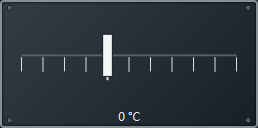
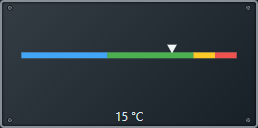
With an input entity or enabled dataflow input, the widget becomes a gauge: a triangle marks the value on a tick scale or color bar with configurable ranges. Without input it becomes a rectangular-handle slider with ticks only. Even a previously saved color-bar setting never creates colored ranges in slider mode.
| Slider with ticks | Linear gauge with color ranges |
|---|---|
 |  |
| Slim slider | Slim linear gauge |
|---|---|
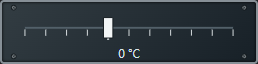 | 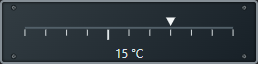 |
Images use example data. Size → Width in grid units offers 2, 3 and 4:
| Variant | Height/width | Minimum sizes (width × height) |
|---|---|---|
| Normal | 1:2 / 1:3 / 1:4 | 130×64 / 196×64 / 262×64 px |
| Slim | 0.5:2 / 0.5:3 / 0.5:4 | 130×32 / 196×32 / 262×32 px |
The table assumes 1 px all-side spacing. Width includes the gaps between separate widgets: cell width × span + 2 × spacing × (span − 1). Cell width equals the height, doubled for slim widgets. With zero spacing, widths are 128/192/256 px. Outer edges therefore align with two, three or four separate widgets; editing spacing updates the total width automatically.
Typed dimensions and resizing scale both dimensions in the selected ratio. Minimum, maximum, scale division and control step are independent. Negative ranges are supported and zero is highlighted. Show scale values adds endpoints and zero where space permits. Color bars use the same up to eight ranges as Gauge/Poti. Invalid ranges never invent colors; unavailable input hides the pointer.
Value display uses the same units and font settings as Gauge/Poti. Center places it centrally above the linear scale; Bottom places it below. Industrial styling, screws, frame color, optional frame width, four individually enabled housing corners, all-side spacing and shared port colors also apply.
In runtime, use mouse, touch or keyboard. Arrow keys move by one step, Page Up/Down by ten steps, and Home/End select the minimum/maximum. Output is sent on release or while dragging. A number/input_number entity or an output port with a visible/hidden value connection receives the value. The editor sends no control commands. Enabled dataflow input takes priority over the input entity and remains in gauge mode when its value is unavailable.
LCD – 20×4 and 16×2
The displays imitate a 5×8 dot-matrix alphabet with a black screen bezel. Studio draws each pixel dynamically; no external font installation is required. Uppercase and lowercase letters, numbers, punctuation, German umlauts, ß, €, °, µ, Ω, arrows and ✓ are included. Unsupported characters appear as ?.
| 20×4 Yellow/White | 20×4 Blue/White |
|---|---|
 |  |
| 16×2 Blue/White | Display off |
|---|---|
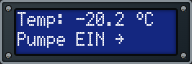 |  |
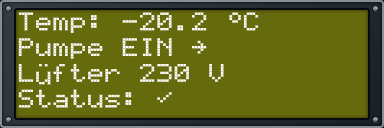
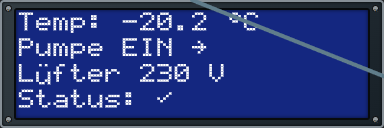
These images use example data. Both sizes offer Yellow/White and Blue/White. Since Studio 0.1.242, the normal 16×2 display uses 192×64 px; the 20×4 display is twice as wide and tall at 384×128 px. Both retain a 1:3 height/width ratio during input and resizing. Smaller saved displays normalize to these minimum sizes on load. Larger widgets scale the screen and characters together. Darker blue/yellow backgrounds and stronger white dots improve legibility. Package 0.6.0 is unchanged; updating Studio is sufficient.
Rows and entities
Each of the four or two rows has one entity with an entity picker. Text / prefix precedes its value; without an entity, this field is the entire static row. For example, Temp: + sensor value -20.24 + automatic unit °C becomes Temp: -20.2 °C with one decimal place.
Unit from entity reads Home Assistant's unit_of_measurement. An explicit unit takes priority. Decimal places supports auto or 0–6 places for numbers; text states remain text. Missing or unavailable values appear as ?. Text is clipped after 20 or 16 characters; the tooltip contains the complete rows. There is no wrapping and no data port for individual rows.
Display power and housing
Without a binding, On without an input applies. Display power entity can use a switch or input_boolean entity, for example. Alternatively, Enable power input port adds one input at the top center (display-power), accepting on/off, true/false or 1/0. Connect a toggle or rocker output through a visible or hidden value connection.
The enabled port takes priority over the entity. Missing or invalid input keeps the screen dark. When off, text disappears and the housing remains visible. The LCD reads states and sends no service commands. It has no output.
Housing and colors provides industrial styling, screws enabled by default, frame color and optional frame width. Four corner housing snap points can be enabled individually. All-side spacing and the shared input/housing point colors work as on other Industrial widgets. Text size follows the fixed grid; text color remains white in both modes.
Rocker switches – 1 to 4
Since Studio 0.1.237, rocker banks also use width = height × channel count + 2 × all-side spacing × (channel count − 1). At 64 px height and 1 px spacing, widths are 64 / 130 / 196 / 262 px. Channel centers and E/A ports align with individually docked widgets. Width input and resizing include spacing. Updating Studio is sufficient; package 0.3.0 is unchanged.
Package 0.3.0 and Studio 0.1.235 add rocker switches as a copy of the toggle widget using transparent PNG artwork. Select White/Gray, Red, Black or Green for each channel under Switch 1 through Switch 4 → Switch color. A single widget can combine different colors; its artwork follows each channel's on/off state.
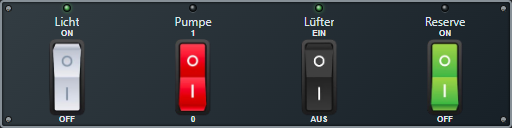
All toggle settings apply: captions, additional ON/OFF, 1/0, EIN/AUS or Custom legends, LED colors, entities, E1–E4/A1–A4, six housing snap points, screws, frame and spacing. Printed O/I symbols remain part of the artwork. Aspect ratio is 1:1 to 4:1 with at least 64 px per channel. Controls are enabled only in runtime.
Gauge/Poti: data and controls
From Studio 0.1.282, the active data-flow output also controls the speed and direction of a connected SVG line. No additional Home Assistant output entity is required: leave Output: number/input_number entity empty for local connections; put a starting value such as 0 in the preview-value field. For Home Assistant writes, select an available number.* or input_number.* entity instead.
For visibly value-dependent speed, enable animation, set the rotary / SVG LineBox divisor to 10, for example, and disable automatic rotary/LineBox divisor adjustment. Value 10 gives 1 cycle/s, 20 gives 2; zero stops and negatives reverse direction. Divisor 1 reaches the maximum speed for all magnitudes of 20 or higher. See SVG-Line for details and the editor screenshot and animation for the setup.
The following scale and value-display sections describe Gauge/Poti. Toggle switches have a dedicated section at the end of this page.
- No input: rotary control in runtime with mouse, touch or keyboard. Initial value and control step are configurable.
- Entity or signal input: read-only gauge. An enabled signal input takes precedence over the entity. An unavailable input is shown as a missing reading.
- Output:
number.*orinput_number.*, on release or continuously while dragging. Changed gauge readings are also forwarded. The entity must be available and writable; input and output entities must differ. - Value lines: visible and visually hidden connections use the existing dataflow.
Editor interaction and writes are disabled; open runtime to control values.
Scale and color bands
Choose ticks with emphasized zero or a color ring. Minimum, maximum, tick division and an independent control step are configurable; negative bounds are supported.
Color bands use ascending upper limits within the scale. The final band ends at the maximum. For solar power from 0 to 1000 W, four bands could end at 250 / 500 / 750 / 1000. Adjust band limits after changing the scale range. Invalid limits do not hide an available reading; the warning remains in the tooltip.
Value display
The dedicated Value display group contains:
| Setting | Effect |
|---|---|
| Show value | Display the reading and unit in the instrument. |
| Unit | Custom unit, such as W. Empty uses the Home Assistant input entity's unit_of_measurement. |
| Value position | Center or Bottom; bottom sits below the rotary knob. |
| Font size (px) | Default 12 px; remains constant when resizing the widget. |
| Font color | Configurable color, light by default. |
Value/unit display was added in Studio 0.1.227; dedicated display settings were added in 0.1.228.
Housing and colors
From Studio 0.1.248, all Industrial widgets offer Customize background and Housing background color. Disabled by default, preserving the standard dark-gray/anthracite gradient. Enabling it applies a solid custom color, initially #263238. The color picker is enabled only while the checkbox is checked. Disabling customization restores the standard background while retaining the chosen color for later. Works in editor and runtime, including when industrial styling is disabled. Display, LCD, segment, LED and scale colors remain independent. Updating Studio is sufficient with an older installed Industrial package; package 0.10.3 updates the instructions.
Studio 0.1.231 adds Enable screws directly below Industrial styling. Screws are enabled by default and can be disabled independently while industrial styling is active. Turning industrial styling back on also enables the screws again. Without industrial styling, screws are hidden and the checkbox is disabled.
Industrial styling adds four corner screws, the housing background and frame. Scale and pointer colors are independently configurable. General CSS → Corner radius (px) controls frame rounding.
From Studio 0.1.230, Customize frame width works as follows:
- Unchecked: use the existing 2 px frame width.
- Checked: set a custom Frame width (px) from 1 to 16 px.
- Disabling the override retains the custom value and keeps the frame visible.
Frame color is independently configurable. Disabling industrial styling hides the housing frame.
Size
The widget starts at 64 × 64 px. The checked-by-default 1:1 aspect ratio option, available since Studio 0.1.226, keeps width and height equal during typed changes and dragging. Uncheck it for independent dimensions, each at least 64 px. Re-enabling the lock uses the larger dimension for both sides.
Housing snap points
Since Studio 0.1.224, Housing snap points offers four independently enabled corners and one spacing value for all sides. With 1 px on each neighbor, the gap is 2 px; single widgets snap when dragged.
Set the color in Settings → General → Editor and dock points → Housing snap point color. Signal ports stay separate. Automatic port relocation to free housing sides will follow later.
Toggle switches – 1 to 4
From Studio 0.1.249, each channel offers Plate legend → Custom with Text when OFF and Text when ON. For example, a Pump heading with OFF text 1 and ON text 2, or Cold/Warm. All four channels have independent labels; explicitly empty custom labels remain empty. Long labels are clipped, with the full current state text in the tooltip. Rocker switches share this feature; printed O/I artwork remains unchanged. Only the labels change: entity actions and E/A ports retain Boolean (false/true) values; labels “1”/“2” are not emitted as numeric values and do not automatically select two entities. Existing presets remain available. Updating Studio is sufficient with existing Industrial packages.
Since Studio 0.1.236, toggle bank width includes the space between channels: height × channel count + 2 × all-side spacing × (channel count − 1). At 64 px height and 1 px spacing, widths are 64 / 130 / 196 / 262 px. Channel centers and E/A ports align with individual widgets below. Width input and resizing include the extra spacing. This change initially applies only to toggle switches; rocker sizing is unchanged. Updating Studio is sufficient; package 0.3.0 is unchanged.
Package 0.2.0 and Studio 0.1.232 add one to four independently controlled switches side by side. Number of switches sets the width/height ratio from 1:1 to 4:1. Minimum height and width per channel are 64 px; typed changes and resizing preserve the ratio.
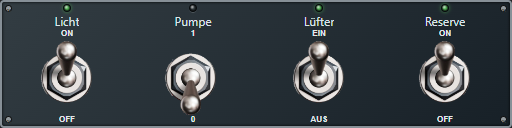
Runtime with example data: custom captions, green LEDs and ON/OFF, 1/0 and EIN/AUS plates. Since Studio 0.1.233, the metallic lever uses the transparent PNG supplied by rockbaer2007 and is fully visible in both positions. The LED remains CSS artwork. Updating Studio is sufficient; package 0.2.0 does not need reinstalling.
Each Switch 1 through Switch 4 group has a static Caption, Plate legend with ON/OFF, 1/0, EIN/AUS or Custom, initial state and individual LED on/off colors. The LED sits above the caption; entities never change the plate text. Font size and color are available under Caption.
| Connection per channel | Behavior |
|---|---|
| Input entity | Feedback for lever and LED. When no input is configured, the output entity provides feedback. |
| Input port | Above its channel, independently enabled; takes precedence over the entity. |
| Output entity | Controls switch.*, light.* or input_boolean.*. Without a separate output, a compatible input entity is controlled. |
| Output port | Below its channel, independently enabled. Supplies the last command as a boolean value, or the current state before the first command. |
Unbound switches work locally. Missing feedback disables control. The editor never sends commands. Housing, screws, frame and housing snap settings also apply. To add the toggle switches, update the optional package locally to 0.2.0; existing Gauge/Poti definitions are retained.
Ports E1–E4 and A1–A4
Since Studio 0.1.234, editor signal ports are labeled E1–E4 (input above each switch) and A1–A4 (output below each switch). Only ports for the configured switch count are shown. Each port is enabled independently and follows the central input/output colors; existing connections are preserved.
The switch has six independent Housing snap points: four corners plus Left center and Right center. Including signal ports, this provides 8 / 10 / 12 / 14 available points for one to four switches. Housing points snap with the configured spacing and housing color; they do not carry signal values. Points and port labels appear only in the editor. Updating Studio is sufficient; package 0.2.0 remains unchanged.