
Technic
From Studio 0.1.296, the thermostat offers initially disabled Climate controls: two targets, HVAC modes, presets, fan, swing, humidity and power according to device capabilities. Widget properties and runtime messages support DE/EN/FR; existing settings remain valid.
Packages and helper tools are provided centrally at visualstudio.ugso-software.de. This open-source page provides descriptions and instructions; downloads are provided by the package catalog.
Inspired by the ioBroker Technic Widgets by Sefina-DS. An independent implementation for Home Assistant.
From Studio 0.1.203, you can install Technic 1.6.0. The package contains all seven widget types: Window – Wall, Switch – Boolean, Dimmer – Light, Room – Overlay, Clock – Date, Thermostat – Temperature and Status – List. Install 1.6.0 through package management as an additive update to previous versions; existing widgets are preserved.
Status – List
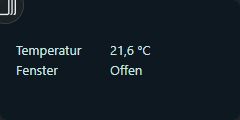
The status list displays up to ten read-only status rows. The default is 0 rows, leaving the widget empty. Default size: 160 × 120 pixels. Under Status rows, configure the count, value column offset (90 px) and container left padding (8 px). The offset defines the label column width; the value column follows after a 4 px gap. Container left padding is added to the fixed 8 px inset.
The count reveals Status row [1] through [10]. Each row has a label and a Home Assistant entity. Number supports units, decimals and number color. Boolean supports ON/OFF text and colors, plus comma-separated additional entities with AND or OR. Original fields oid1 through oid10 map to Studio's rowEntityId1 through rowEntityId10; oidsExtra1 through oidsExtra10 map to extraEntityIds1 through extraEntityIds10.
Missing, unknown and unavailable inputs remain —. Font size, family, bold and label color inherit CSS → Font and Text. Long labels or values use ellipsis, with full text in tooltips. Increase widget width for long units; the screenshot uses 240 pixels. Overflowing rows scroll inside the widget. Clicks never write HA states or hide labels. All row settings and spacing remain in project and widget exports.
Thermostat – Temperature
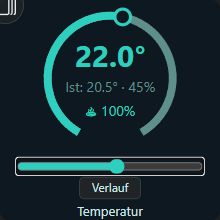
The thermostat displays target/actual temperature, humidity, actuator and cooling mode. Default size: 220 × 220 pixels, range 15–28, step 0.5. General controls the caption, visibility, top/bottom position, icon scale and read-only mode. Dial controls bounds and step; Colors provides ON, OFF and cooling colors.
| Original field | Studio binding | Home Assistant |
|---|---|---|
oid_temp_soll | Target temperature | climate with a single setpoint or input_number |
oid_temp_ist | Actual temperature | Temperature sensor or climate.current_temperature |
oid_feuchtigkeit | Humidity | Percentage sensor or climate.current_humidity |
oid_stellmotor | Actuator | Sensor 0–100%, Boolean state or climate.hvac_action |
oid_kuehlmodus | Cooling mode | Boolean state or a climate cooling state |
Blank read bindings use matching attributes of the target climate entity. An input_number target needs separate sensors. Heating/cooling activity means 100%, idle/off 0%; this is not a measured valve position. Missing or unavailable readings remain —.
In runtime, drag the 300° arc or use the keyboard range. Release commits once through climate.set_temperature or input_number.set_value. The server first checks current HA capabilities, bounds and both step grids. Incompatible grids, unknown states, read-only mode and editor operation never write. Only the setpoint changes; operating mode and power are not changed. HA failures show a status message; the caption remains visible.
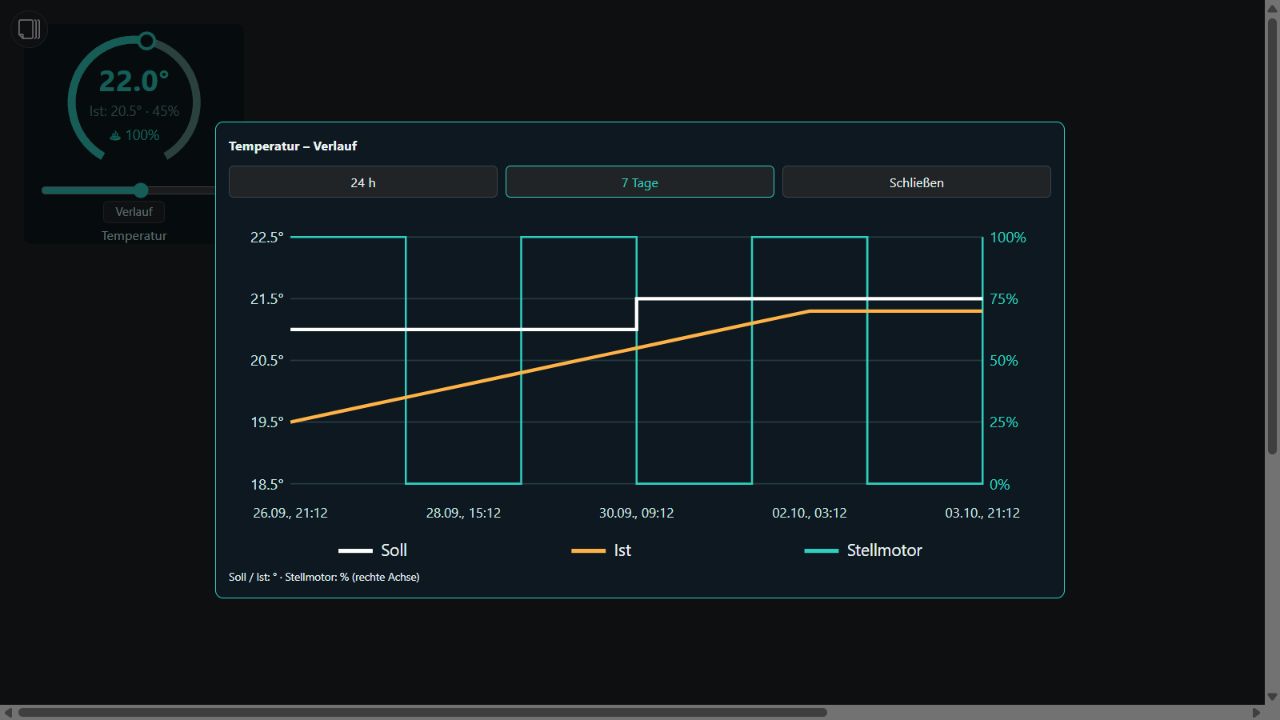
History opens 24 hours or 7 days from Home Assistant Recorder. Target and actual use the temperature axis; actuator uses the right percentage axis. Configure the three colors under History (HA Recorder). Unknown readings break the curve. Recorder must track the selected entities and retain data for the requested period. HA Recorder replaces the ioBroker influxInstance setting. All bindings, display settings and colors remain in project and widget exports. The screenshots were captured locally with simulated HA responses.
Clock – Date
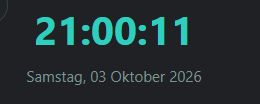
The clock displays the browser's local time and timezone without an HA entity. It updates every second without redrawing other widgets; after a paused browser tab resumes, it reads the current time again.
Under General, choose side-by-side/stacked layout, left/center/right alignment, gap, optional background, corner radius and padding. Default size is 260 × 90 pixels. Long dates or large fonts require more space; overflowing content remains scrollable.
Under Time, configure visibility, 12/24-hour format, seconds, color, font size and bold text. The 12-hour format uses AM/PM. Under Date, configure visibility, color, font size and bold text independently.
Date language is independent of the Studio language: German, English, French, Spanish, Italian or Dutch. Choose Day-Month-Year, Month-Day-Year or Year-Month-Day; dot/hyphen/slash/space separators; numeric/short/long months; four/two-digit years; and an optional leading zero for the day. Weekdays can be hidden, short or long. Month and weekday names come from browser locale data. All options remain in project and widget exports.
Room – Overlay
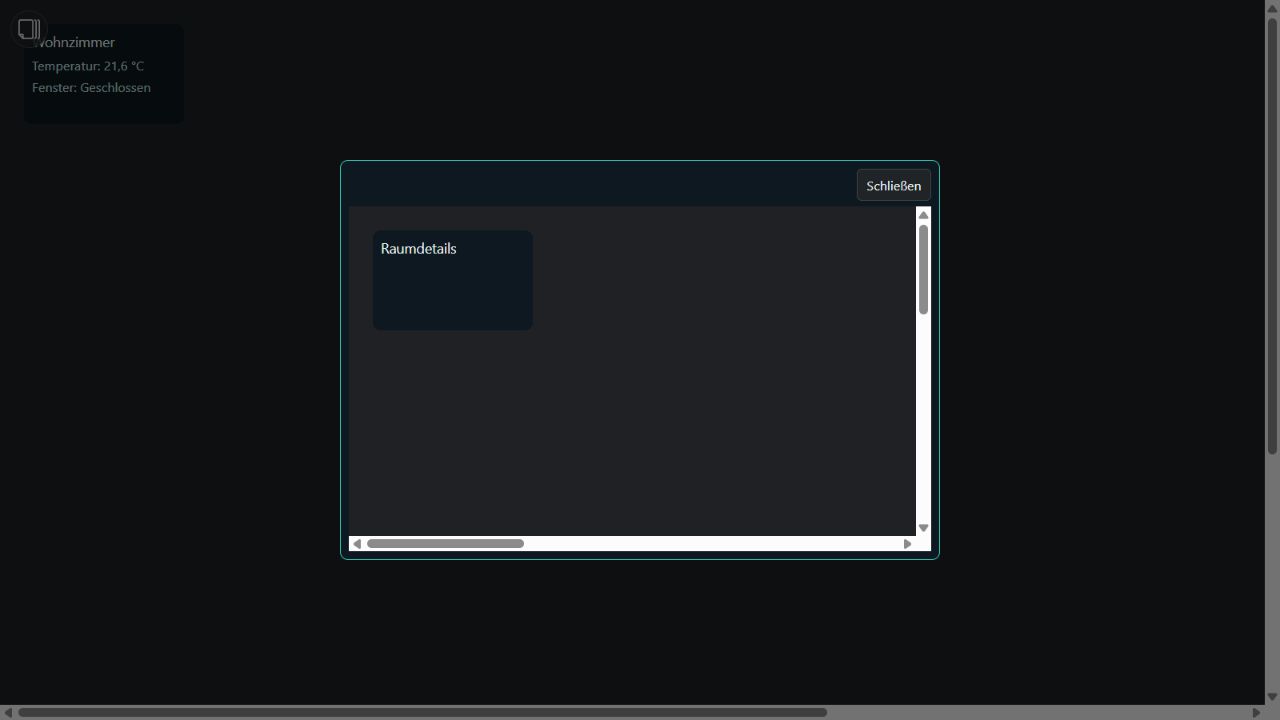
The room tile displays a custom room name and up to ten status rows. Configure name color, font size, bold text, horizontal and vertical alignment, and padding on each side. Default size: 160 × 100 pixels.
Under Status rows, select the count, font size and label color. Rows can be arranged vertically or horizontally with a separator and gap. The corresponding Status row [1] through [10] groups appear according to the count.
Each row has a label and a Home Assistant entity. Number supports units, decimal places and number color. True / False supports ON/OFF text and colors plus comma-separated additional entities combined with AND or OR. Missing, unknown or unavailable inputs display —; they never report OFF. Data is read only.
Under Click behavior / Popup, select an existing Studio target page. Popup opens its runtime in a dialog; Switch page navigates directly. Recreate an ioBroker view as a Studio page first. Invalid targets, self references and recursive embedding cannot open a popup. In the editor, clicking only selects the widget.
Configure popup width and height, a fixed X/Y position instead of centering, background, border color, width and radius. Outside-click closing, the close button and automatic closing after a number of seconds are configurable (0 = off). Escape always closes it. Live updates preserve the open popup and caption. Navigating away or removing the tile closes the dialog. Dimensions are constrained to the viewport. All settings remain in project and widget exports.
Installation
Download ugso.technic.wg. Open Settings → Widget packages → Install local .wg / .wg.zip and select the file. After reloading, the set appears with an automatically assigned unused color. It remains independent of built-in widgets and Weather and Heating.
The source and reproducible package build are public. The download includes README.md and LICENSE.txt, including the full MIT license and original attribution Copyright (c) 2026 Sefina-DS.
Window – Wall
General configures the caption, Show caption, top/bottom caption position, icon size (10–100%), left/right handle and icon color. The default size is 120 × 160 pixels. Read only disables control.
Data points provides three independent HA bindings:
| Original field | Studio field | Home Assistant |
|---|---|---|
oid_kontakt | Opening contact: entity | for example binary_sensor.garage_window; on means open |
oid_rollo | Blind: cover entity | for example cover.garage_blind; reads current_position |
oid_modus | Mode: entity | for example input_boolean.blind_manual; off = automatic, on = manual |
Each binding has its own inversion. Invert blind reverses both display and written position (100 − position). Normally 0 means closed and 100 means open. Unknown values remain unknown after inversion. The contact is read-only. An optional A/M symbol displays the mode; ? indicates an unknown mode.
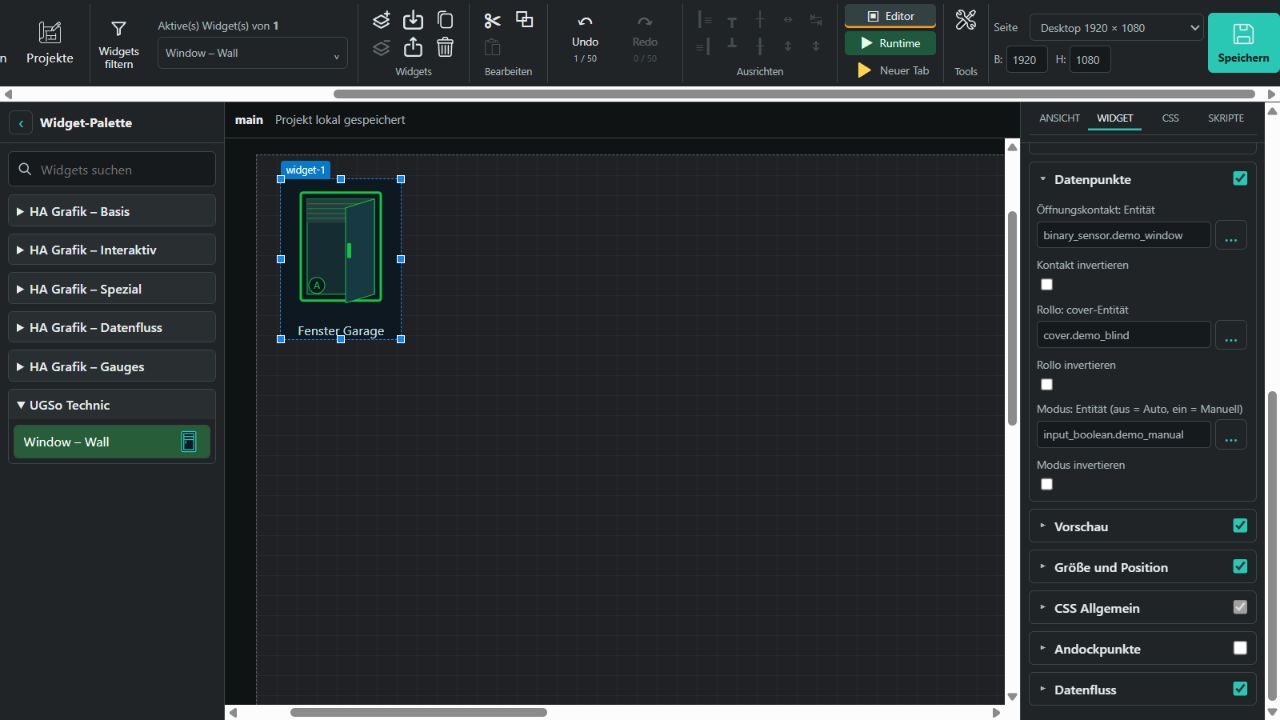
Controls
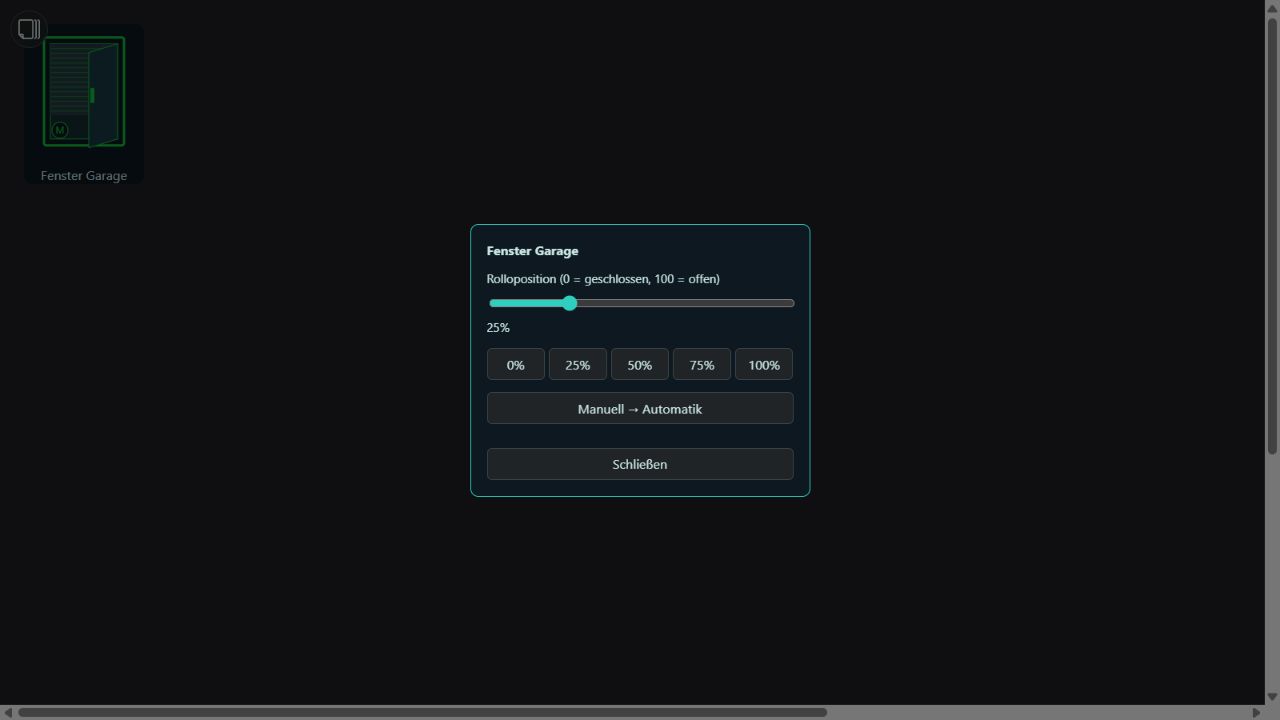
In runtime, clicking the window opens a dialog with a position slider, quick values 0 / 25 / 50 / 75 / 100% and an optional mode toggle. Keyboard control is supported; Escape or Close dismisses the dialog. The blind action uses only cover.set_cover_position for the selected entity. Availability and SET_POSITION support in supported_features are checked before writing. Mode writes only target available input_boolean or switch entities. Sensors remain read-only displays.
The mode helper represents the switch only: configure the actual blind automation in Home Assistant. No automation is generated or disabled. Failed actions display a retry message; pending actions are not sent twice.
Switch – Boolean
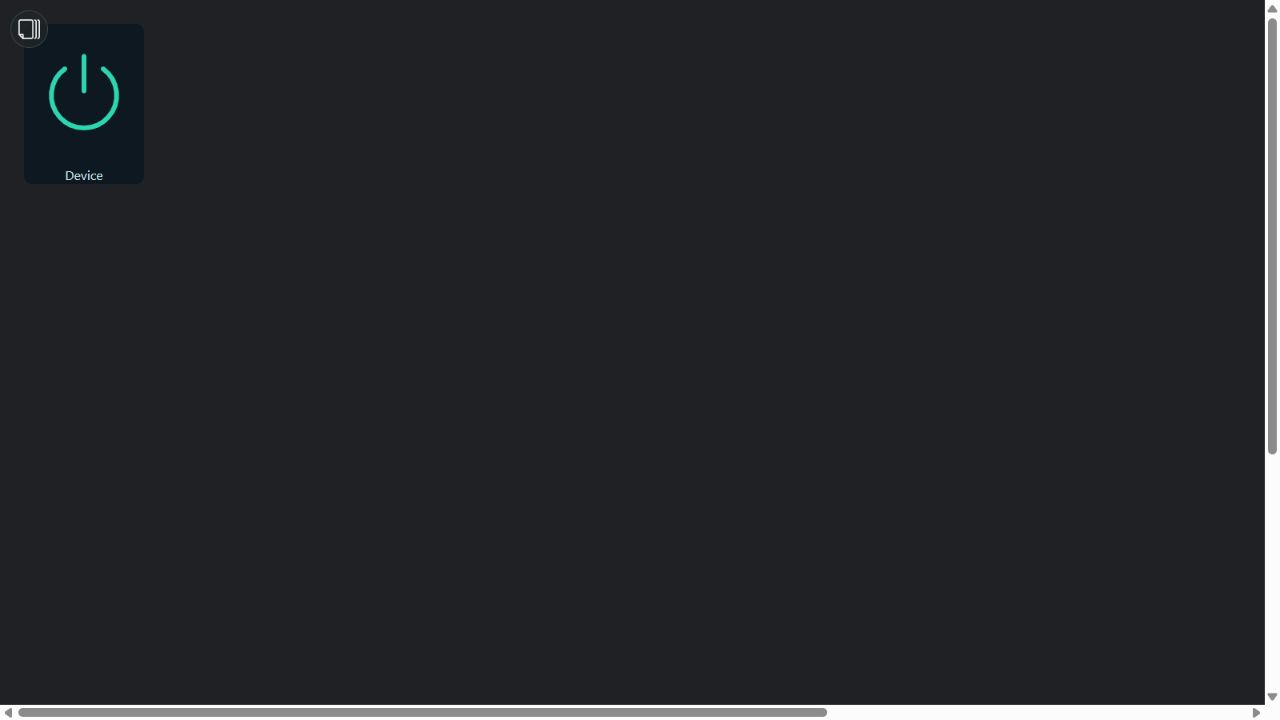
The switch follows the configuration options of tplTechnicSchalterBoolean. Defaults: Device, caption visible at the bottom, 120 × 160 pixels, Power symbol at 80%, ON color #2dd4b0, OFF color #5f8f8a.
Entity (ON/OFF) binds the HA entity. Value type → True / False reads on/off and controls available switch, light or input_boolean entities using turn_on/turn_off. 0 / 1 accepts only 0 and 1 and writes numbers to an input_number helper. Its limits and step must allow both values. Sensors remain display-only; unknown, missing or unavailable states cannot be switched.
Select icon offers all 16 symbol types: selection, desktop PC, power, bed lamp, hanging lamp, round hanging lamp, desk lamp, spots, RGB LED strip, table lamp, link, fan, key, smartphone, socket and TV. These are original geometric SVG drawings rather than copied graphic traces. ON/OFF colors and size are configurable. Selection shows its check mark only when ON.
Click the symbol in the runtime to toggle; the caption stays visible. Tab and Enter/Space support keyboard operation. Read-only blocks changes. Pending actions cannot be sent twice; failures show a message and allow retry. ON (preview) applies only to unbound editor widgets. All settings remain in project and widget exports.
Dimmer – Light
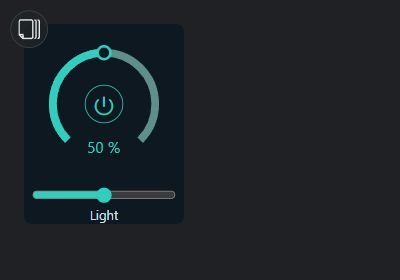
Follows the options of tplTechnicReglerLicht: caption Light, visible at the bottom, icon size 80%, 160 × 200 pixels. ON color is #2ecfbf, OFF color #5f8f8a, Dimmer background #0d1820. Size, colors and caption placement are configurable; the graphic is an independent SVG implementation.
On/Off: entity accepts light, switch or input_boolean. Brightness: entity (0–100) accepts a dimmable light entity or an input_number helper. For a normal HA light, enter the same light entity in both fields. The host converts HA brightness from 0–255 to percent. OFF displays 0%. A numeric helper should use min = 0, max = 100 and step = 1. Sensors can display values but are never written.
Link power and brightness is enabled by default: ON sets 100%, OFF sets 0%, dimming above zero turns ON. Both bindings must be available and writable. Binding the same light generates one HA call. Without linking, separate bindings remain independent; an HA brightness action using light.turn_on still turns that light on. 0% uses light.turn_off.
Drag the outer radial arc or use the range control with the keyboard. The value previews locally while dragging and is sent only on release. The center power button toggles ON/OFF. The caption stays visible. Read-only blocks actions; unknown or non-dimmable entities cannot be operated. Missing live values never use preview fallbacks. ON (preview) and Brightness (preview) apply only to unbound editor widgets.
The host validates all targets before the first write. Separate entities use sequential HA calls; a provider error can partially apply an action. Error feedback asks you to check the state before retrying. Pending actions cannot be sent twice. Operation was tested with simulated HA entities; real hardware needs separate verification.
Preview and export
Preview provides open-window, blind-position and manual-mode values. These apply only to unbound displays in the editor. Bound entities use live values. In runtime, unbound or missing values remain unknown and never use preview fallbacks. Editor clicks never trigger HA control actions.
All display settings, three entity bindings, inversions, preview values and read-only state remain in project and widget exports. Verification used simulated HA entities; real blind control needs testing with your hardware.