
Rules
Create a rule for a hallway light
1. Create the project
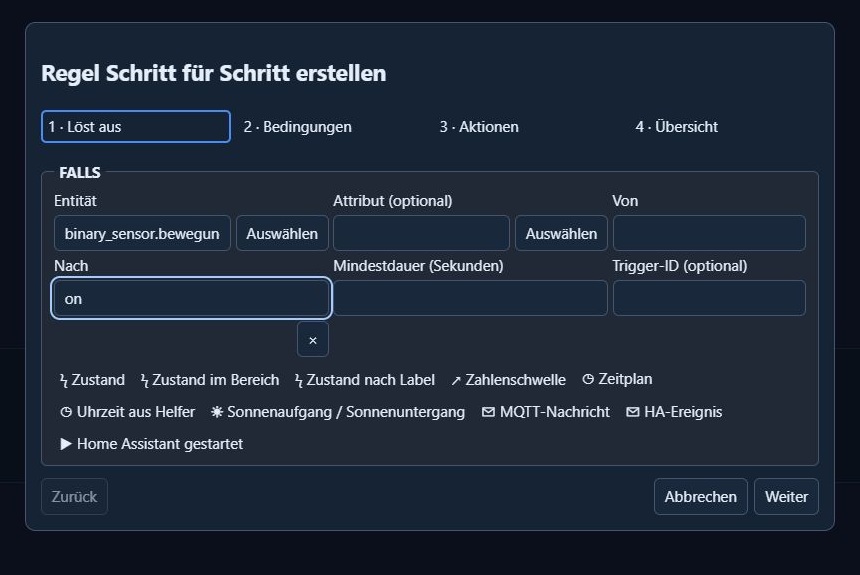
Choose New project → Rules, name it, then open the wizard. Its four steps cover triggers, conditions, actions and review.
2. Set the trigger
Choose State. Enter your motion sensor or first test helper as the entity. The demo uses binary_sensor.bewegung. Enter on in To and leave From, attribute and minimum duration empty. Click Next.
3. Skip conditions
Click Next in the conditions step. A condition is an extra check, such as limiting the rule to evenings. This example runs whenever the trigger matches.
4. Add the action
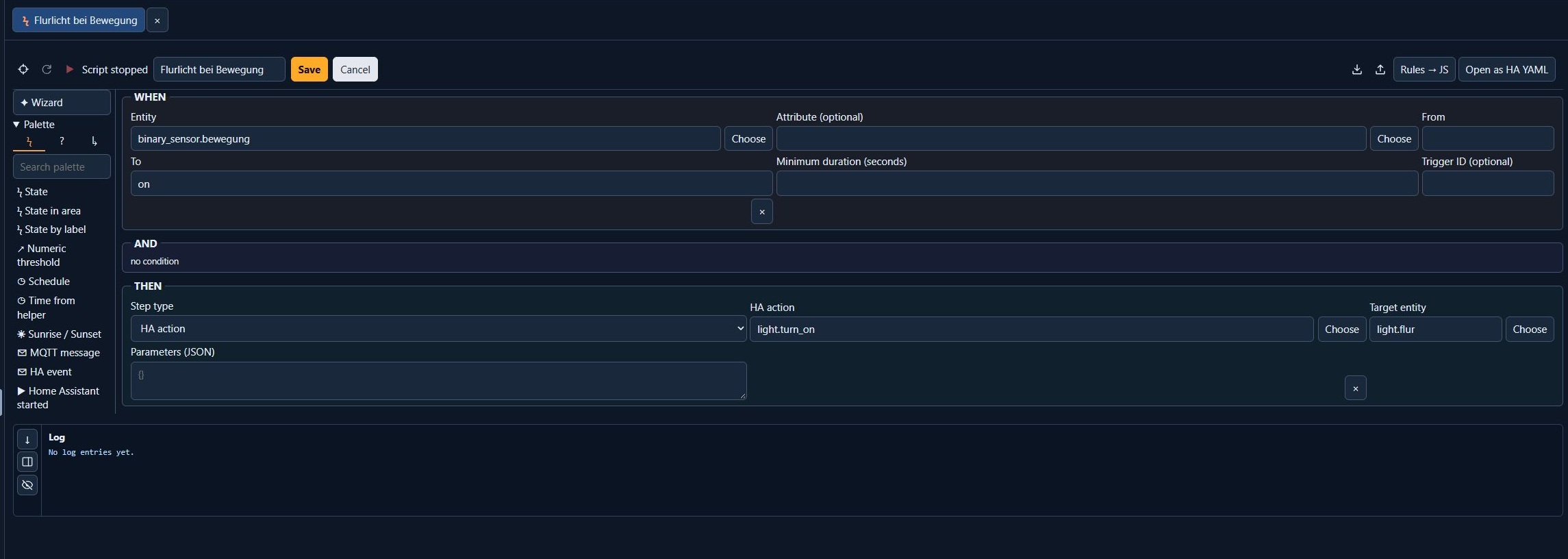
Under THEN, click + Add and leave the step type set to HA action. Set the action to light.turn_on and choose your test light as the target. The demo uses light.flur. For a second toggle helper, use input_boolean.turn_on instead. Leave ELSE empty and click Next.
5. Review and open the YAML
Check the entity and to: "on" under triggers. Check the action and its target under actions. Apply the wizard, save the rule, then use Open as HA YAML to review and export the draft.
6. Try it in Home Assistant
Add the reviewed automation to Home Assistant. Set the trigger entity to off, then to on. Check that the correct target turned on. The automation trace shows the trigger and action that ran.
Features
Wizard and palette
The wizard guides you through the rule. Search the palette or drag an item into the matching section.
Triggers
Choose a state change with from/to, attribute and duration, a numeric threshold, fixed or helper time, sun with offset, MQTT, HA event or HA start. Areas and labels group the selected entities.
Conditions
Check a state, number, attribute, time or weekday. AND requires all checks, OR any, and NOT reverses a check.
Triggered by
Assign IDs such as first and second and use the ID as a condition to select THEN or ELSE.
Template
In Expert mode, add a native HA template whose result decides whether the condition passes.
Actions and branches
Add actions in order. Choose a target and parameters, add a delay, wait for a state, call a script or send a notification.
YAML and Rules JSON
Use YAML in HA and Rules JSON to reopen the rule in the editor.
If something goes wrong
A threshold triggers again after the value leaves the range and re-enters.