
HA-YAML
First example
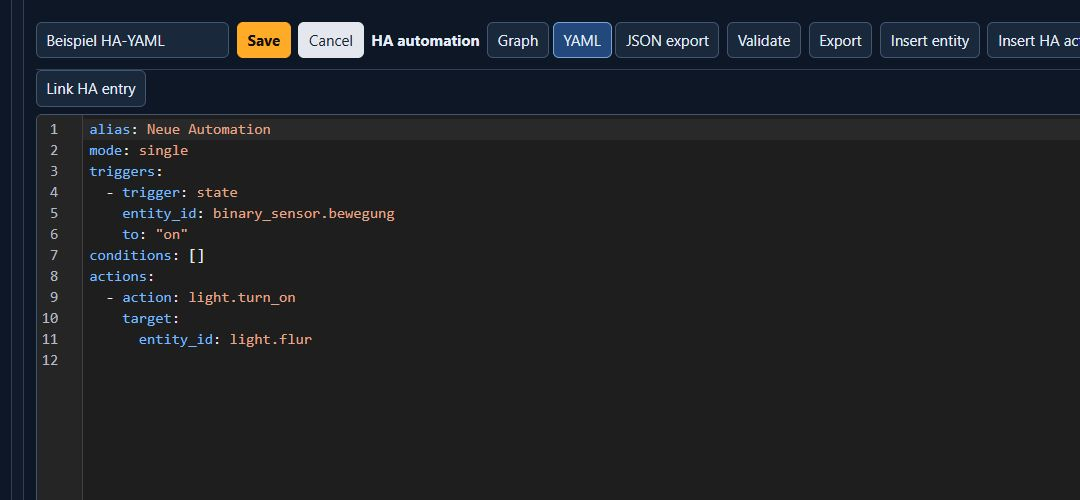
The template shows an automation that turns on a hallway light when motion is detected.
- Choose New project → HA-YAML, select HA automation, open the template and name the draft.
- Select YAML.
triggerscontains the state trigger.actionscontainslight.turn_onwithlight.fluras its target. Replace those entity IDs with your own when using the example in HA. - Click Validate. If a line is marked, read the diagnostic and correct that line.
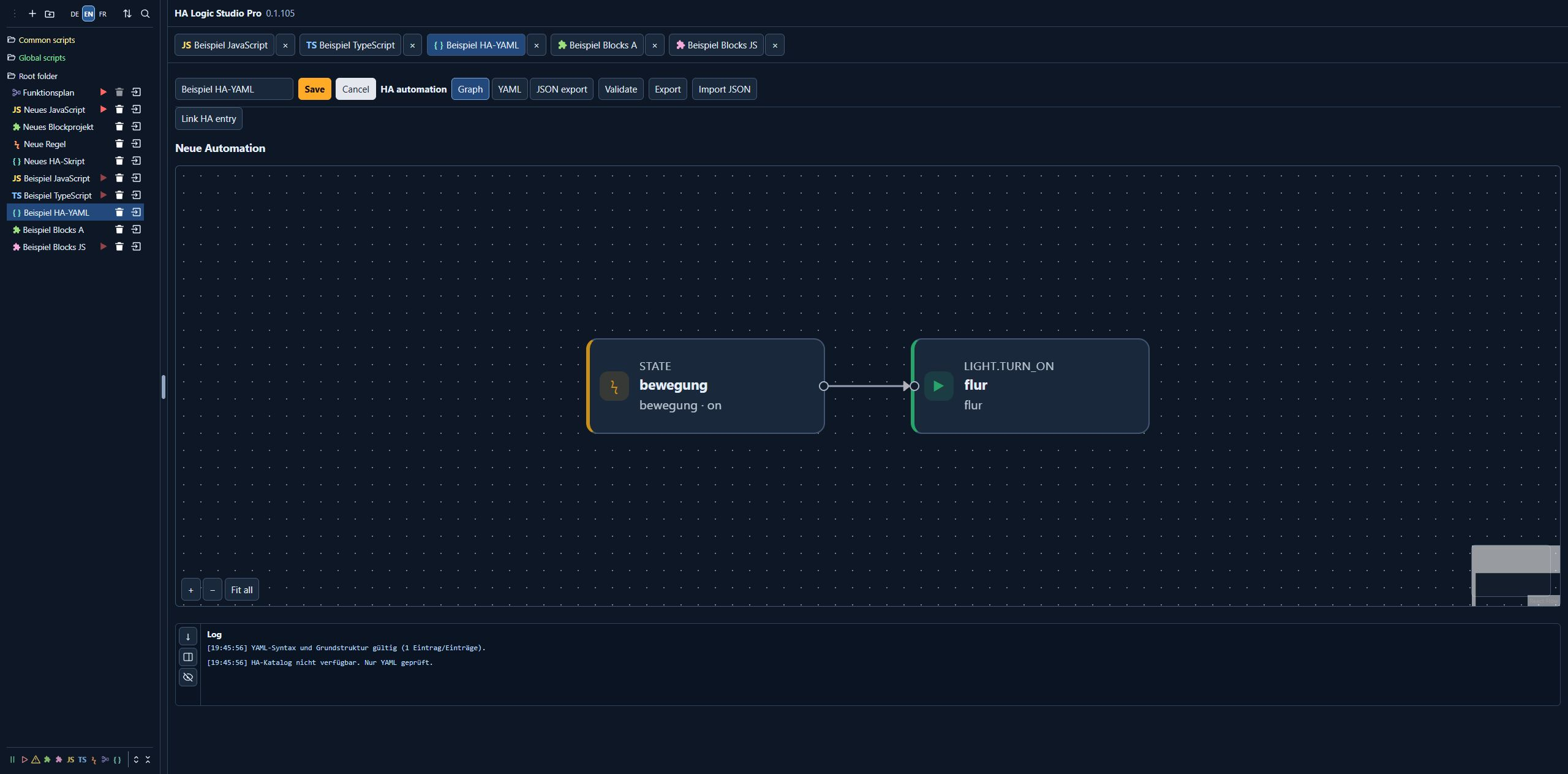
- Switch to Graph. The connection leads from the motion trigger to the light action. Export saves the YAML to a file.
Features
YAML and JSON import
Open or paste YAML. JSON import accepts HA automation data and compatible FLODE exports.
Syntax and structure
Colors aid reading. Checks mark syntax problems, unknown entities, invalid action fields and nested choose structure errors on the affected line.
Entity and action selectors
Put the cursor where the identifier should go, then choose the entity or action.
Graph
Pan, zoom or fit the automation. Labeled choose outputs identify the branches.
YAML and JSON export
Use YAML in HA and the JSON view for JSON export. An unchanged YAML draft can retain unknown fields and Blueprint data.
HA link
Optionally link an existing automation or script to view its status and use its available controls.
If something goes wrong
Check indentation and field names on marked lines. Edit the YAML to change the graph.