
Blocks JS
First example
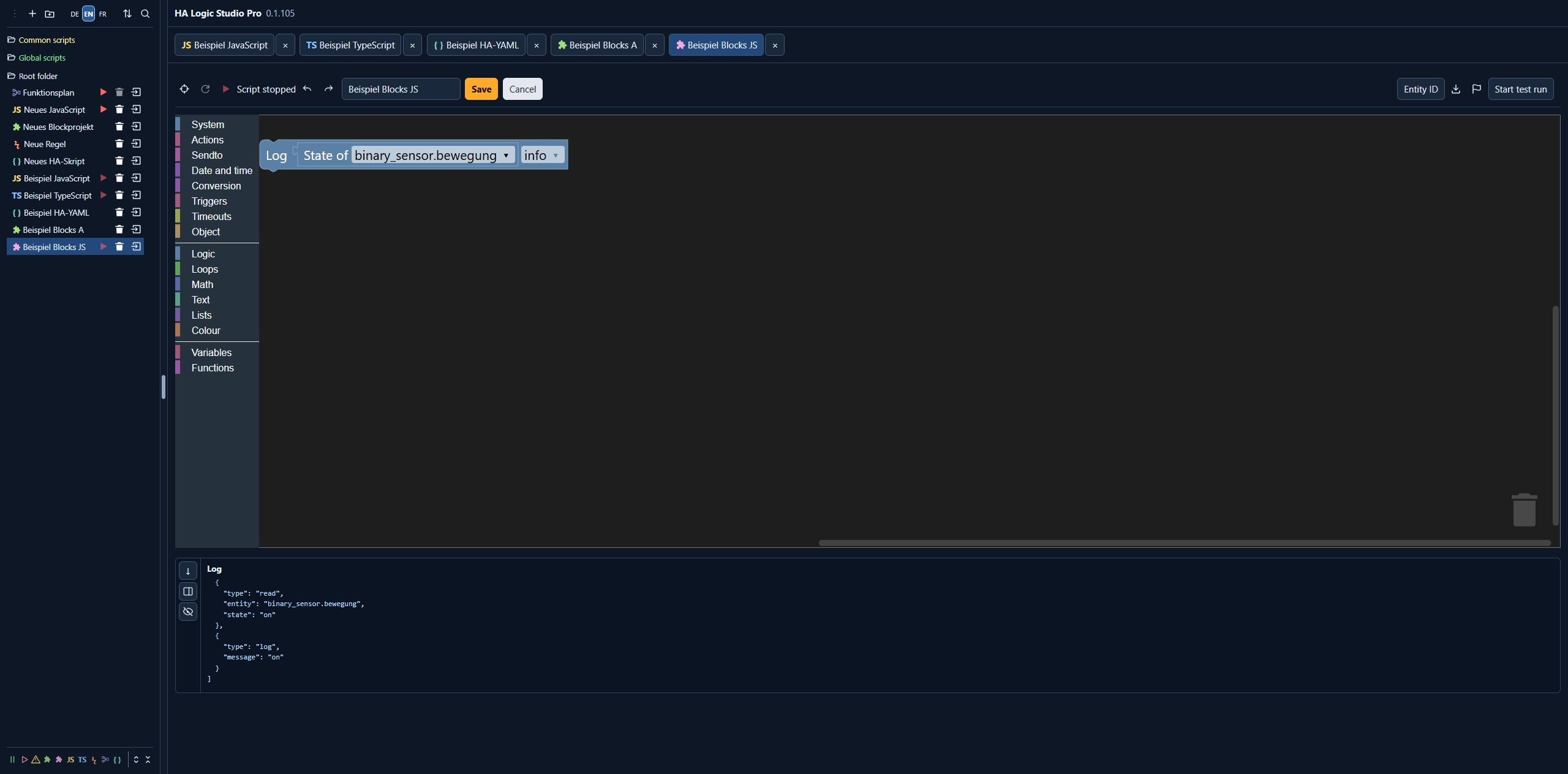
The test run reads a simulated entity state and writes it to the log.
- Choose New project → Blocks JS. Open System and drag Log into the workspace.
- Drag State of from the same category into the open input on the log block. Select your test entity. The screenshot uses
binary_sensor.bewegung. - Start a test run and open the Log. The demo shows the state and message
on. This script only reads and logs the value.
Features
System, Actions and Sendto
Read states, control approved targets, message scripts or query history. Dynamic inputs can use an entity ID from a loop.
Triggers, time and timeouts
Start on state changes, sun events or schedules. Use simple and named CRON jobs, delays, intervals and stop blocks.
Value blocks
Conversion, objects, logic, math, text, lists and colors produce values. Loops repeat operations.
Variables and functions
Use variables for intermediate values and functions for reusable steps and return values.
ioBroker import
In Expert mode, paste the export and check the report. Map entities explicitly and read each block's guidance.
Check whether a computed ioBroker ID exists
If your ioBroker script builds an ID from several text fragments, use the imported state_exists_var block to check it.
- In the import review, enter the complete computed ioBroker ID and its HA entity ID in ID mapping (JSON), for example
{"0_userdata.0.garden.pump":"switch.garden_pump"}. The imported block also has this field. - Allow the mapped entity under
runtime_read_entitiesin the app settings if it has no write permission yet. - Save the project and select Play. An existing HA entity returns
true, and a mapped entity that is absent returnsfalse. If the computed ID has no entry, the run stops and the log names that ID. Add the mapping on the block and run it again.
Import an ioBroker data point as an HA helper
If your Blockly export includes the Create data point block (createState), you can store its value in a Home Assistant helper. The helper appears in Home Assistant under Settings → Devices & services → Helpers.
- Open Expert tools → Paste ioBroker export, paste the export, and check the import.
- Choose one of the three options for the ioBroker ID:
- Map helper uses an existing helper and keeps its current value.
- Create helper suggests a toggle, number, or text helper based on the data type. Check and confirm the name. Creating it requires an HA administrator account. A supported fixed initial value is applied once. For a calculated initial value, you can prepare a helper in HA and map it yourself.
- Map later leaves the mapping open. Open the project and select a compatible HA entity in the imported block before starting the script.
- Check that the blocks that create, read, and update the same ioBroker ID all point to the same HA entity. Open the import as a project and save it.
- Allow the helper in the app options under
runtime_read_entitiesand also underruntime_write_entitiesfor updates. Use Play to start the saved script. The script reads the helper’s current value, including changes you make in Home Assistant.
The example creates a number helper with 17. On the first start, the script logs 17 and writes 42. After a script restart, the log shows 42. This verifies that the initial value was applied only when the helper was created. Blockly example
Imported HTTP blocks
Select an approved HA REST command for the URL, timeout and request headers. The imported POST Content-Type is shown in the block.
Test run and Play
Use simulation first. Save before Play and check actual results in the log.
Check an import step by step
- Enable Expert mode in the project menu. In the editor, open Expert tools → Paste ioBroker export.
- Paste Blockly XML or an ioBroker JavaScript export with embedded Blockly data. Check the import and read which blocks need a mapping.
- Open the import as a project and resolve the guidance on the affected blocks. For example, select the HA REST command that defines the headers and timeout for an imported POST.
- Save and start with a test run. Use Play for live execution, check the log, and press Stop when finished.
If something goes wrong
Replace or adapt unsupported placeholders before running the script.